Table of Contents
Naked Action 6 DIY Manual
General Information
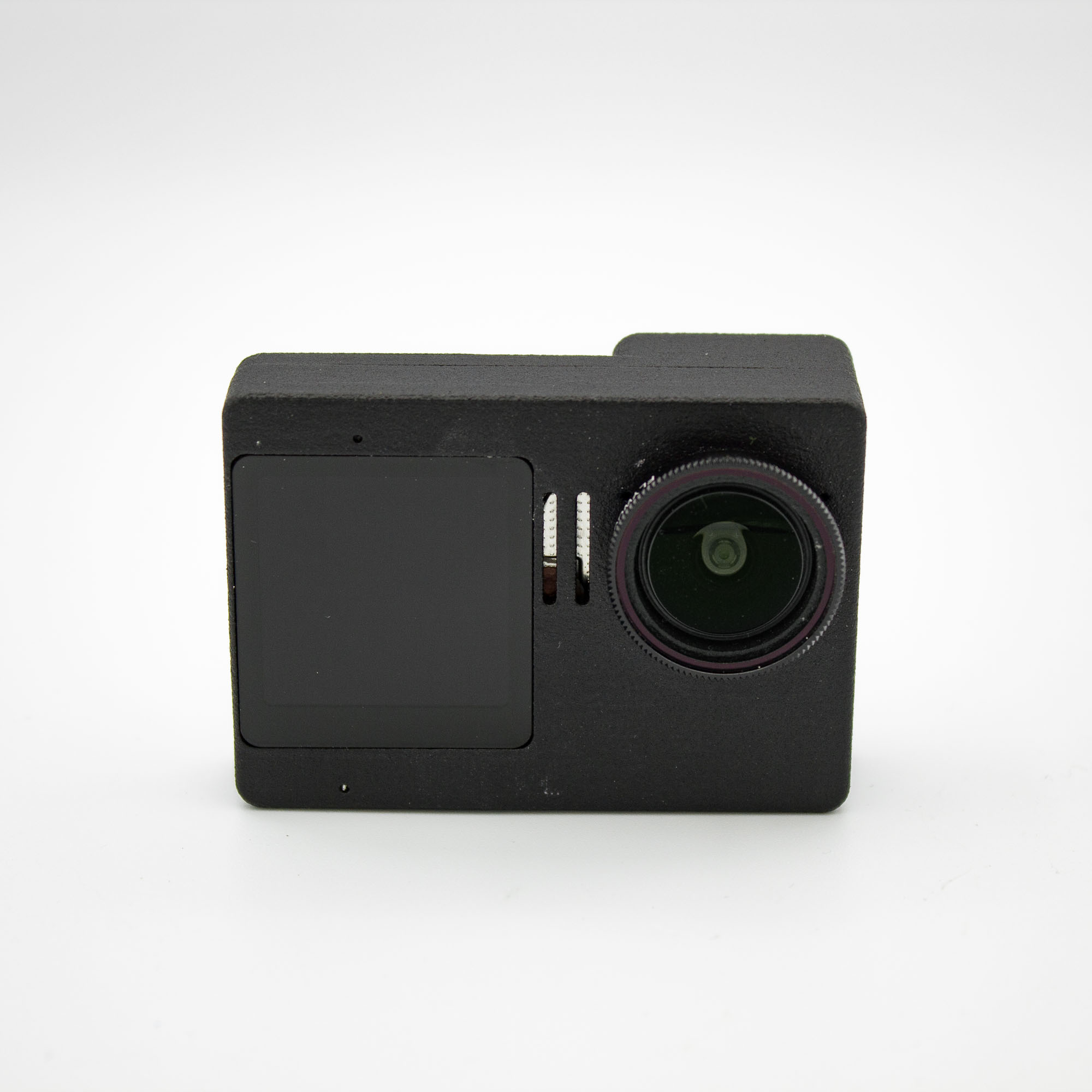
This manual shows you how to build a naked DJI Action 6 Pro camera with the FPVFrame.ch DIY Kit. This manual is still a work in progress. The modding of that camera is for advanced users only and you are risking breaking your camera. Please read all the steps carefully and take your time to increase you chance of sucess. Also make sure you have all the required tools before you start the build. Happy building and if you are in doubt don't hesitate to contact support.
Content of Shipment
- 1x BEC
- 1x FPC
- 1x 5v Fan
- 1x Front Case
- 1x Back Case
- 1x 3D Printed Lens Bracket Adapter
- 1x 3D Printed Lens Bracket Mount
- 1x Alu ND Filter Mount
- 1x Alu Mounting Bracket
- 1x 3D Printed Slide-in TPU Mount
- 2x M1.4x3mm screw
- 2x M1.4x4mm screw
- 2x M1.4x8mm screw
- 4x M1.6x8mm screw
- 1x M1.6x12mm screw
- 1x M1.6x16mm screw
- 2x M2*5mm screw
- 3x M2x6mm screw
- 3x M2x3mm insert
Tools needed
- Soldering Iron
- Solder
- Solder mask
- PH0 Screwdriver
- M2 Screwdriver
- Cutter Knife
- Hobby Knife
- Plastic Spudger
- Pliers
- Heavy duty side cutters
- Tweezers
- HotAir Gun
- HotGlue Gun
- Plastic Spudge
- Kapton tape
- Thin double sided tape
- AWG 28 or 30 silicone wire in the colors red, black and white
- 2K Epoxy
- Power Drill
- Drill bit at least the diameter of your PH0 screwdriver
Thingiverse link
All public files can be found on Thingiverse with this Link:
Safety information
A lot of steps require cutting with knifes. Please be careful and wear eye protection. Some steps require soldering. Make sure to use a ventilation setup or solder in a well ventilated area. For gluing in the front display you have to use some 2k epoxy please regard the safety instructions of the glue you are using. Same for the solder mask required in one step.
Preparation
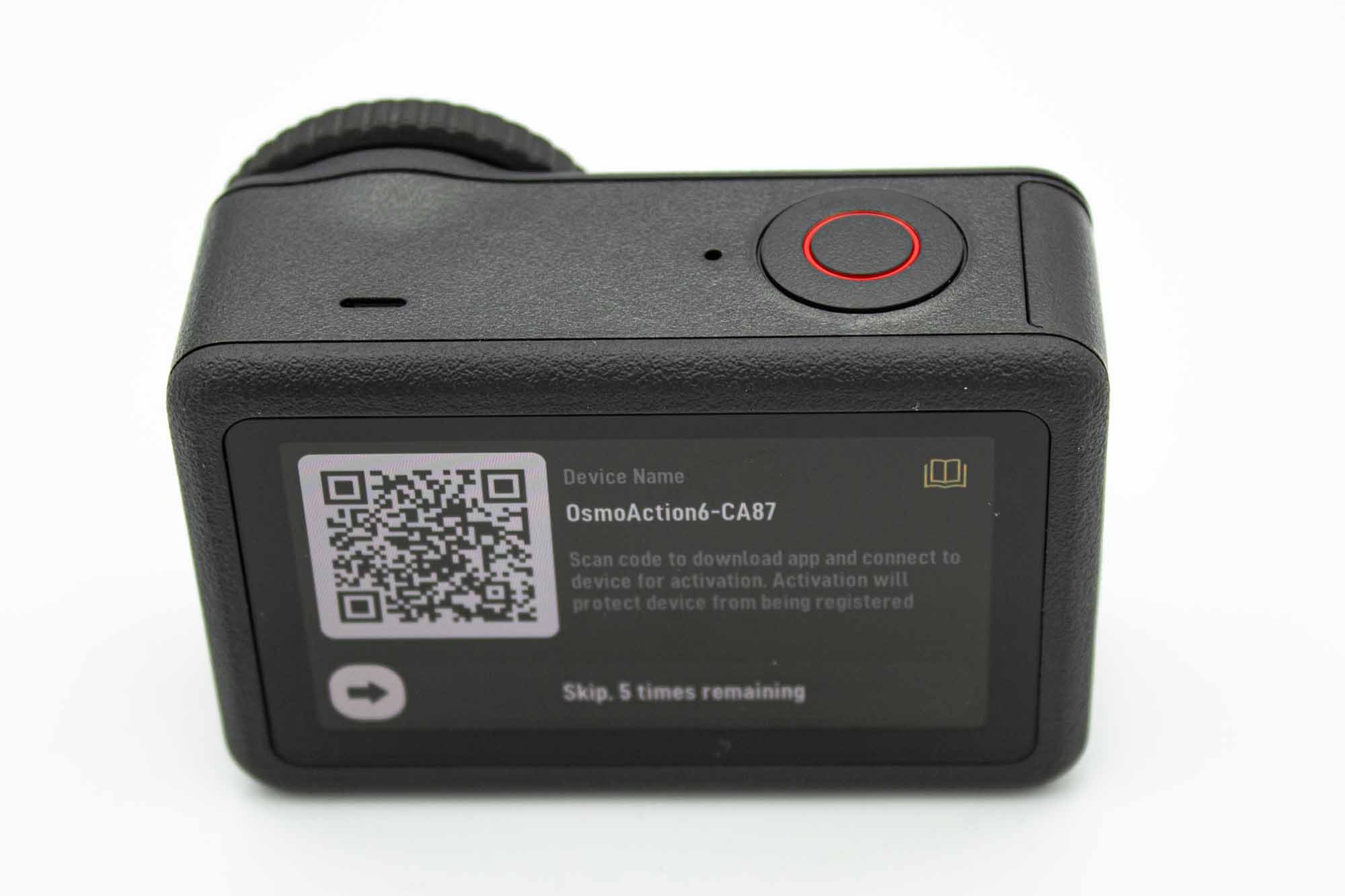
- Start by adding the battery to the camera and powering it on.
- Download the latest app onto your device and connect it to the camera.
- Activate your device and set date & time.
- Update your camera to the latest available firmware.
- Test your camera's functionality before proceeding with disassembly.
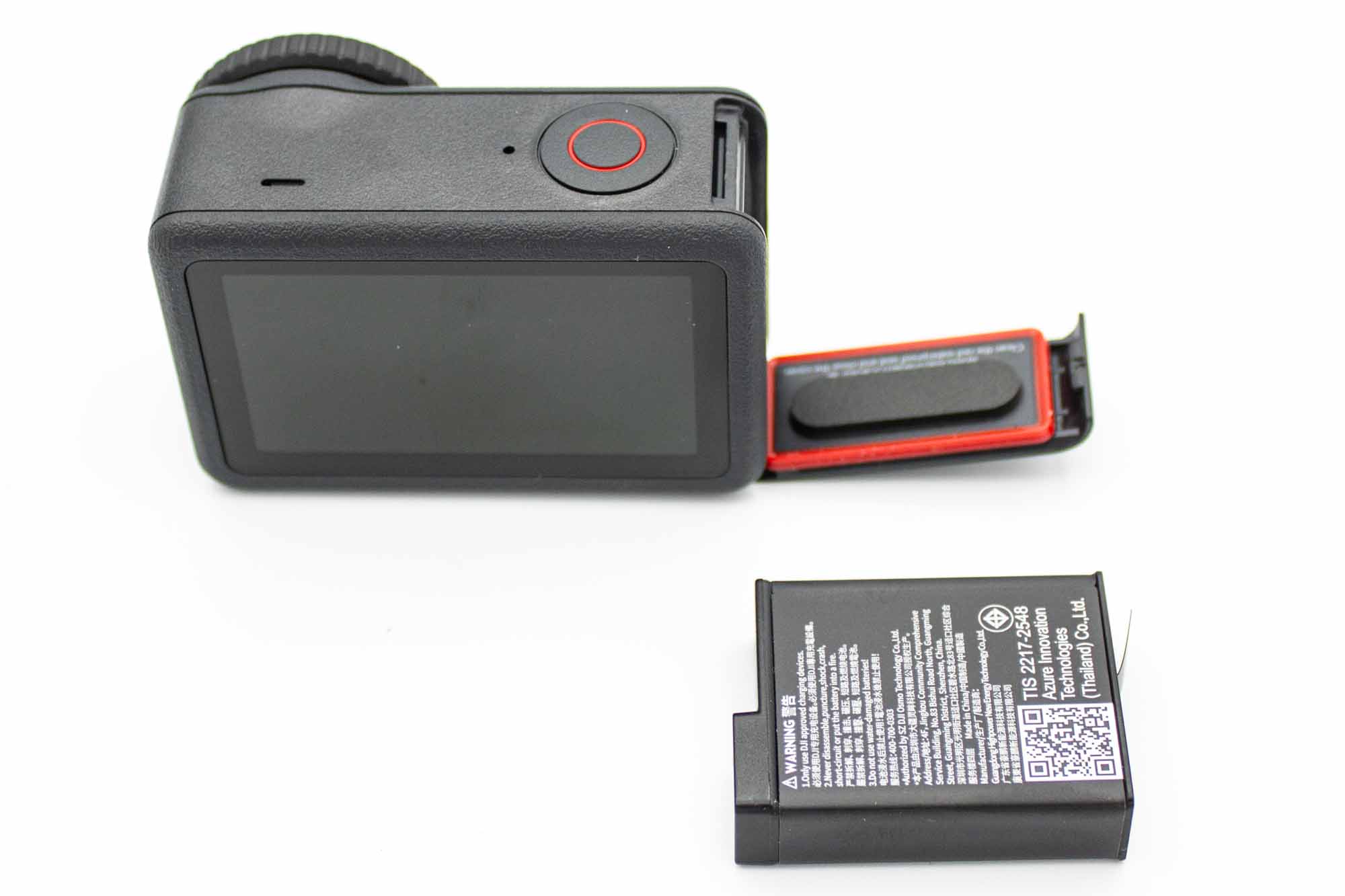
- Power off the camera and remove the battery from the camera.
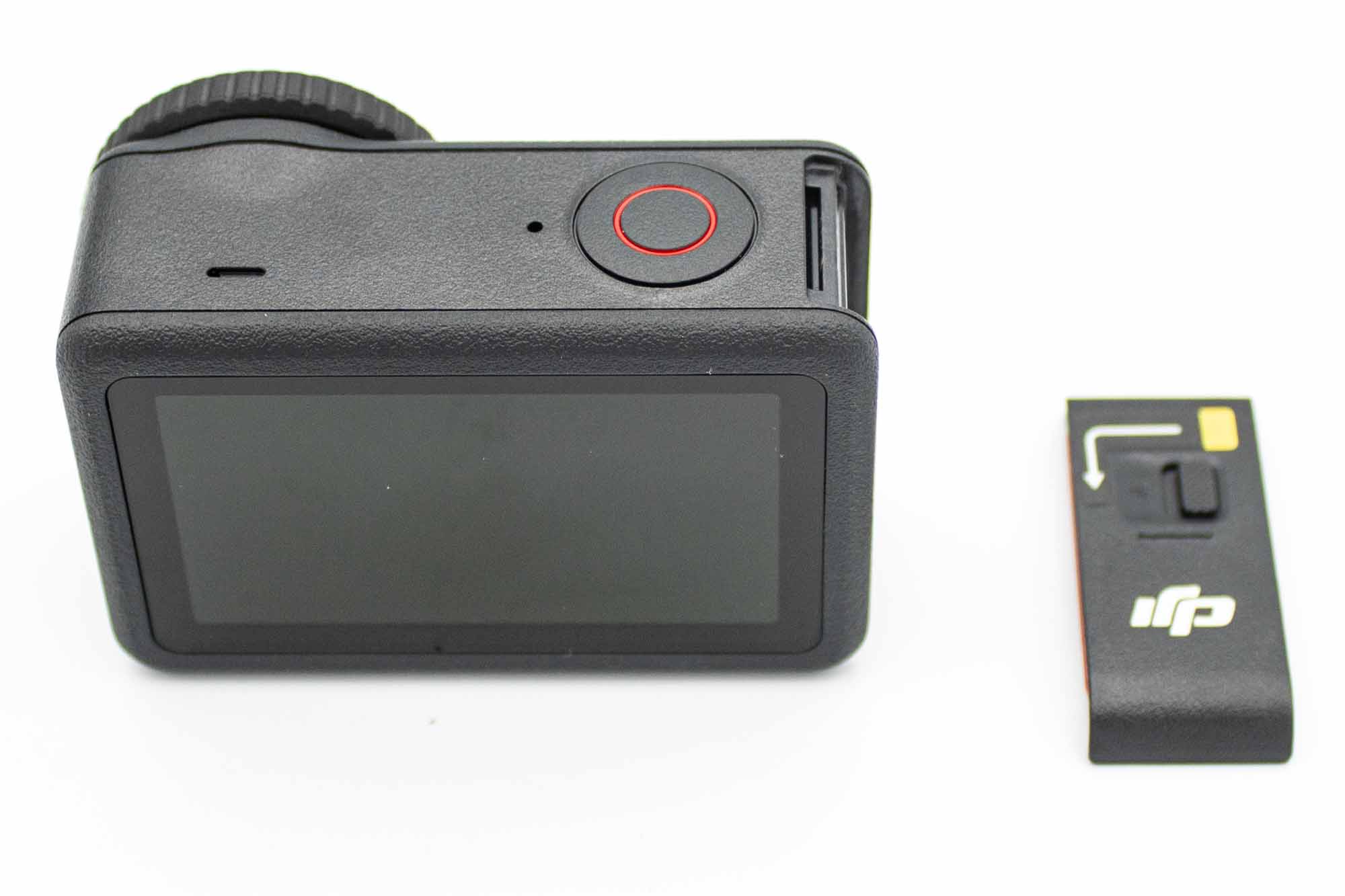
- Remove the battery latch by opening it and pulling at a angle.
Disassembly Steps
Step - Remove the Display
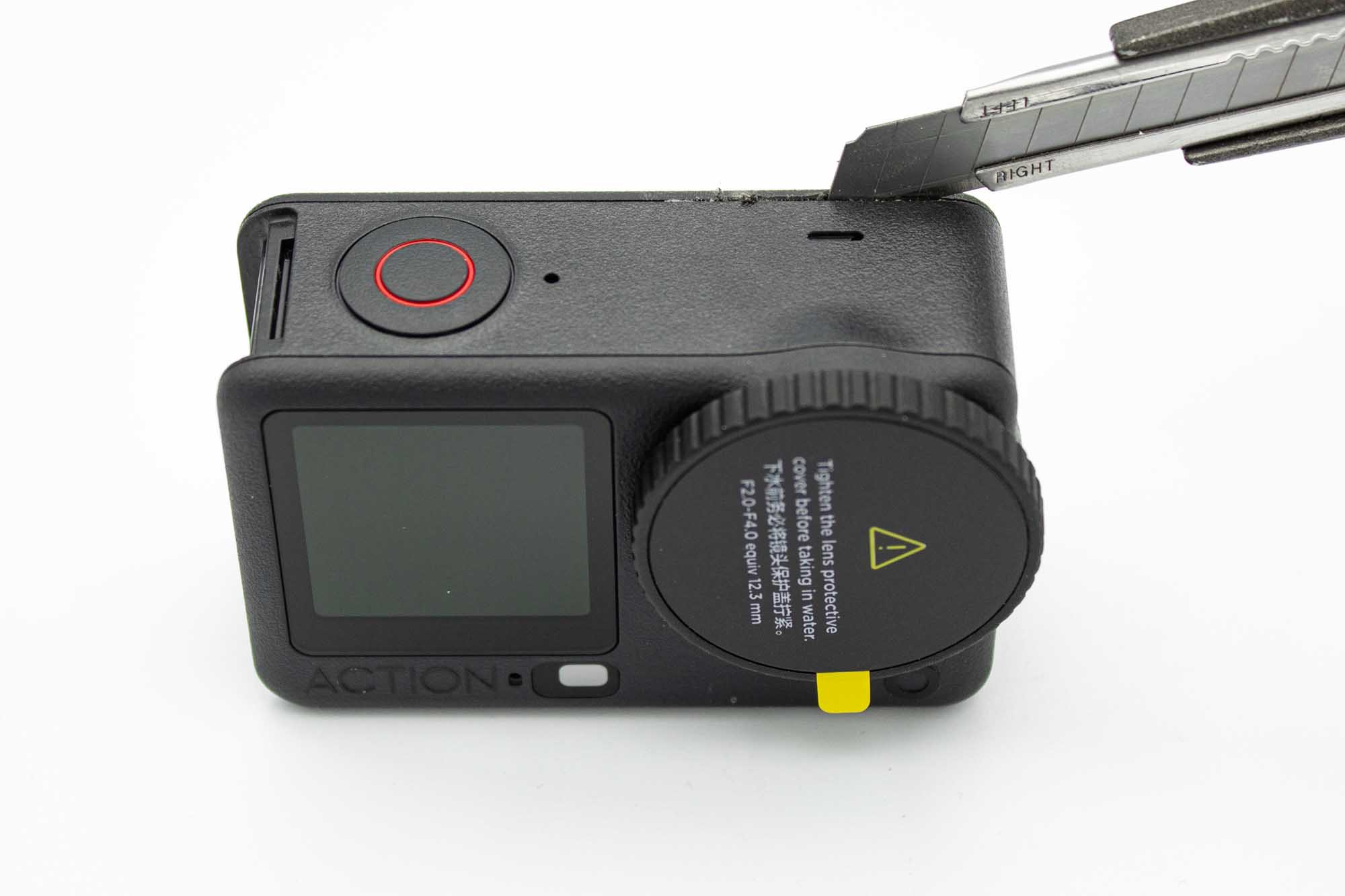
- Start by using a cutter knife and remove some material between the case and back display.
- Slide along the seam of the back display.
- Adding heat with a heat gun can make this step easier.
- Cut along the left, top and right side of the display, do not cut the bottom side of the display in order to not have any chance to damage the display ribbon cable.
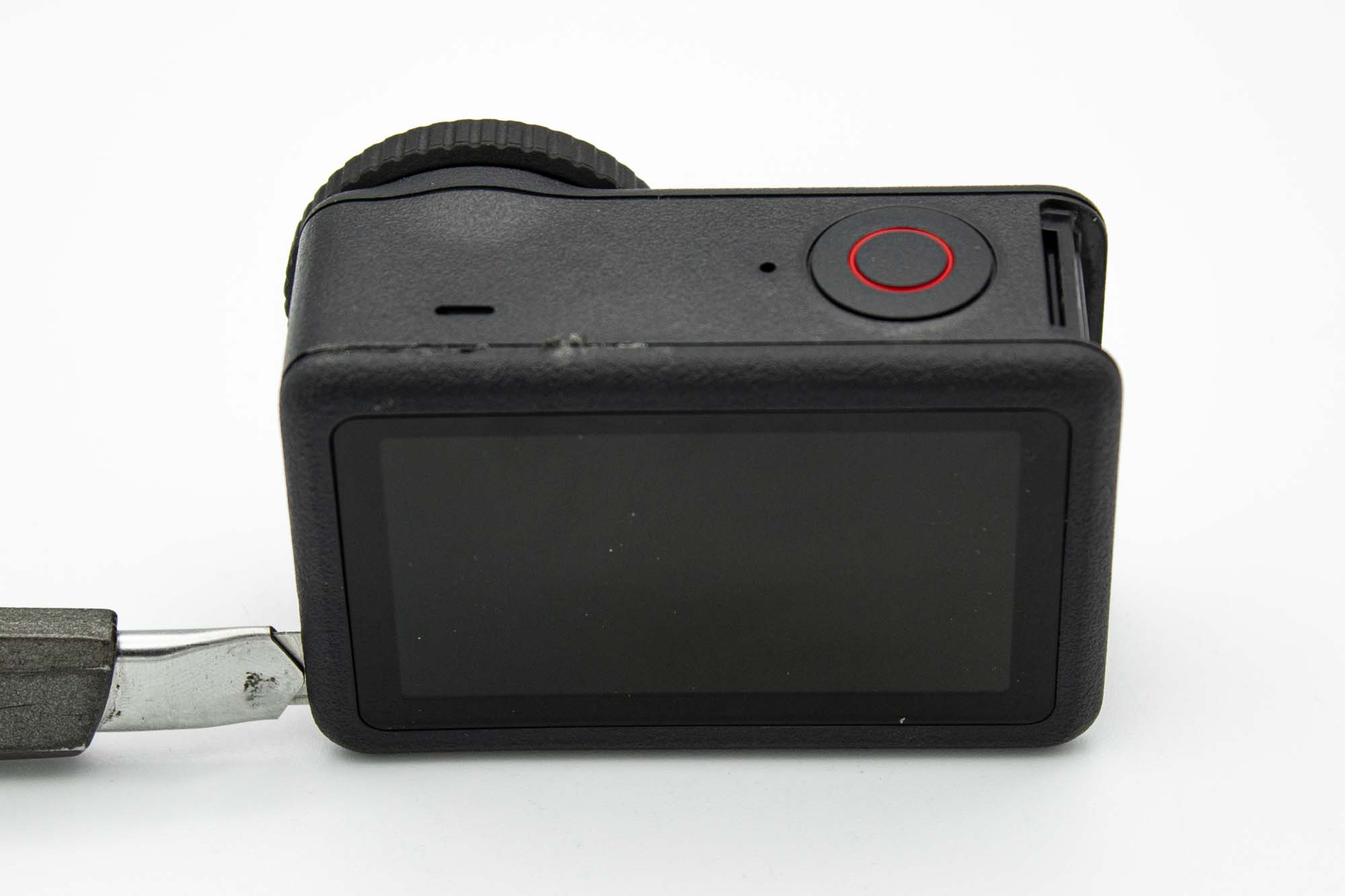
- Cutting down the left side of the display.
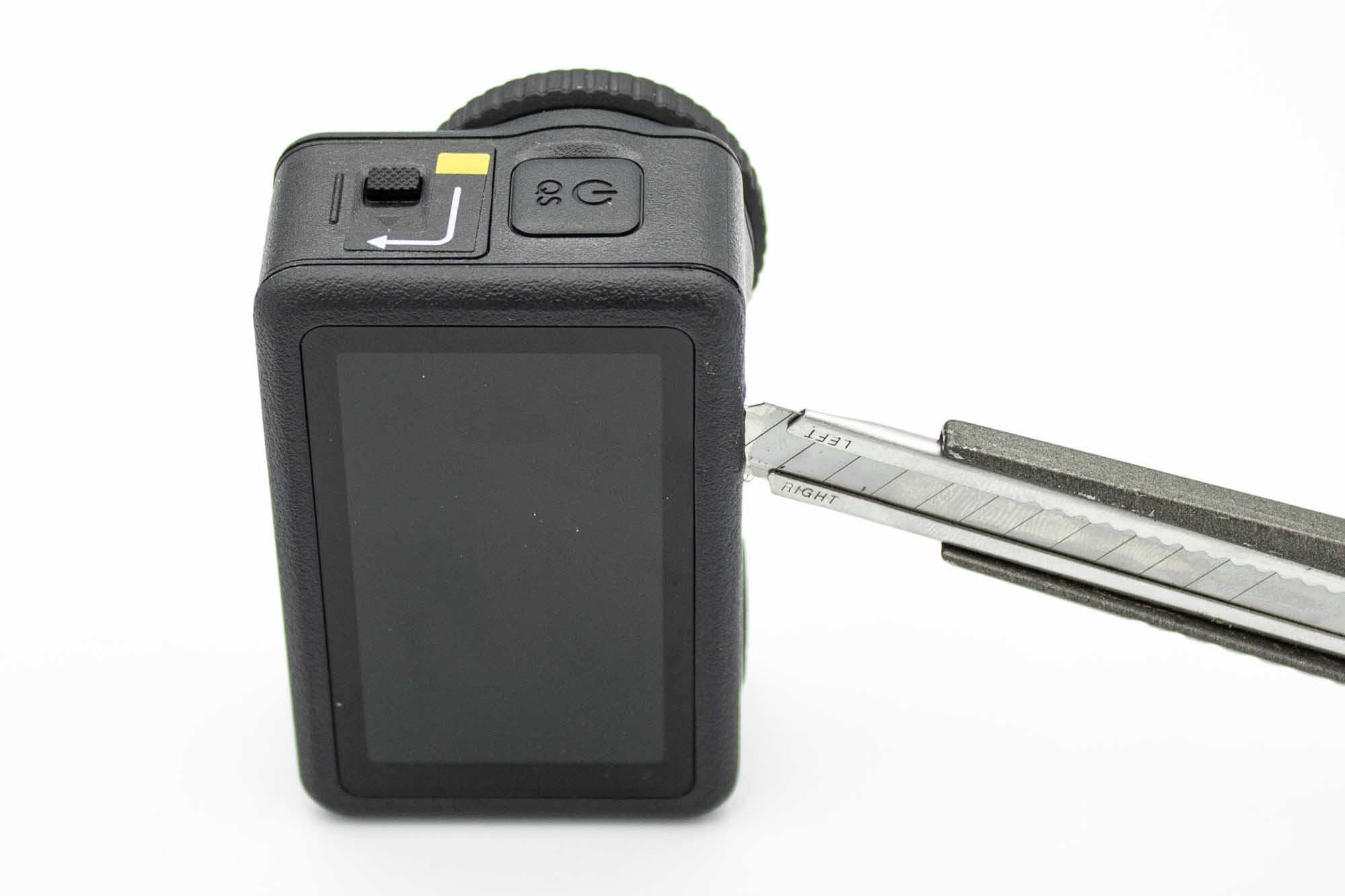
- Reinsert the knife on top facing the opposite direction.
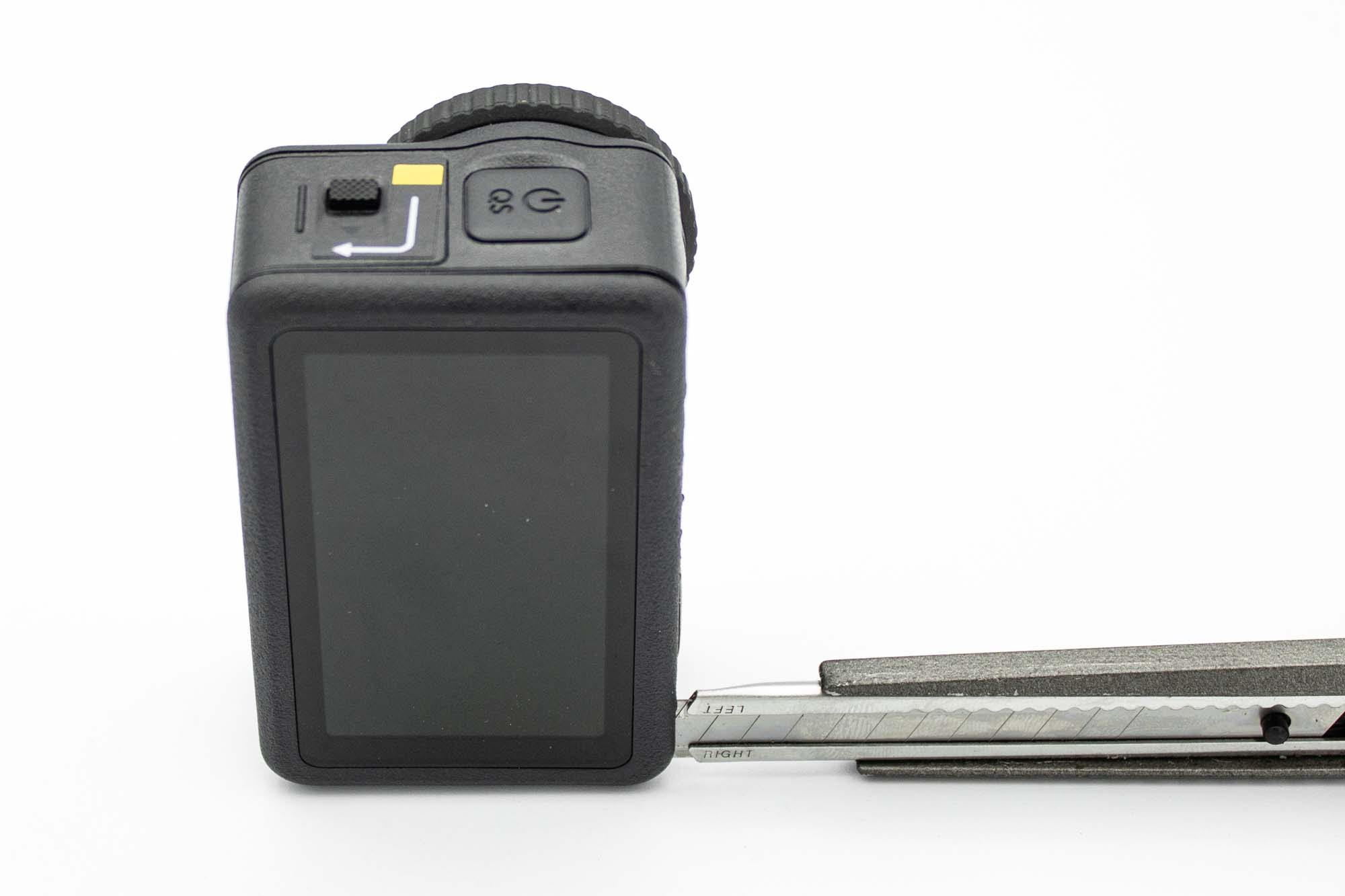
- Cutting down the top side of the display.
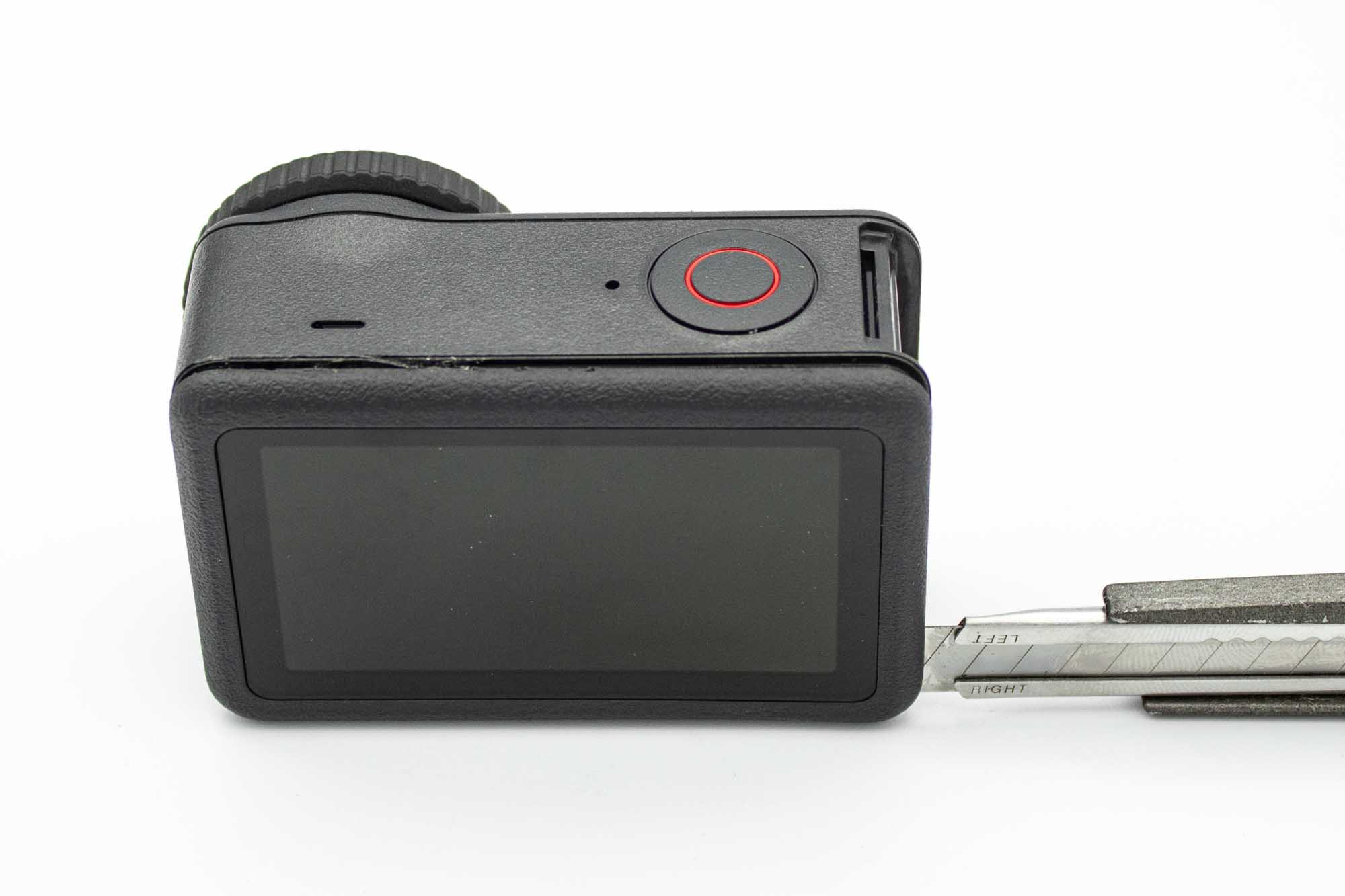
- Cutting down the right side of the display.
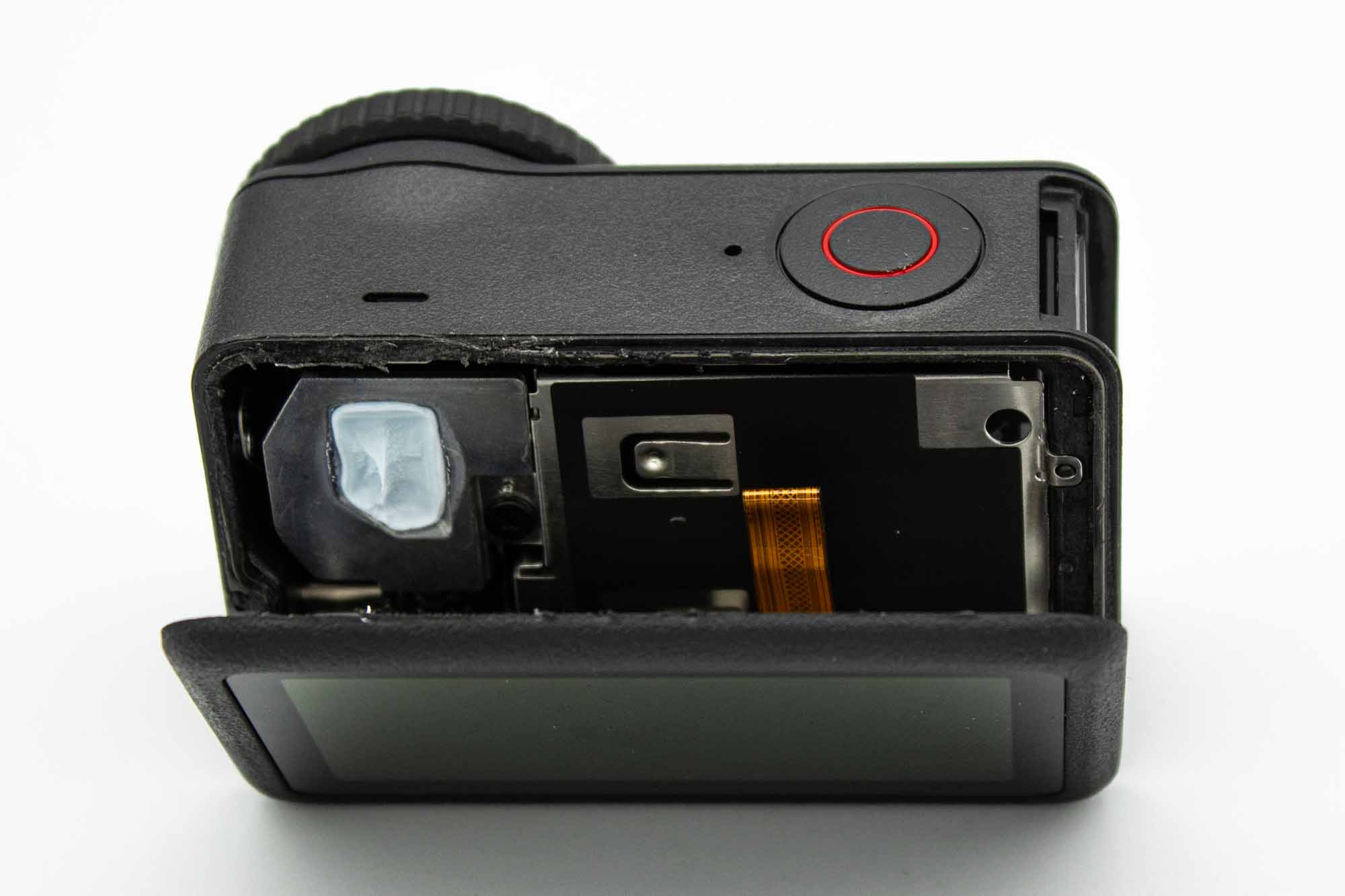
- Once you cut all three sides you can then fold up the display along the bottom edge.
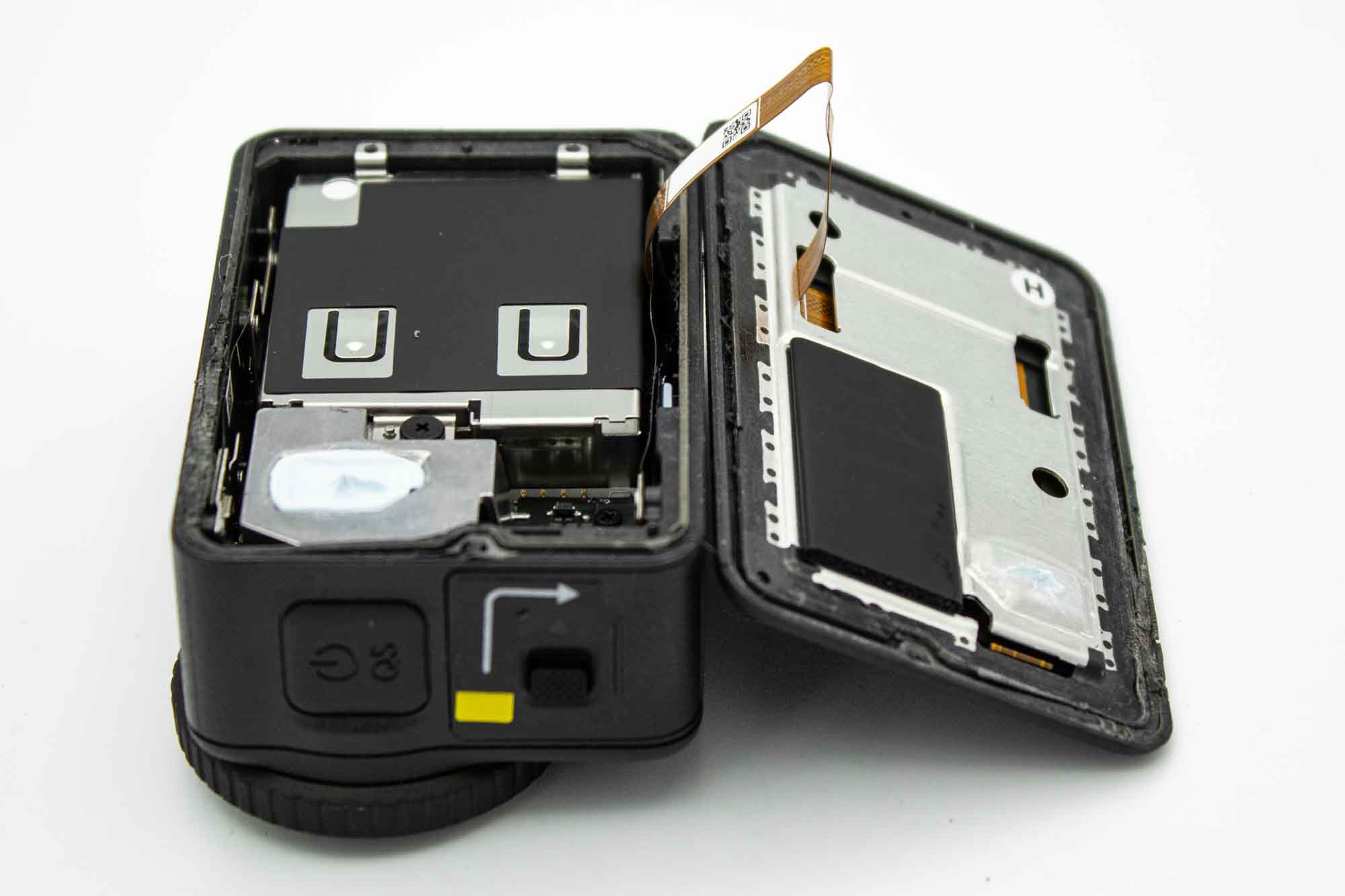
- Once folded up the display you can remove it completely.
- The flat ribbon cable connecting the back display to the motherboard is still connected.
Step - Remove the Battery Bay
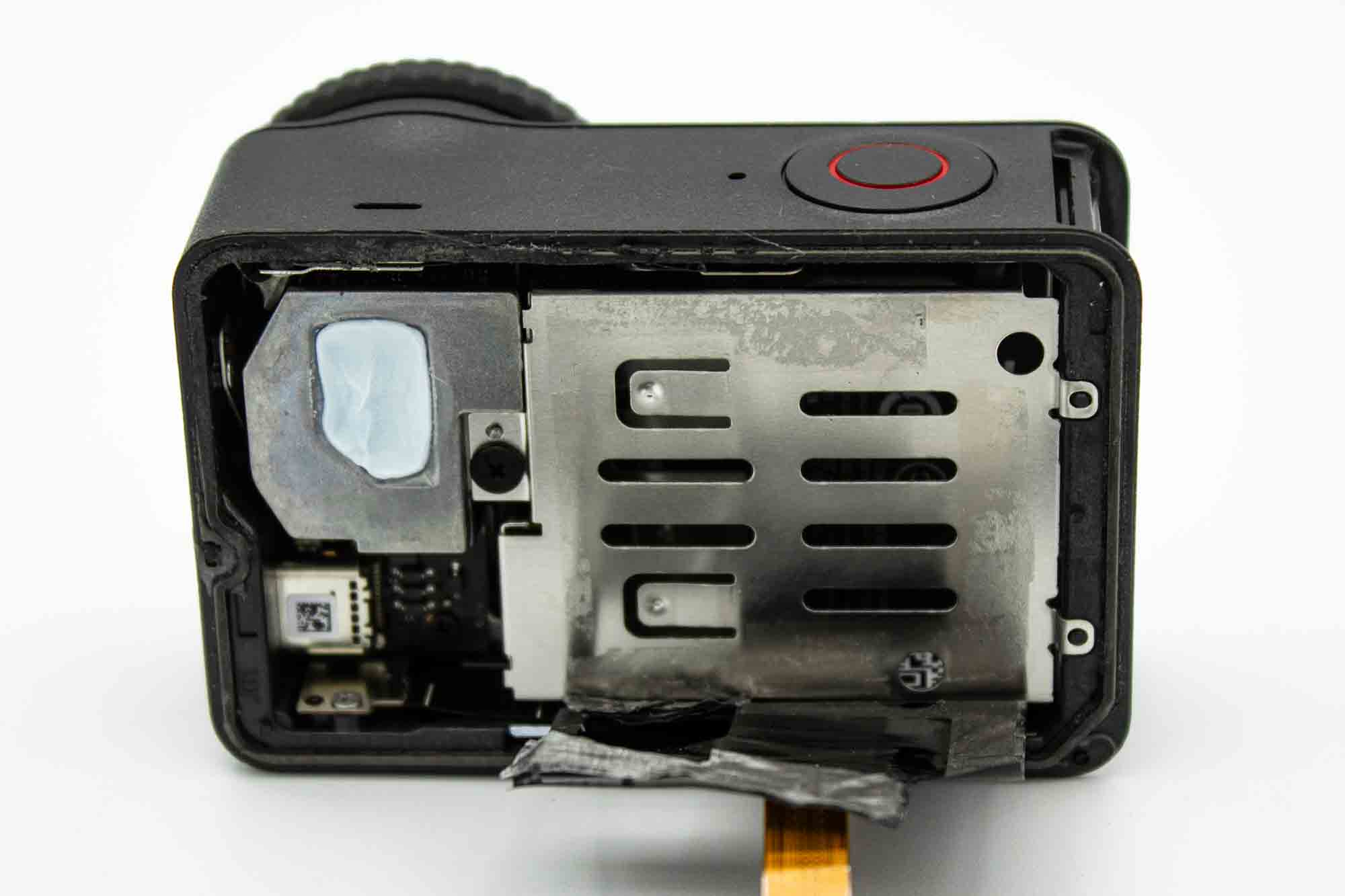
- Remove the sticker ontop of the battery bay by pulling it down. The screw holes will show up underneath.
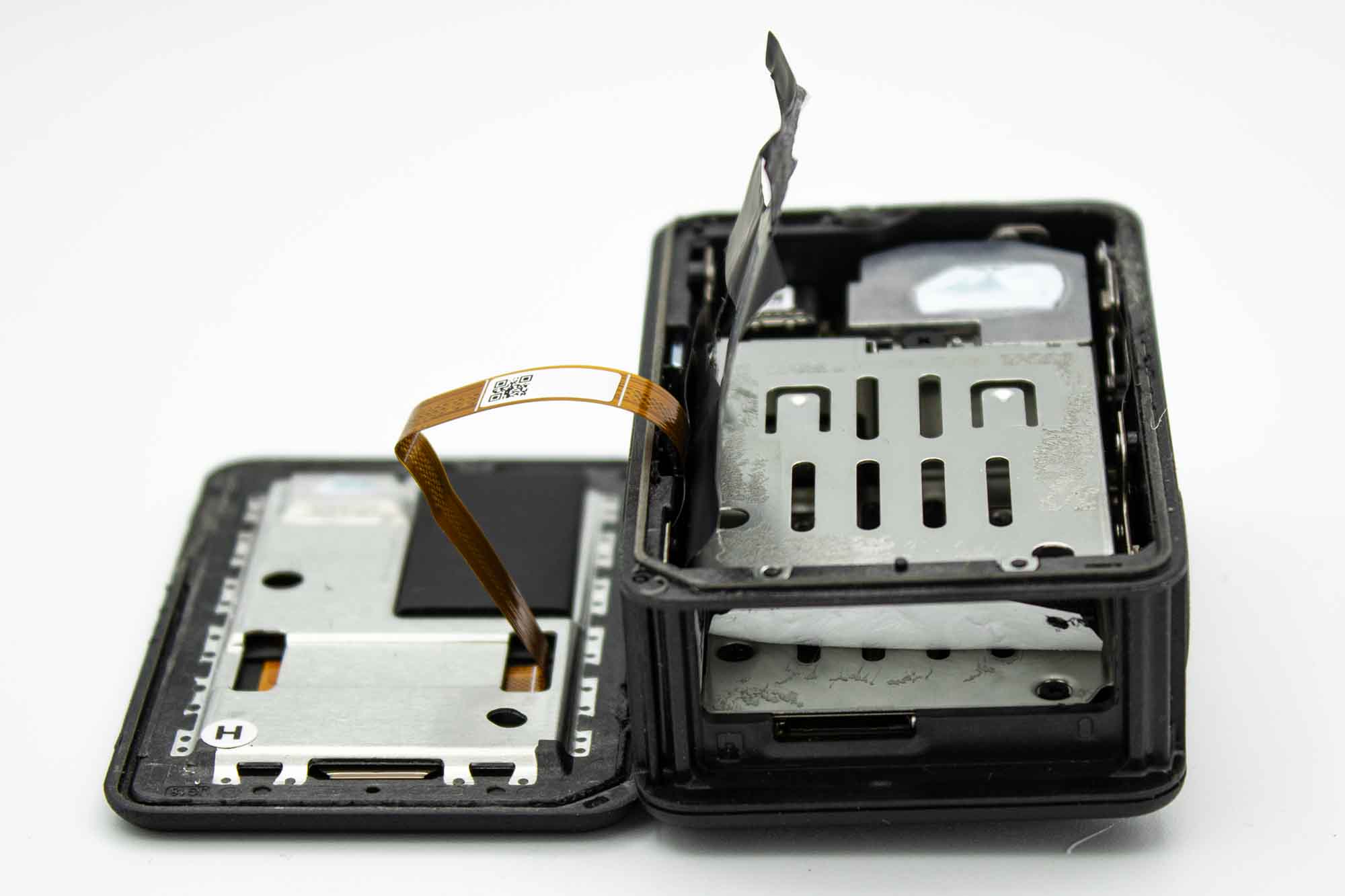
- Remove the sticker hiding the screws in the battery bay. Alternatively, you can poke holes with a screwdriver to access the screws.
- Use a PH0 screwdriver to remove the three screws from the battery bay.
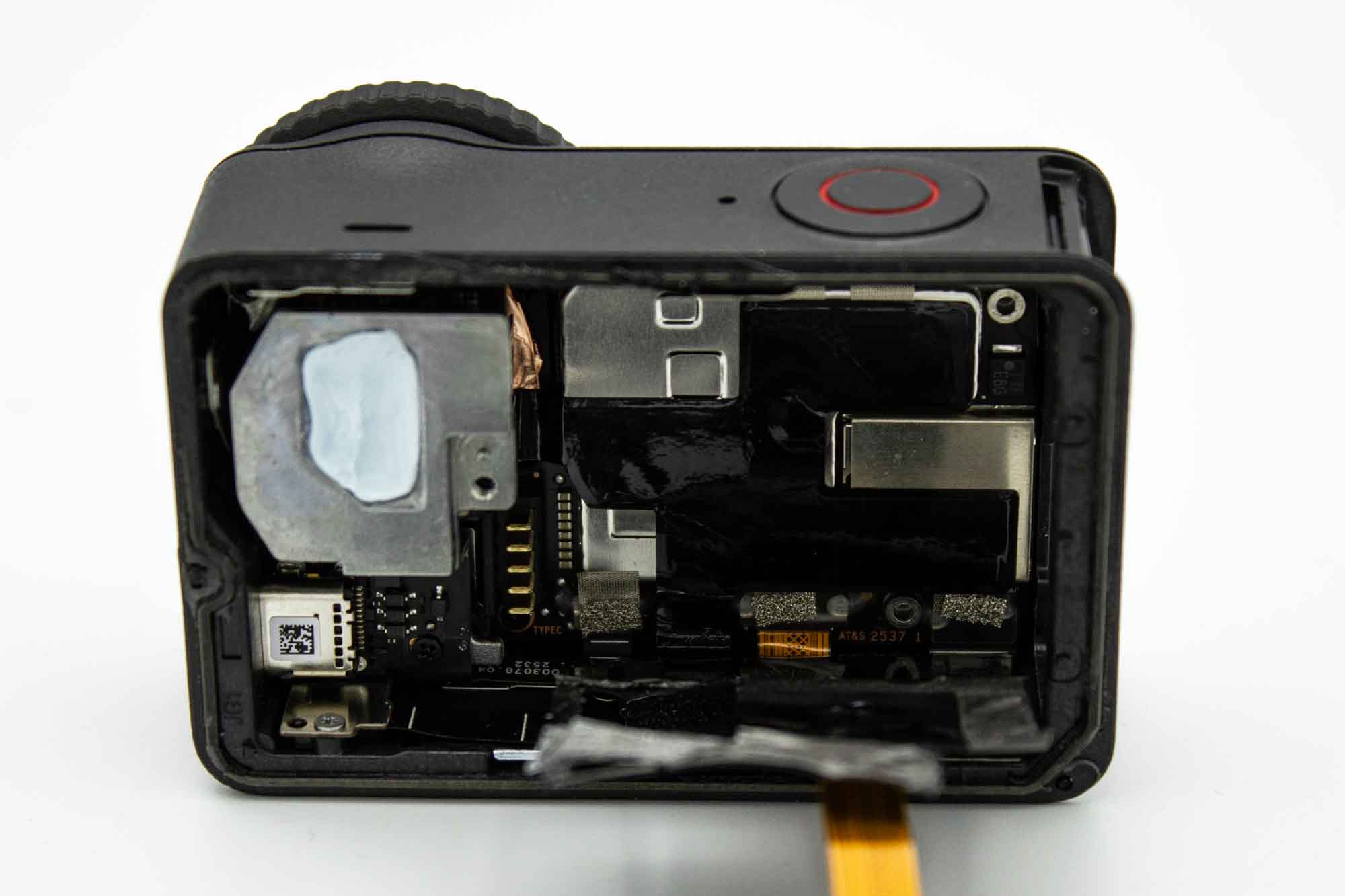
- Lift and remove the battery bay, putting one finger through the cutout for the battery will help.
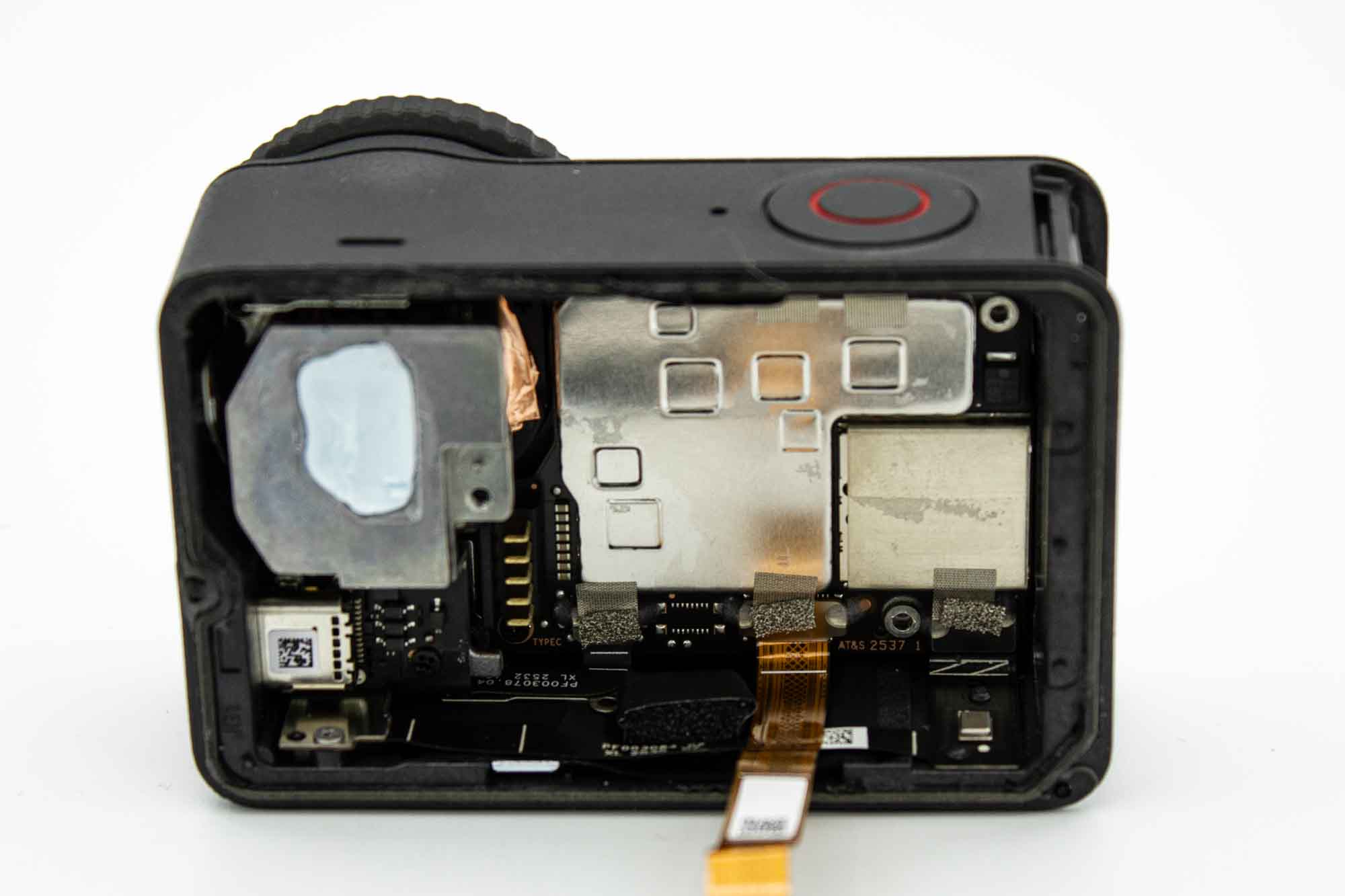
- Remove the sticker on the motherboard heatsink.
- The camera should now look like this.
Step - Disconnect Ribbon Cables
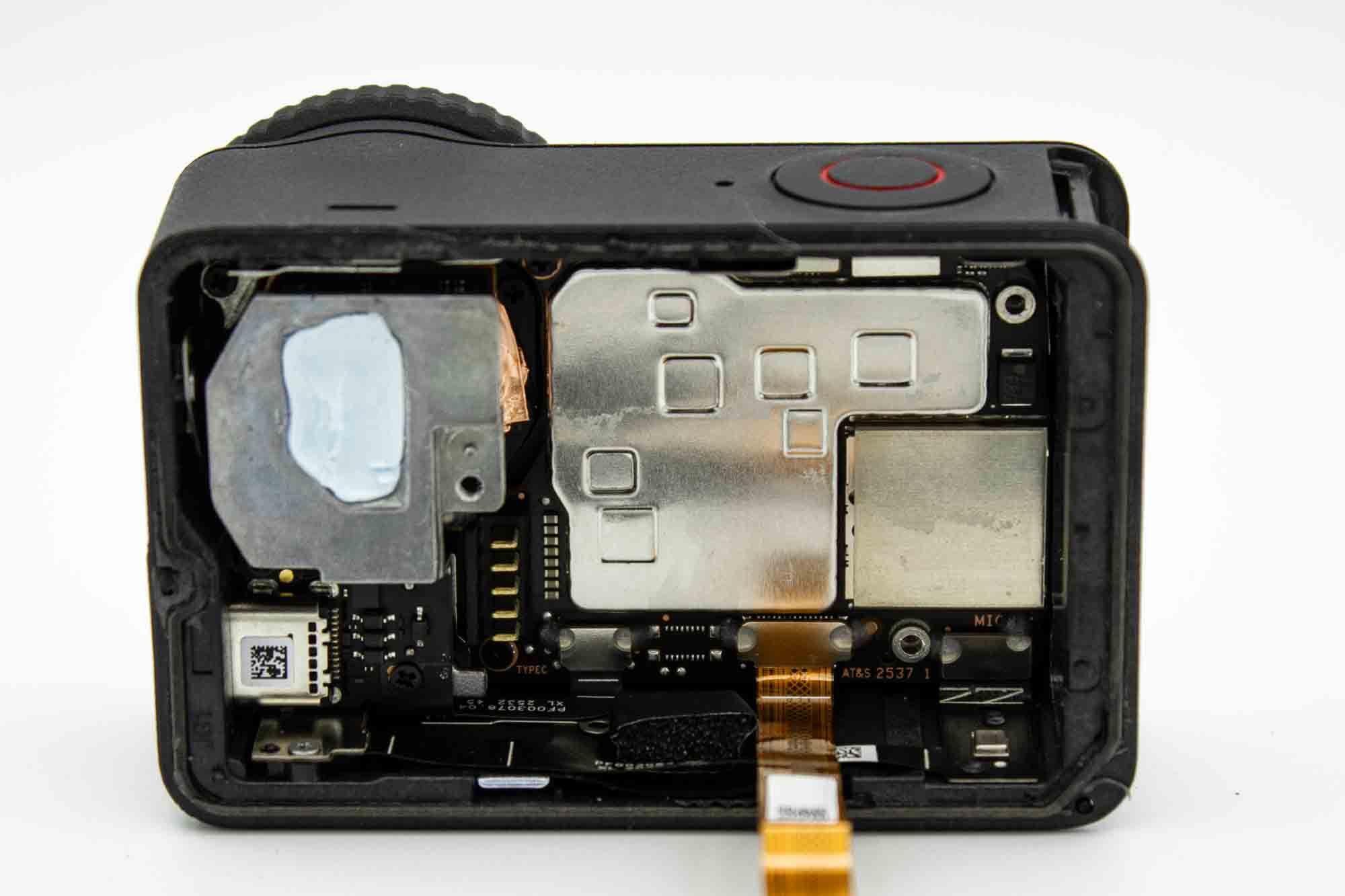
- Remove the shielding tape on top of the ribbon connectors.
- Remove all flat ribbon cables from the motherboard. These connectors are secured with hot glue.
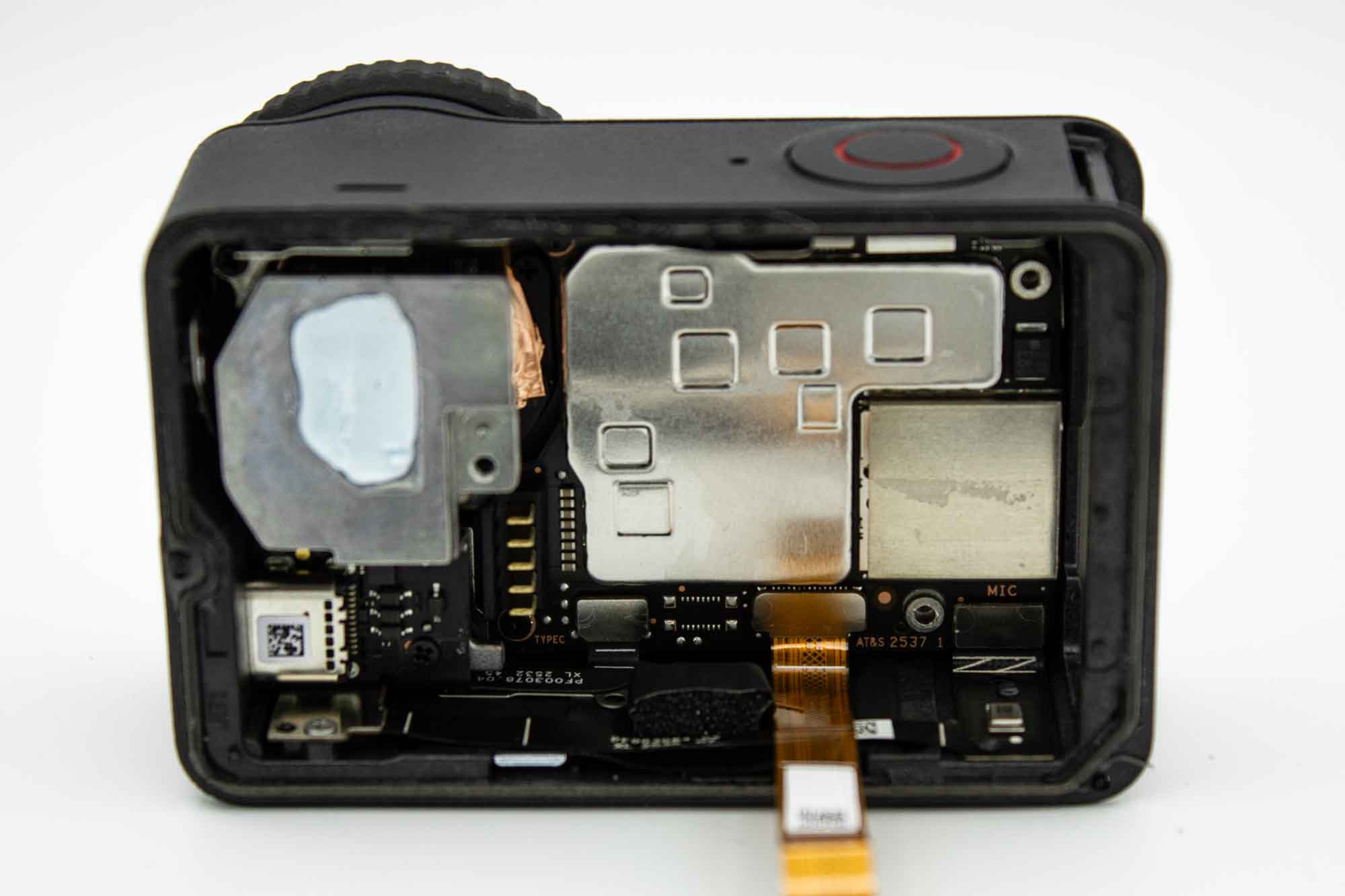
- Heat the glue with a hot air gun and remove it carefully with a plastic tool.
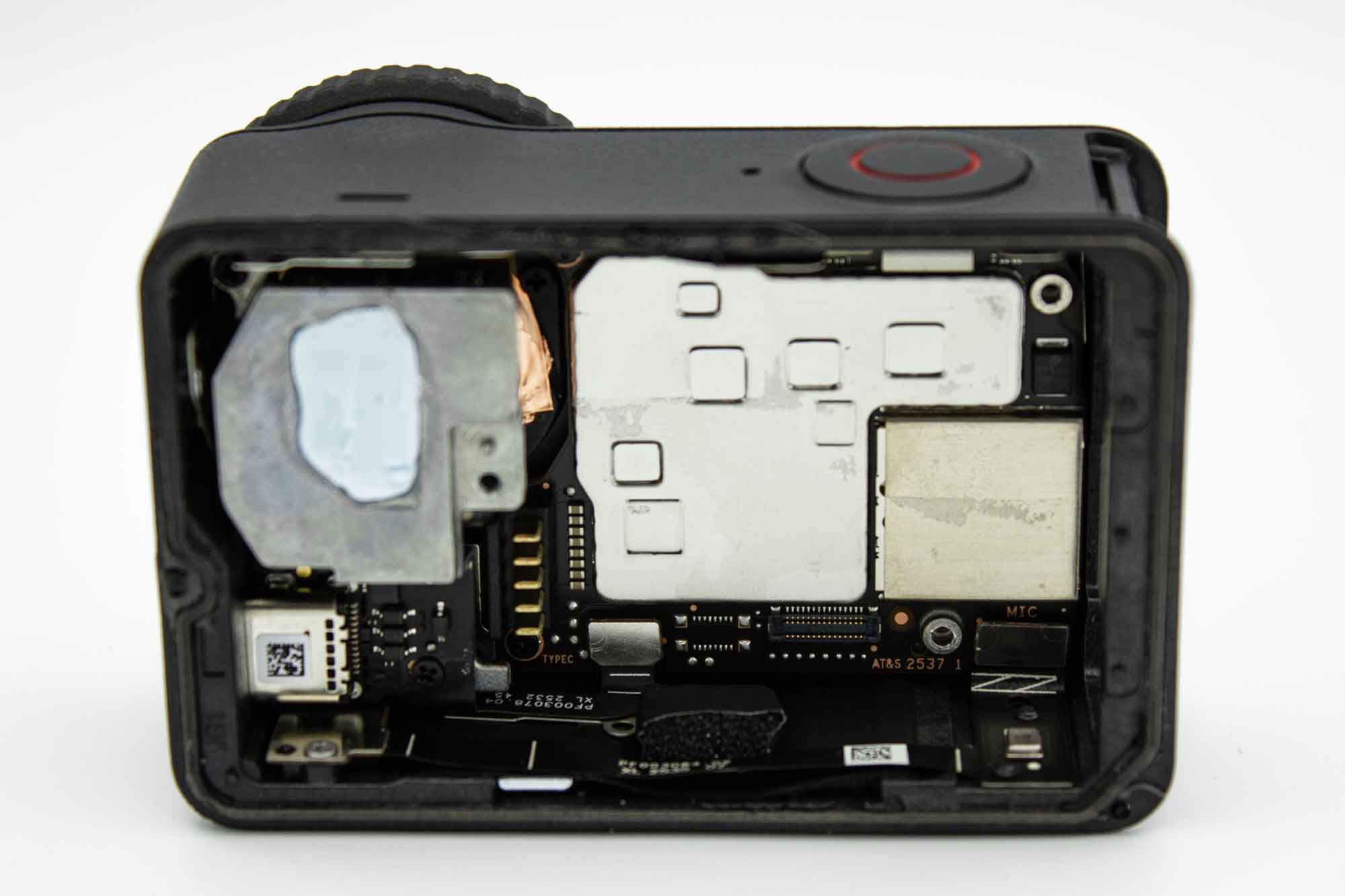
- Gently lift the connectors with a plastic tool to unplug them. It's best to start with the backdisplay. Repeat for all the ribbon connectors.
Step - Lens assembly and USB
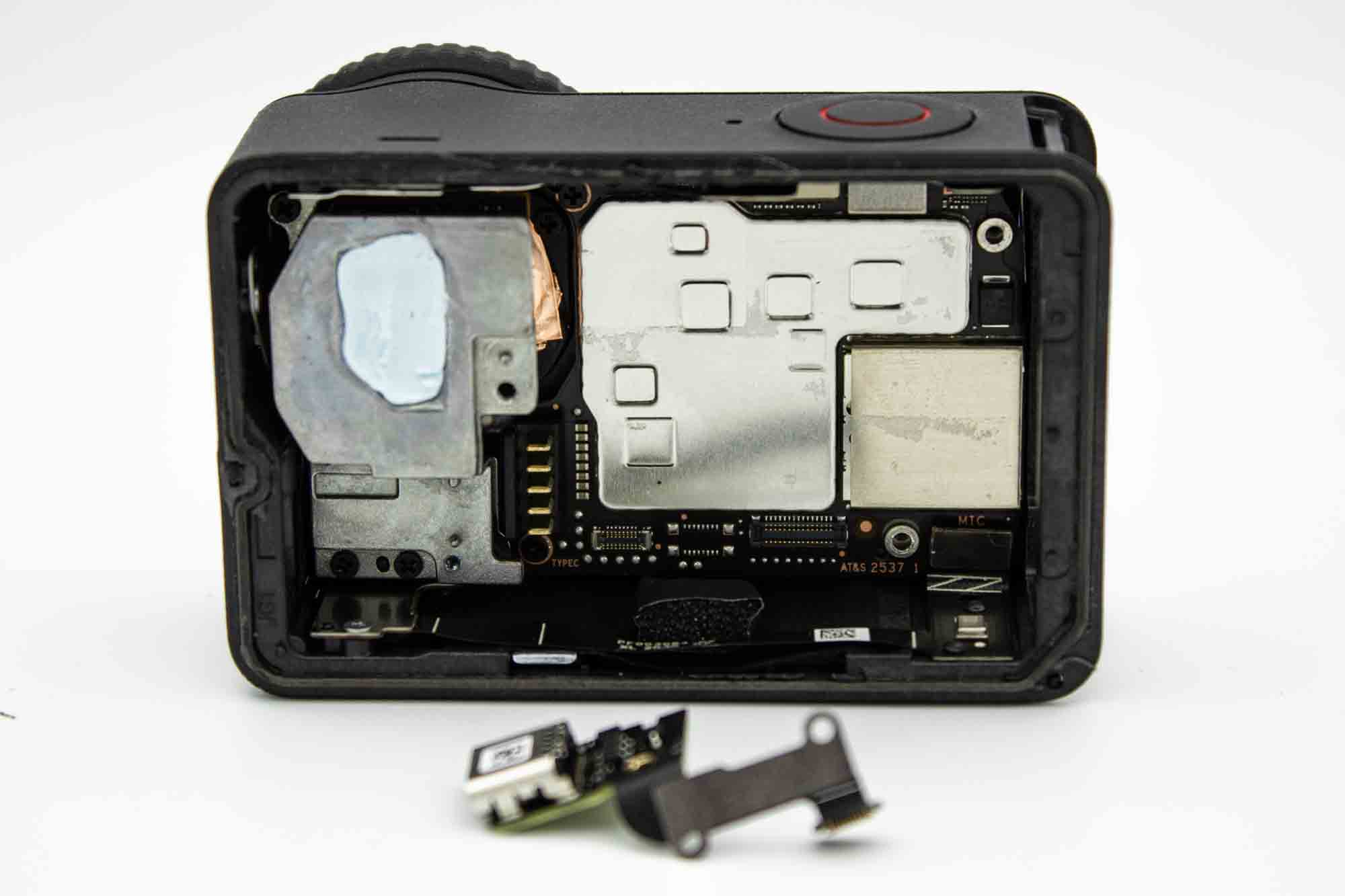
- Remove the two screws holding the USB C PCB in place using a PH0 screwdriver.
- Then lift up the USB C PCB
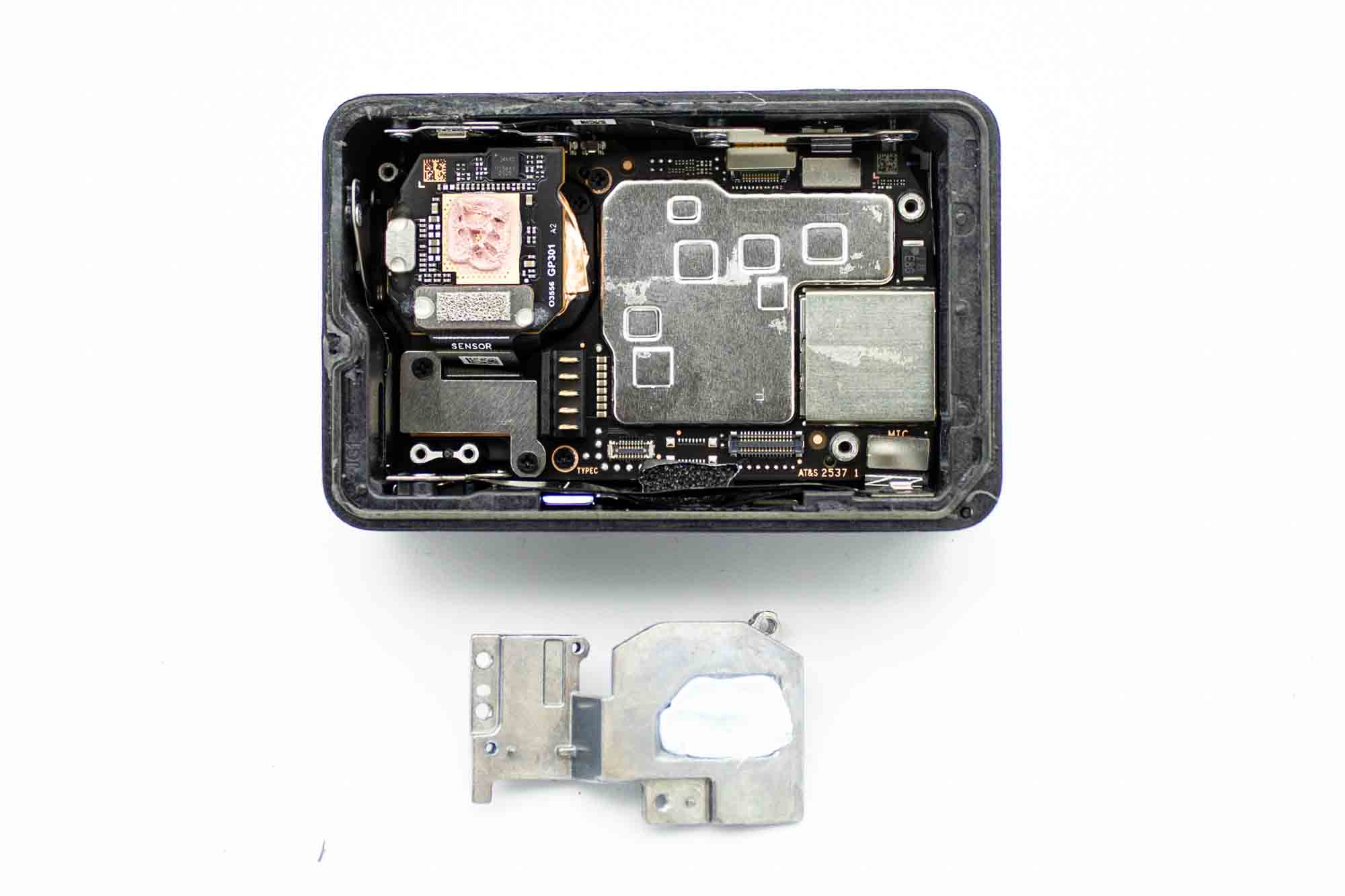
- Use a PH0 screwdriver to remove the three screws holding the silver bracket ontop of the lens and remove it by lifting it upwards.
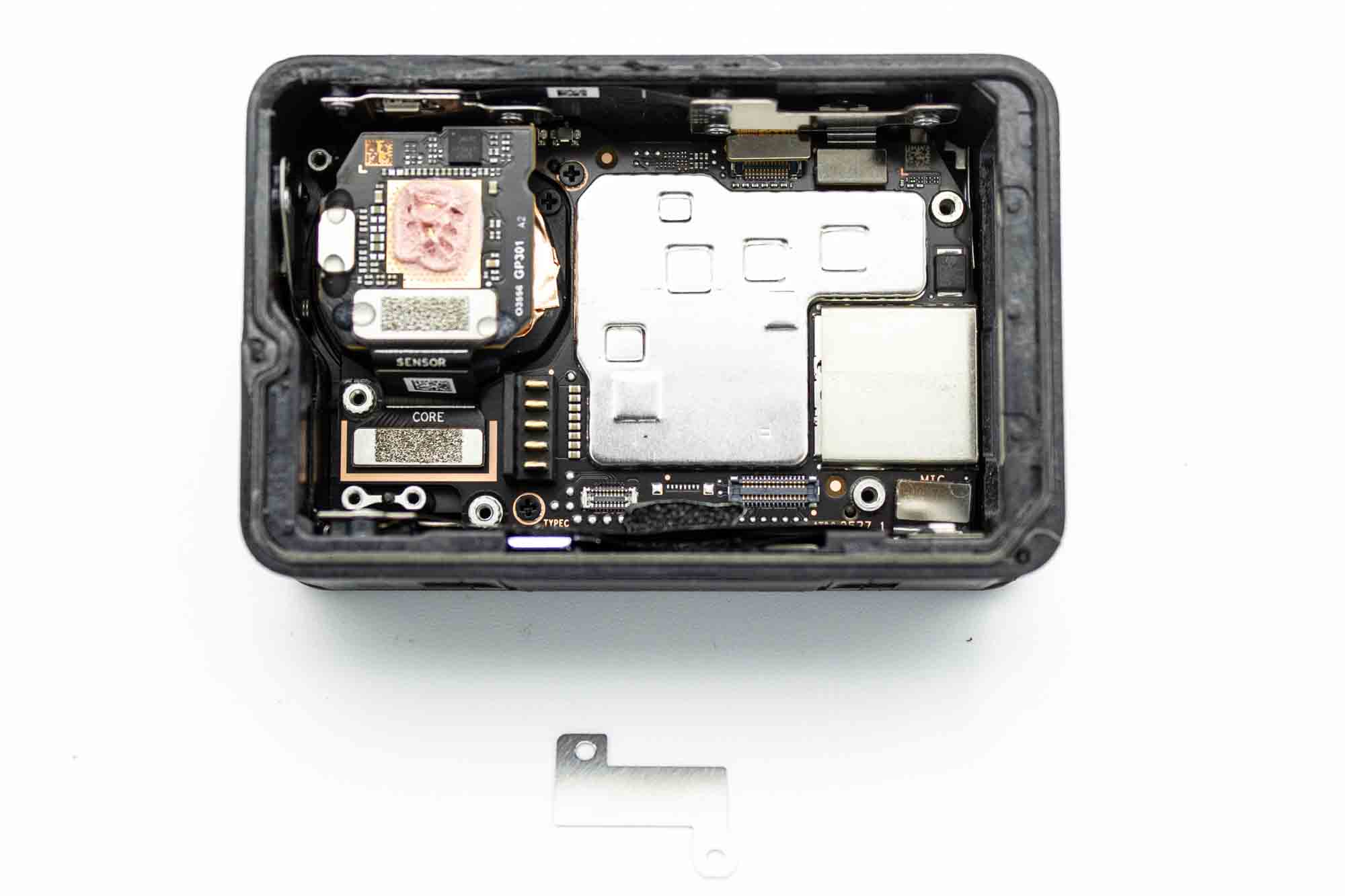
- Use a PH0 screwdriver to remove the two screws securing the silver lens ribbon cable bracket.
- Remove the lens ribbon cable bracket by lifting it up
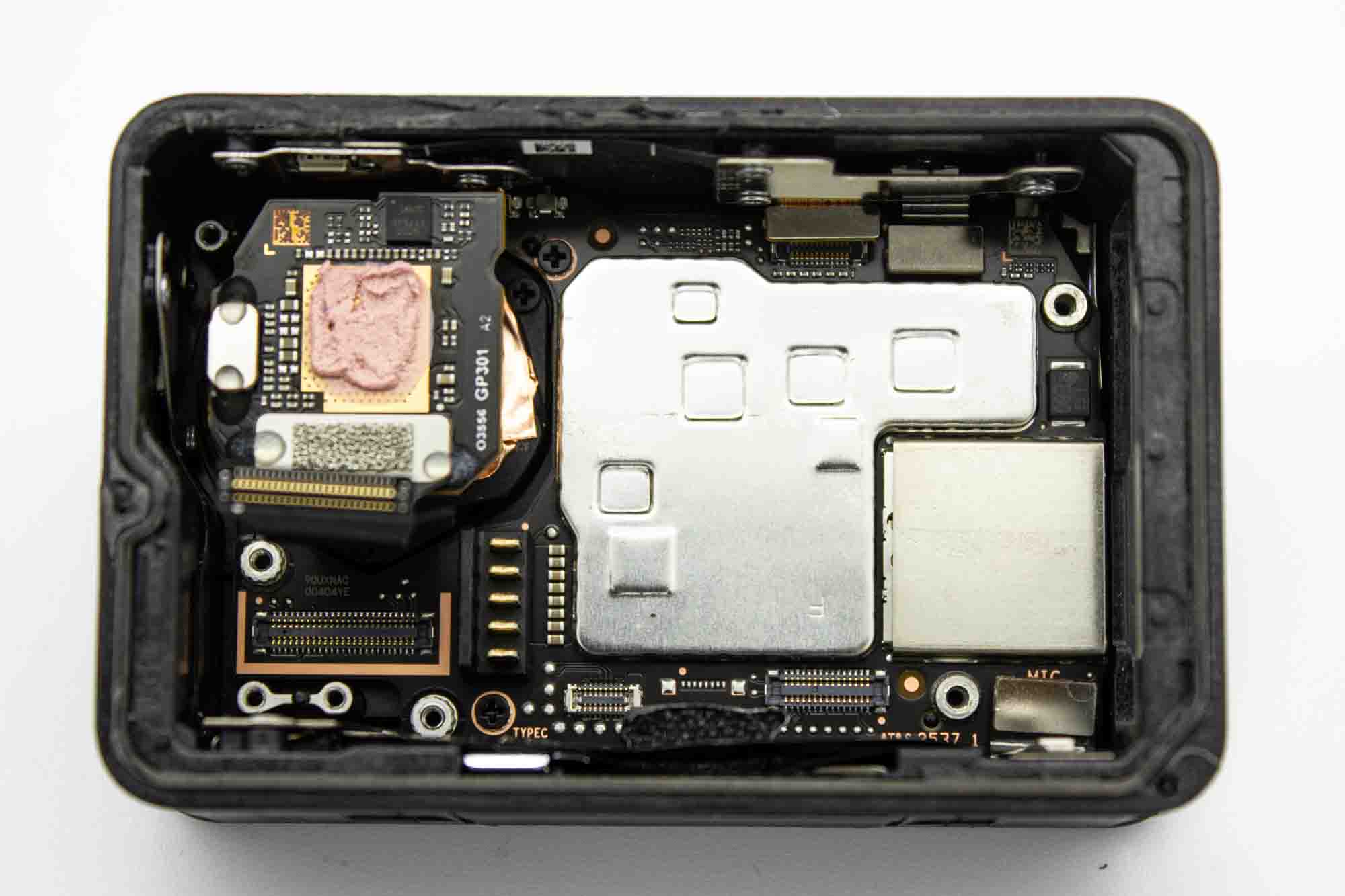
- Carefully unplug the lens ribbon cable connector with a plastic tool and lift it up.
Step - Lens
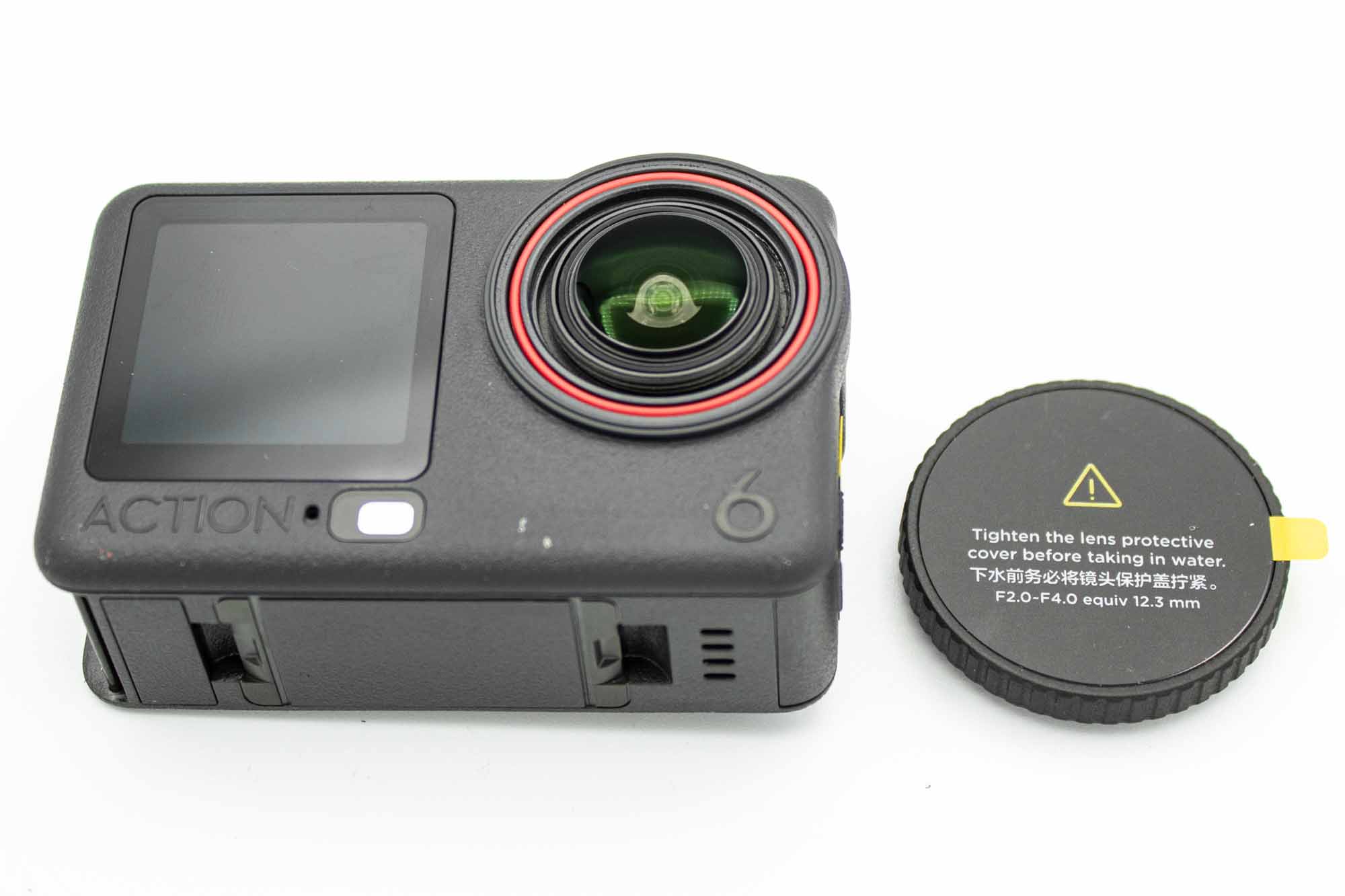
- Unscrew the lens protector.
- Place the camera on a microfibre cloth to protect the lens.
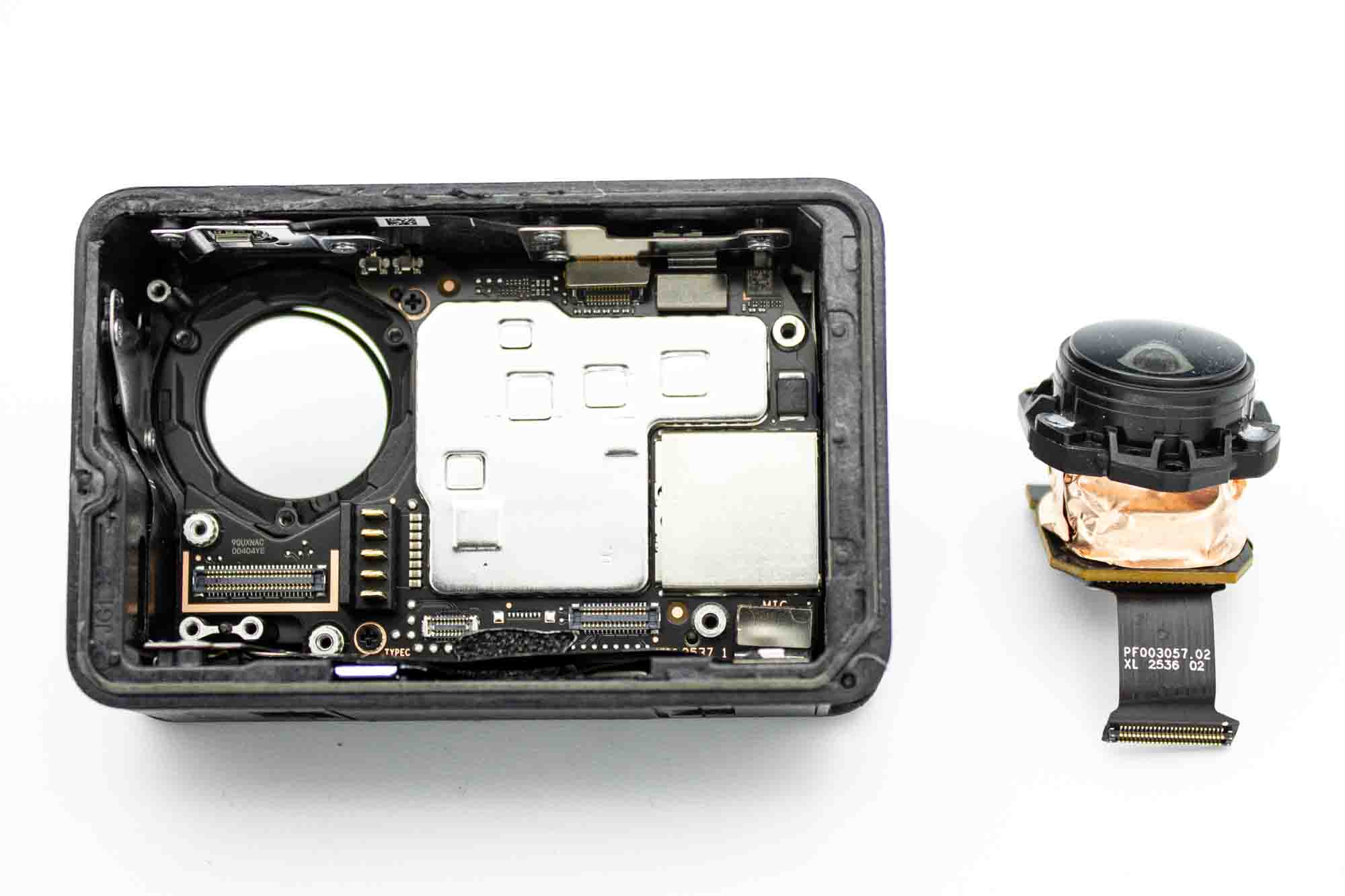
- Use a PH0 screwdriver to remove the three screws holding the lens assembly.
- Remove the lens assembly by pulling it straight up.
- Place the lens on a microfibre cloth.
Step - Remove Button Ribbon Cable
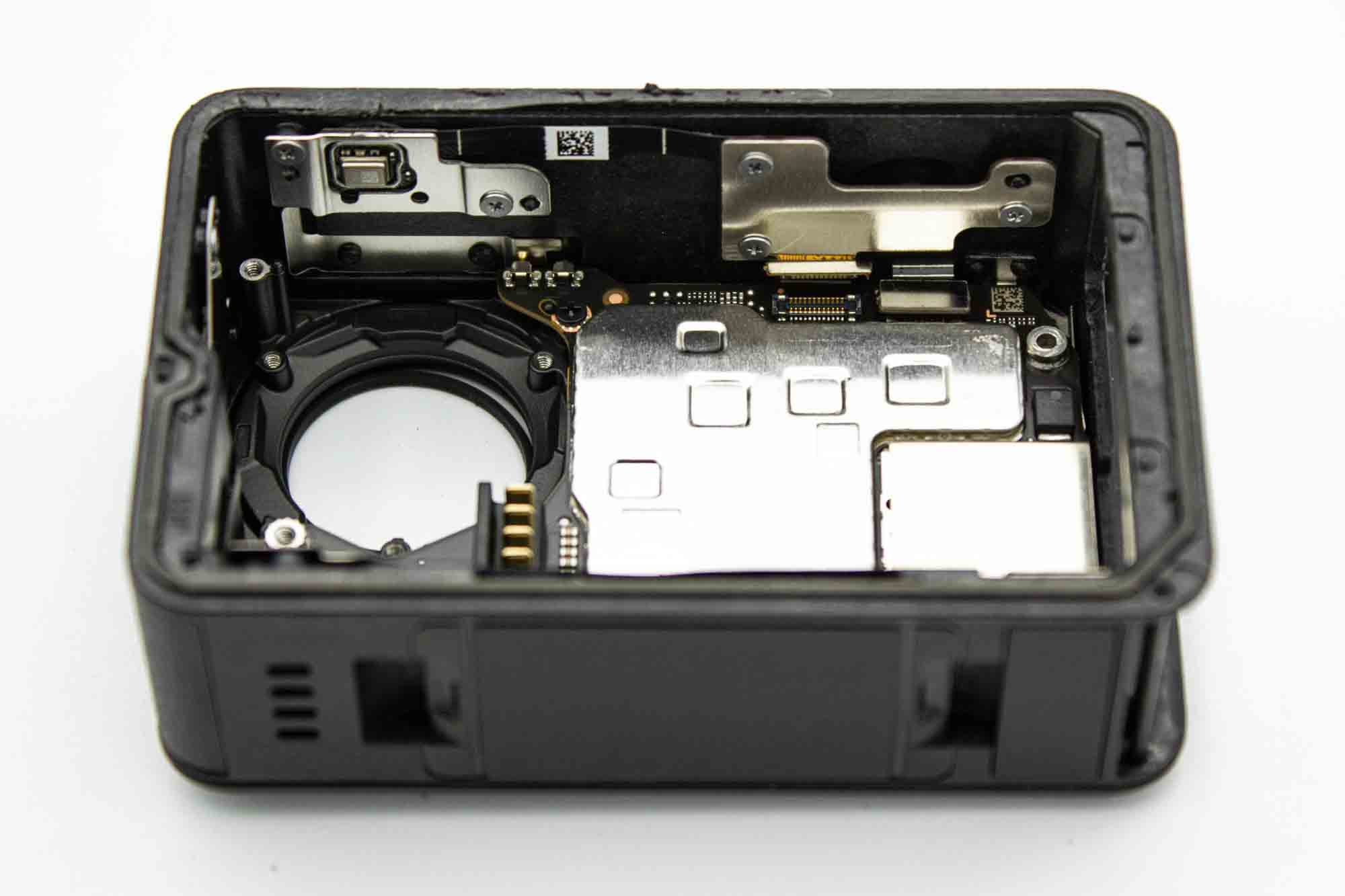
- Remove the five screws holding the button ribbon cable in place with a PH0 screwdriver.
- Heat up the ribbon cable using a heatgun.
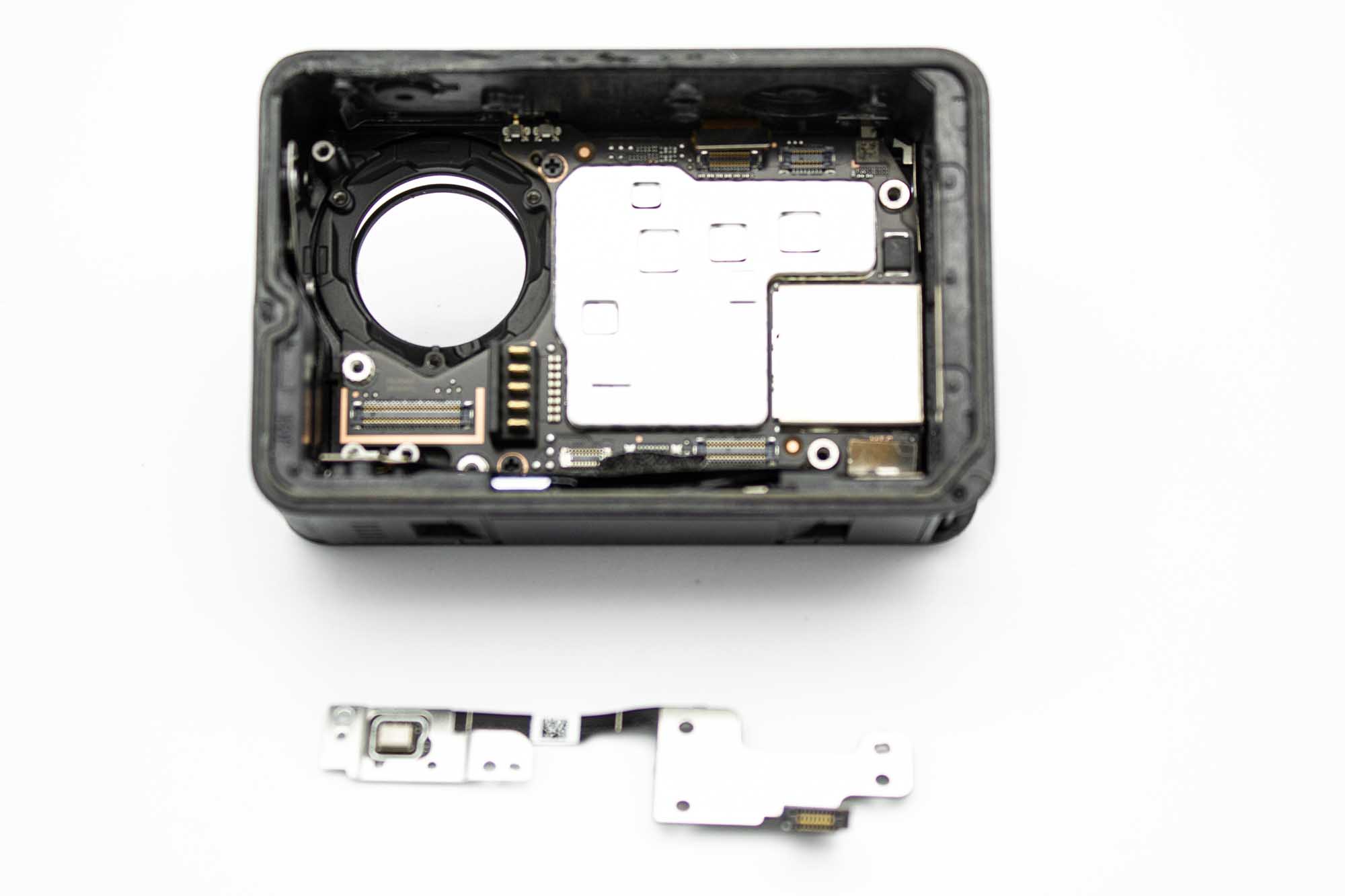
- Gently remove the ribbon cable from the case.
Step - Remove Lower Ribbon Cable
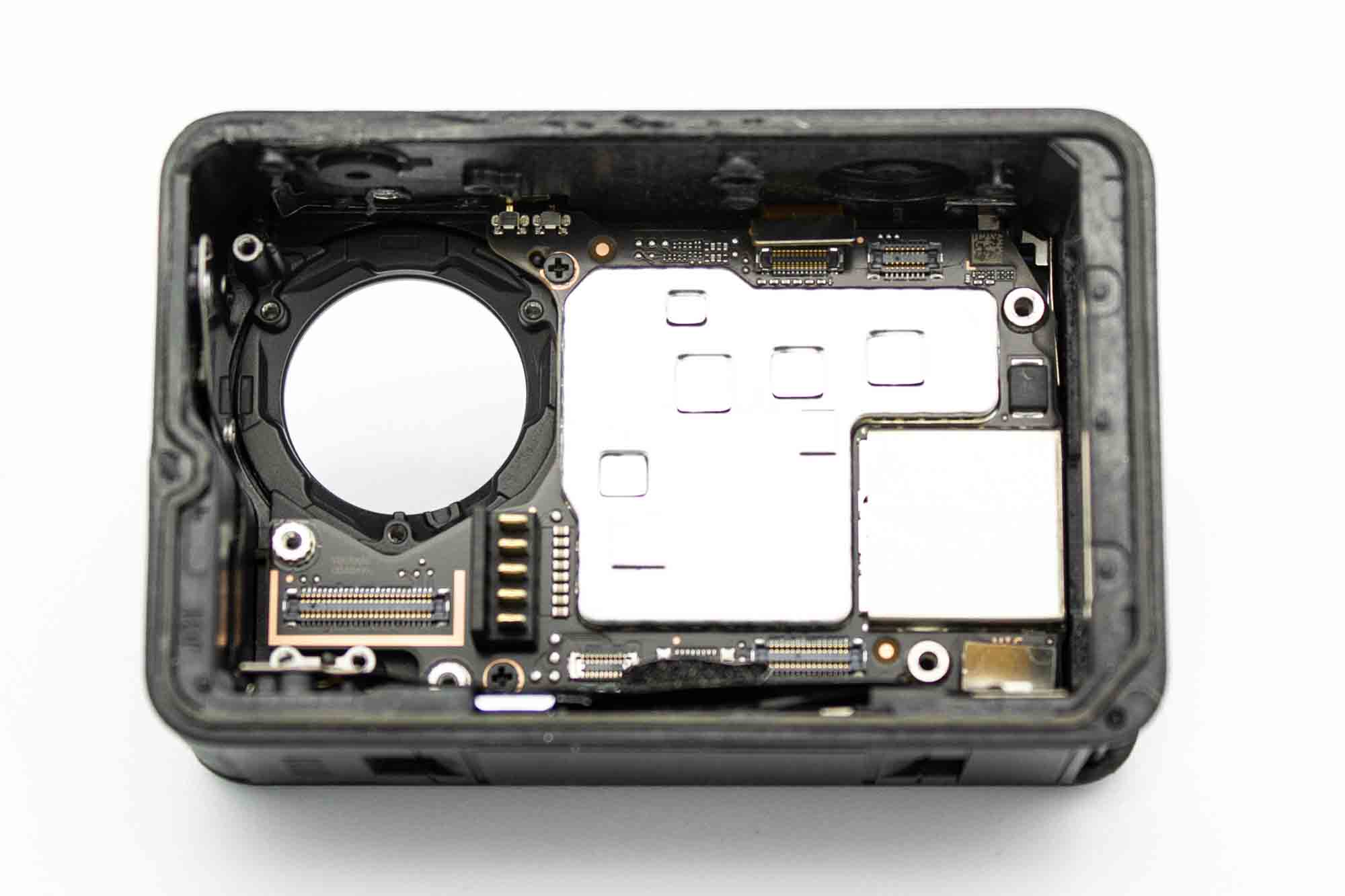
- Heat up the bottom right section of the ribbon cable using a heatgun.
- Gently lift up the bottom right section of the ribbon cable.
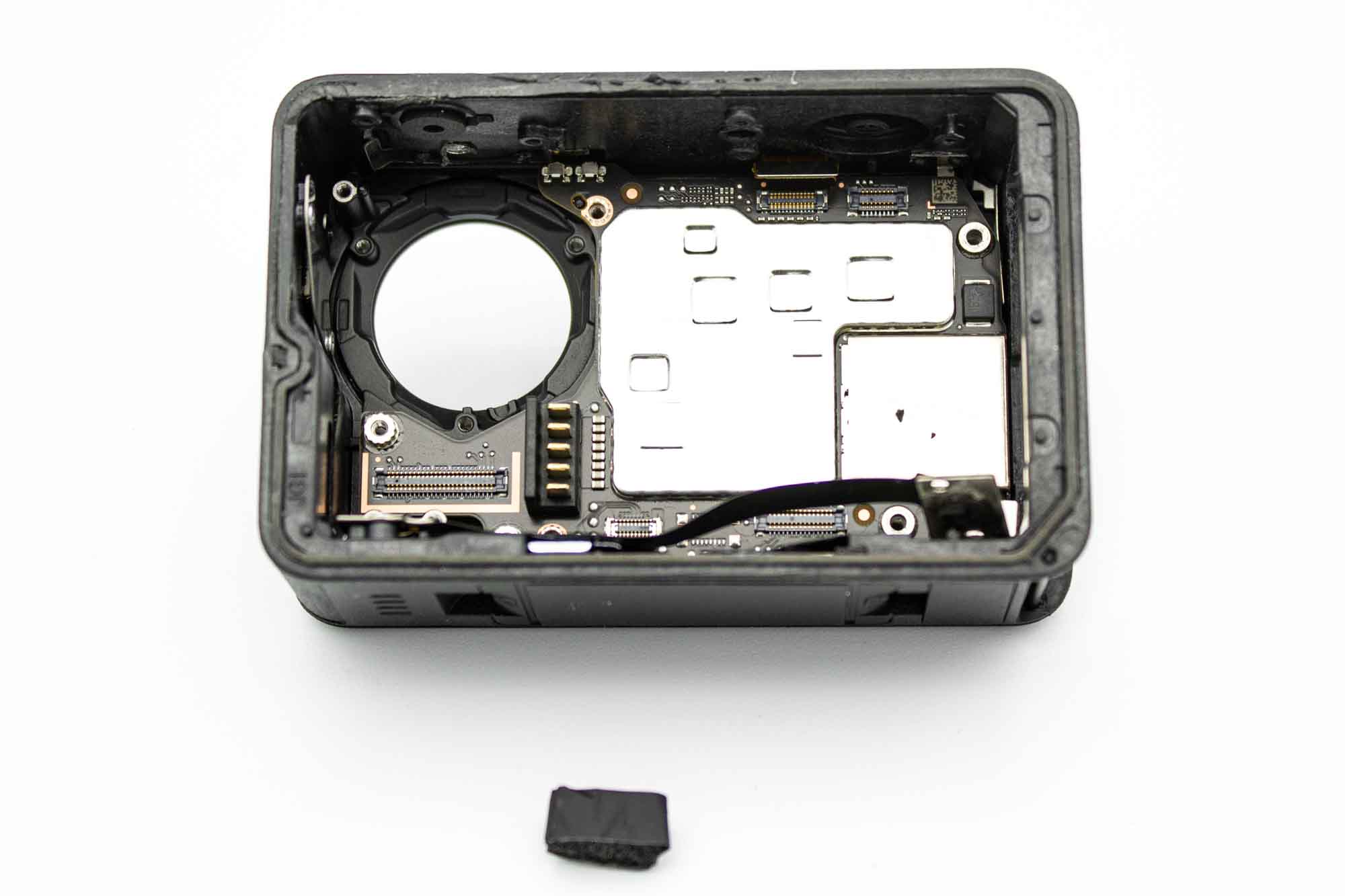
- Remove the foam covering the microphone slot.
Step - Disassemble Mainboard
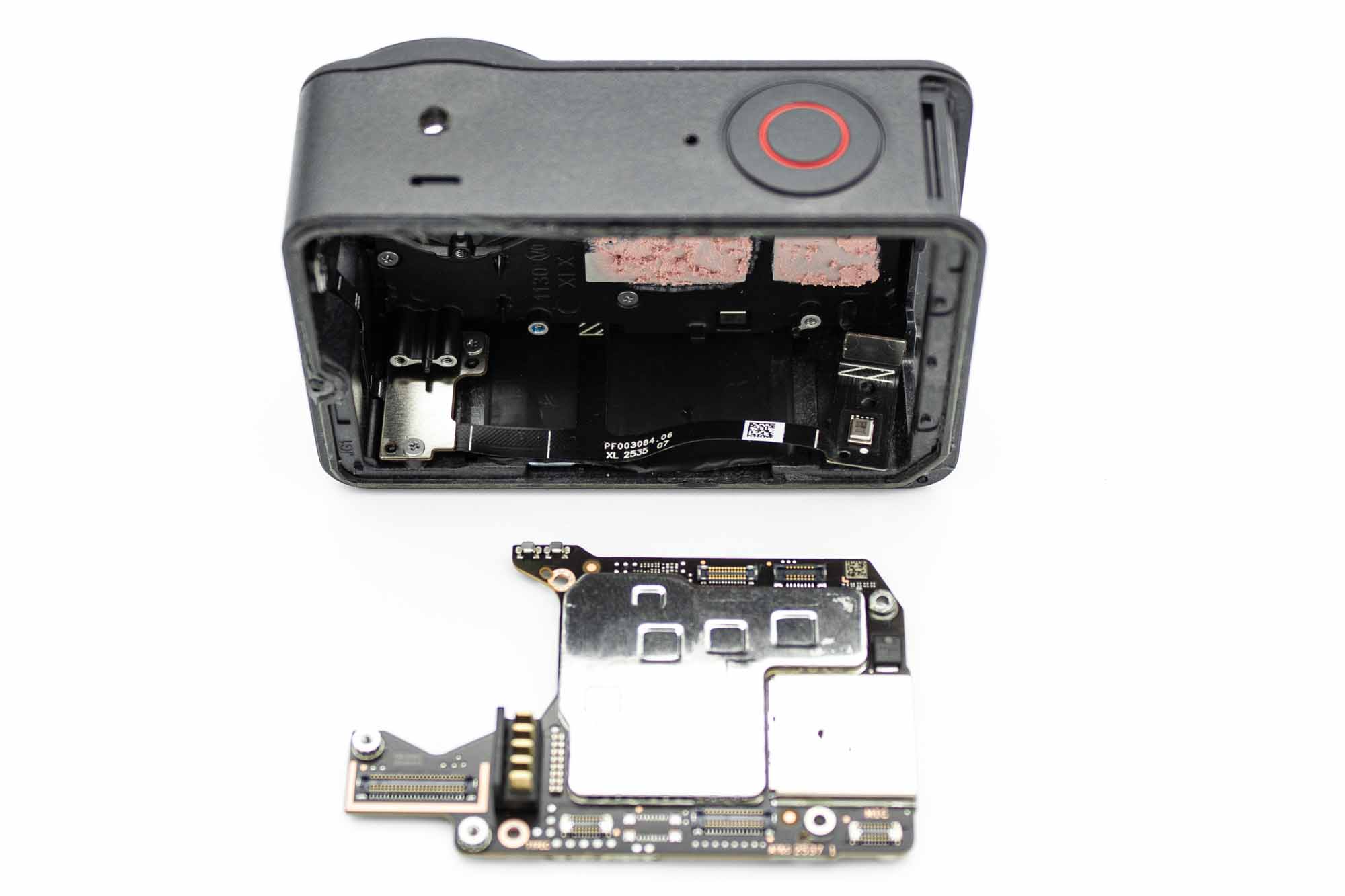
- Use a PH0 screwdriver to remove the two screws holding the mainboard.
- Lift the mainboard straight up.
- Make sure to not damage the ribbon cable connector during this process.
Step - Remove the Mainboard Holder
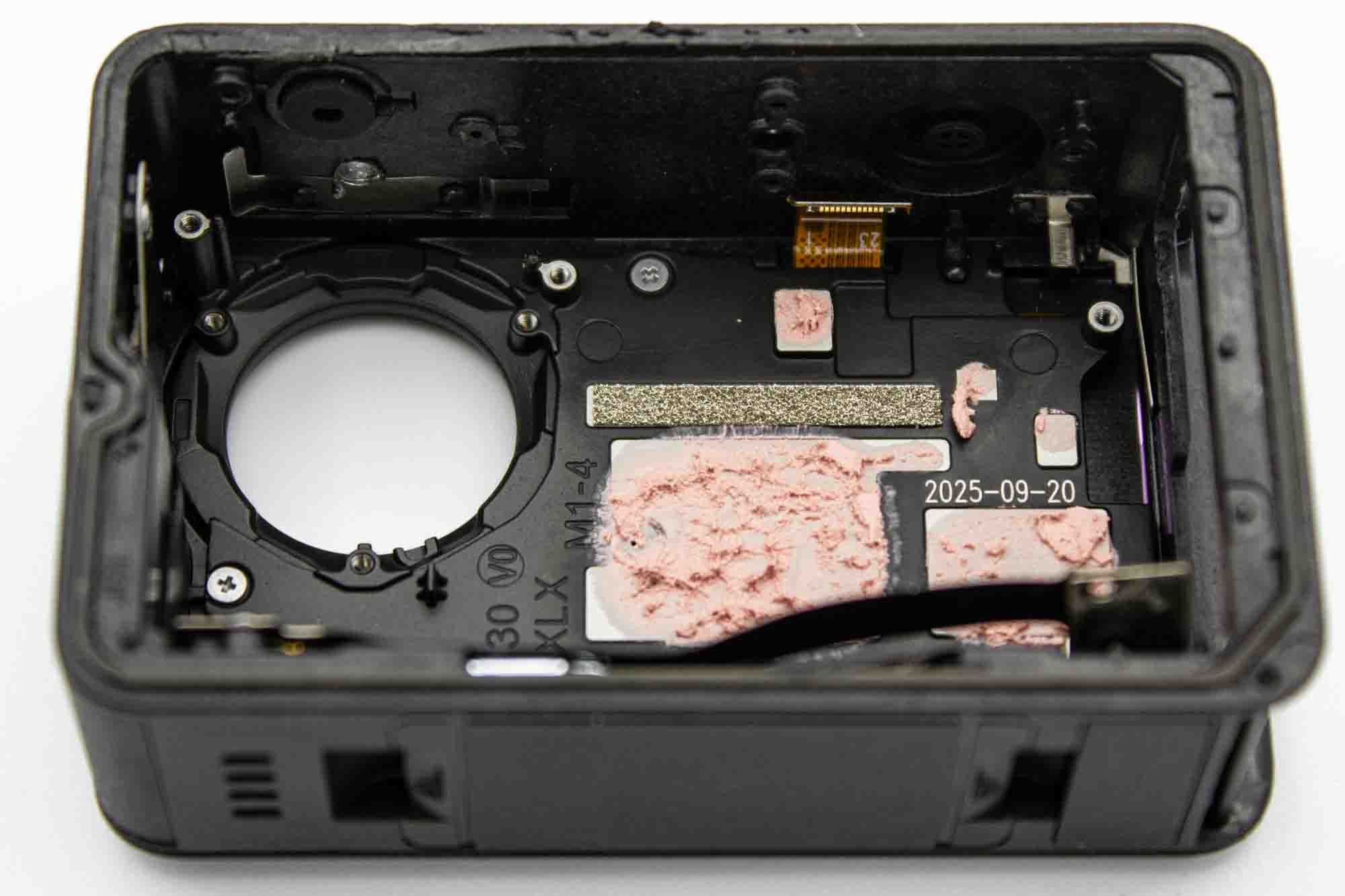
- Use a PH0 screwdriver to remove the four screws holding the mainboard holder.
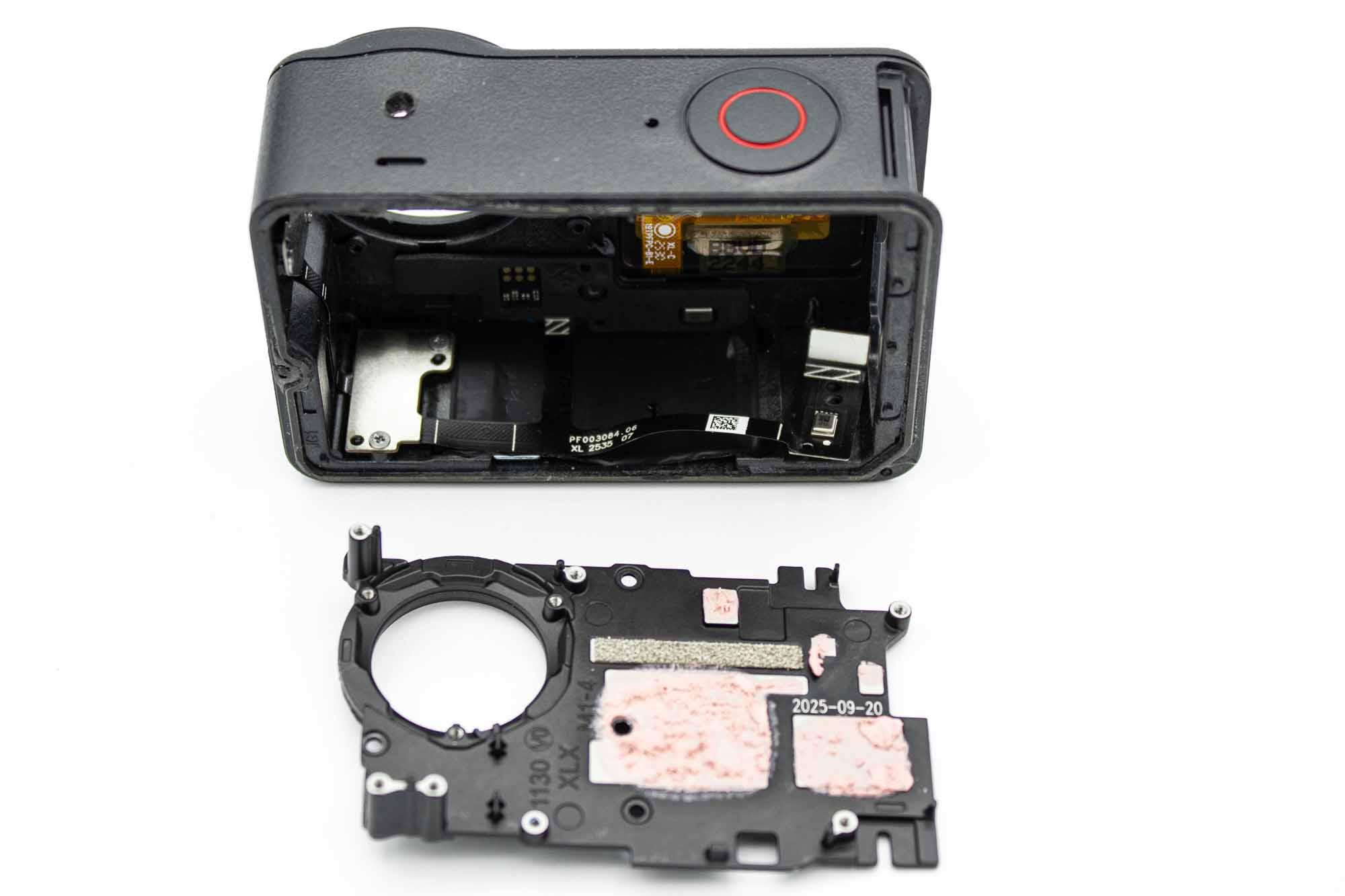
- Lift it out and set it aside.
- Pressing with the thumb on the lens hole can help getting it out.
- Make sure to not damage the ribbon cable connector in the process.
- Drill a hole on top of the case greater than the diameter of your PH0 screwdriver.
- Use the hole to reach the bottom left screw of the ribbon pcb.
- Remove the two screws.
- Then also remove the other two screws from the ribbon pcb.
- You can access these screws via the battery bay cutout.
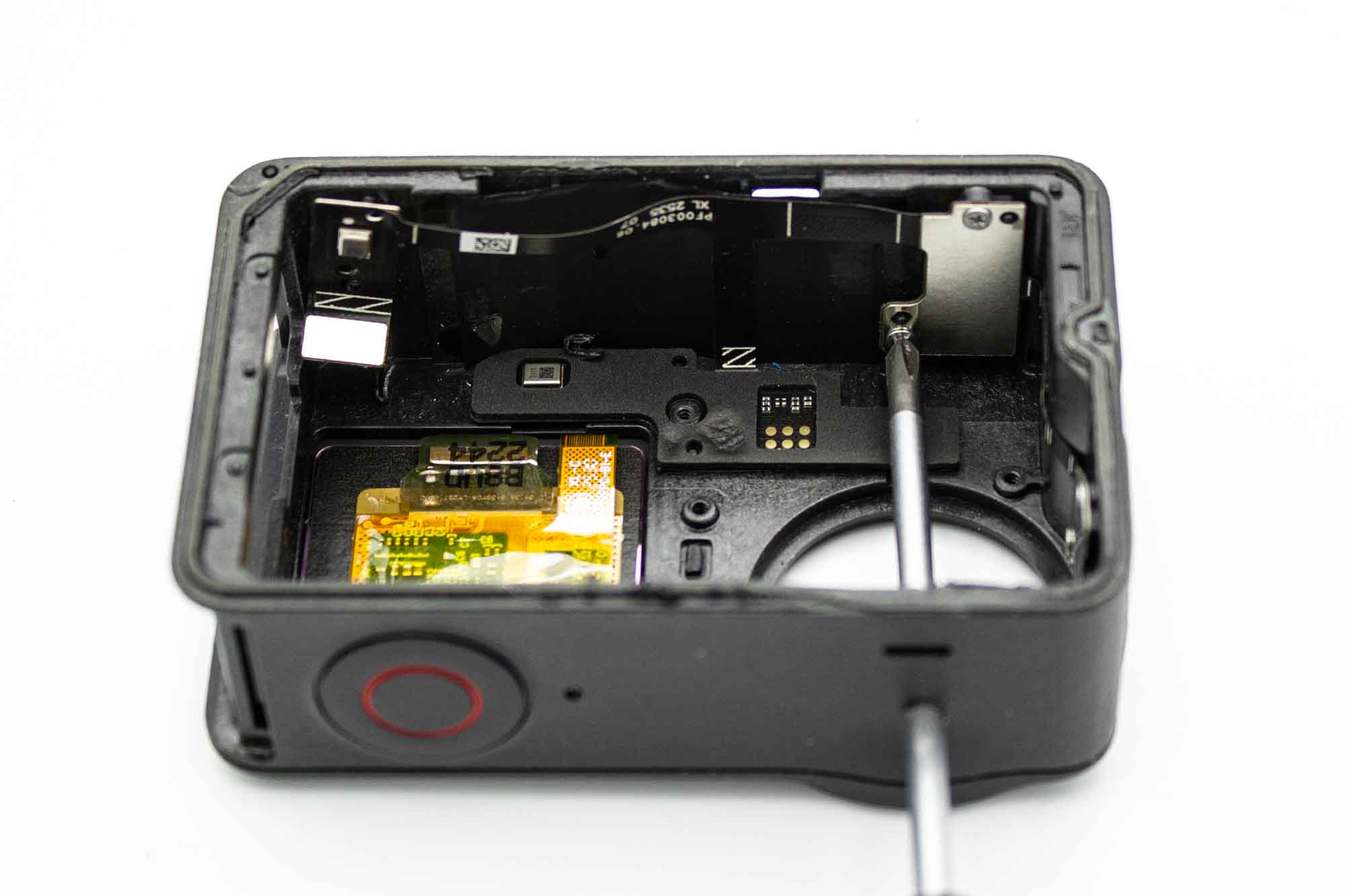
- Screw in the spare screw from the lens cover to the top right corner of the mainboard holder. Make sure to not screw it in to deep and damaging the front display.
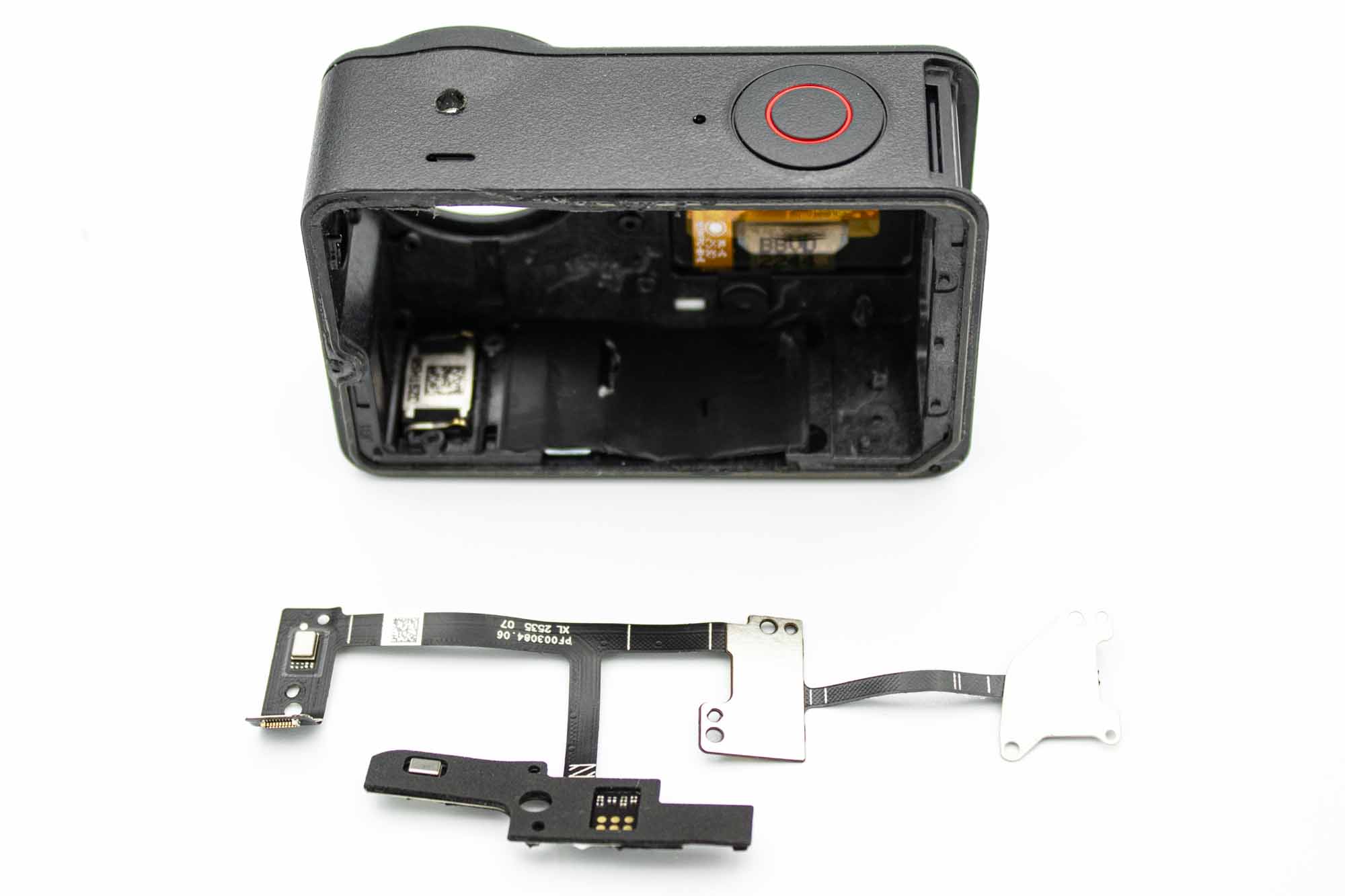
- Camera is now fully disassembled, only the front screen is missing.
Step - Front Display
These steps show the Action 5 Pro but the steps are similar for a Action 6 Pro
WARNING: This is the most crucial step of these whole instructions. Compared to a GoPro or Action 4 the front display of the Action 6 Pro is very brittle and breaks easily. There are multiple methods to remove such a front screen. However we did not have luck with any of that. Using much heat results in a non reversible heat damaged display. Using solvents to break up the glue will result in visible spots on the display. Using much pressure to pry the display out will result in micro cracks and a broken screen. Also the electronics are not protected on the backside so by pressing it out you will risk damaging the electronics. Dremeling the display out using a rotary tool will leave lots of plastic on the front screen that is hard to remove without cracking the display. The approach we took takes a lot of time and work, is also not 100% bulletproof but we had the best experiences doing it like this. If you have found a better method please let us know. Also don't rush with this process. It takes a good hour to get the display out safely. For safety its recommended to wear safety googles for the risk of tools breaking and also use some cutproof gloves. You can easily slip on the rubber/plastic and cut yourself. So always be mindful of your finger / hand position.
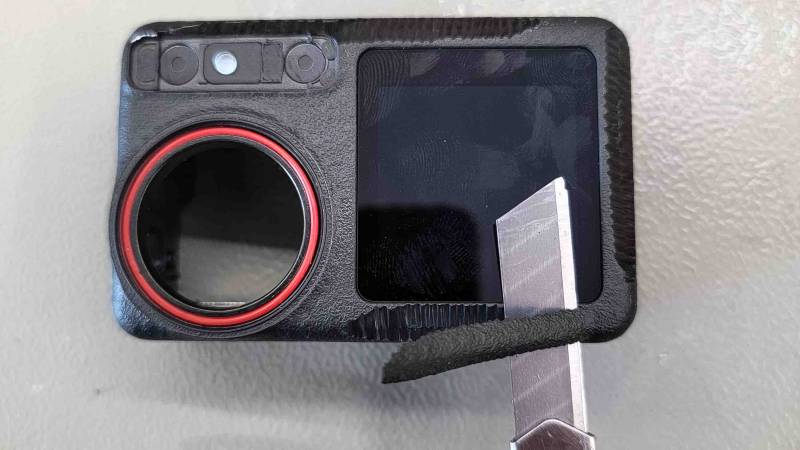
- Use a cutter knife at a angle to remove unnecessary rubber/plastic around the display. Here you have absolutely no electronics so you can go deep. Just make sure you don't scratch the display.
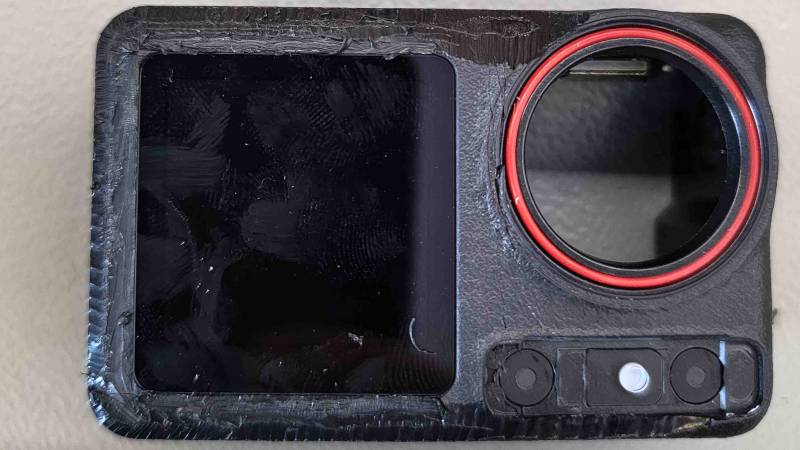
- After one pass with the cutter knife it should look like this.
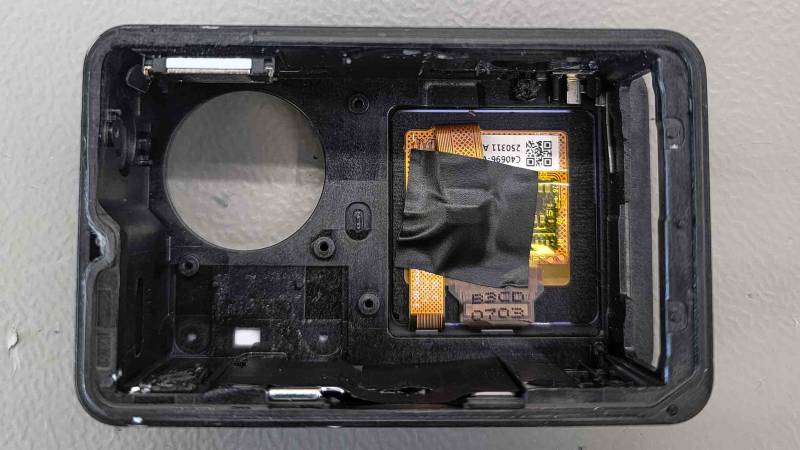
- Use some electrical tape to tape the front display ribbon connector to the displays back side. This will protect the ribbon cable a bit.
- Make sure to not use a very sticky tape, else you will lift up the LCD from the touchsensor while removing it.
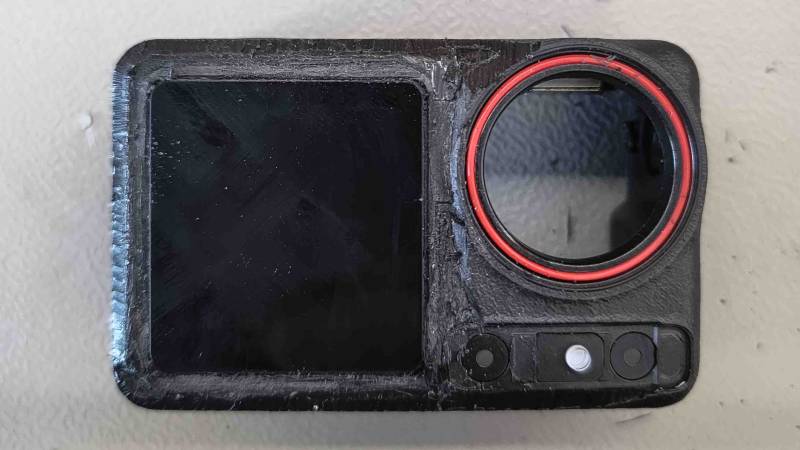
- Use a sharp hobby knife to start carving a groove around the front display.
- Now go deeper step by step removing the rubber and plastic around the screen.
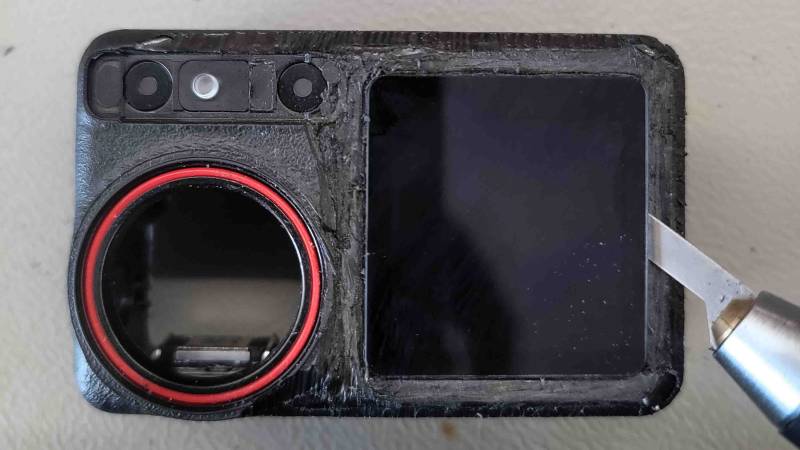
- Once you are deep enough, go in at a angle towards the middle of the display.
- Be careful at the bottom side, the cable sits very close to the outer edge and when you cut into this its game over so we focus at the left, upper and right side.
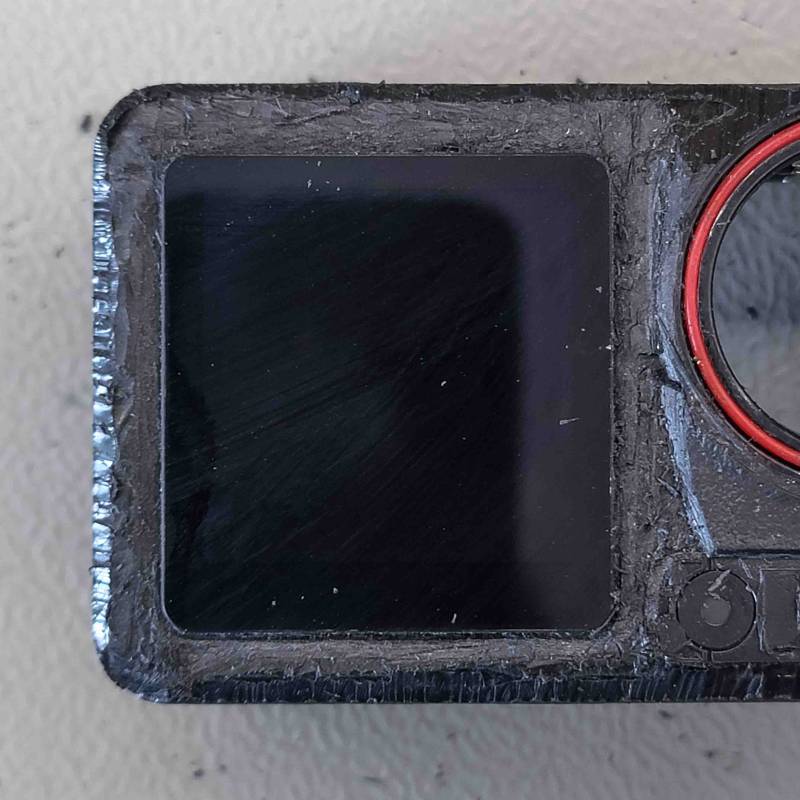
- Plastic removed 1
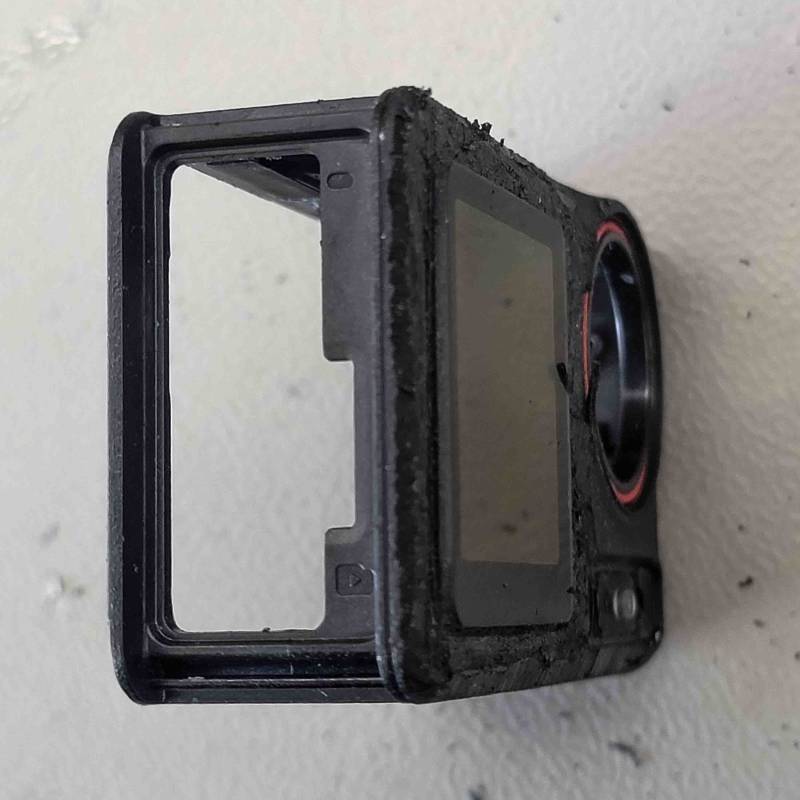
- Plastic removed 2
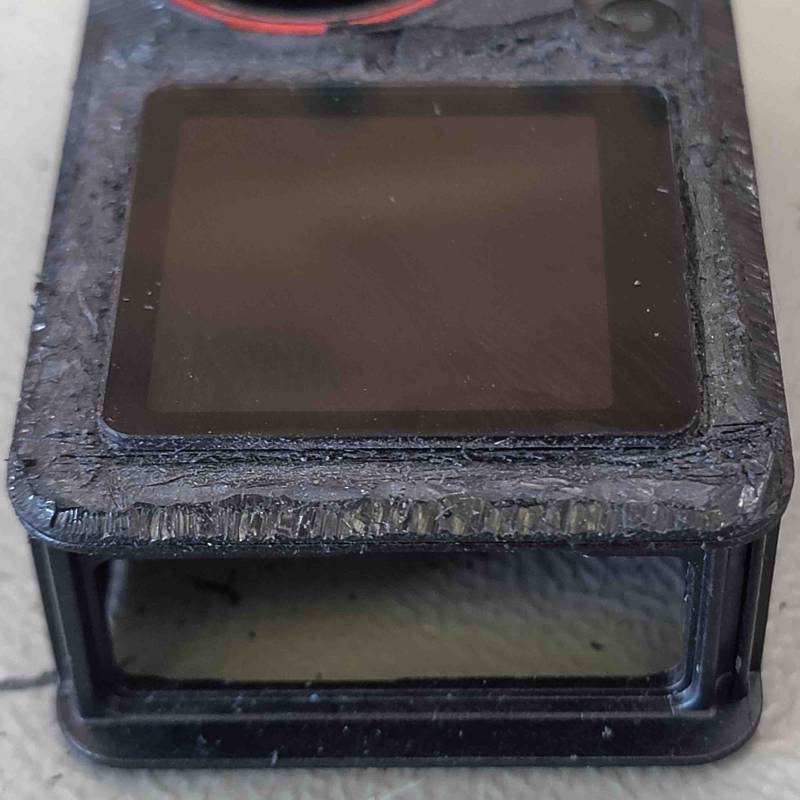
- Plastic removed 3
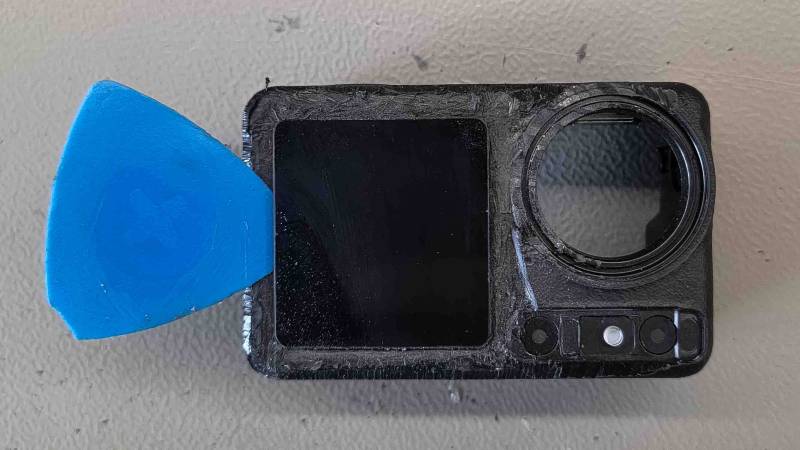
- Once you are deep enough to reach under the front display you can try to get under it with a plastic tool.
- Make sure to not add any pressure to the display. Carve more out if the tool doesn't slide under properly.
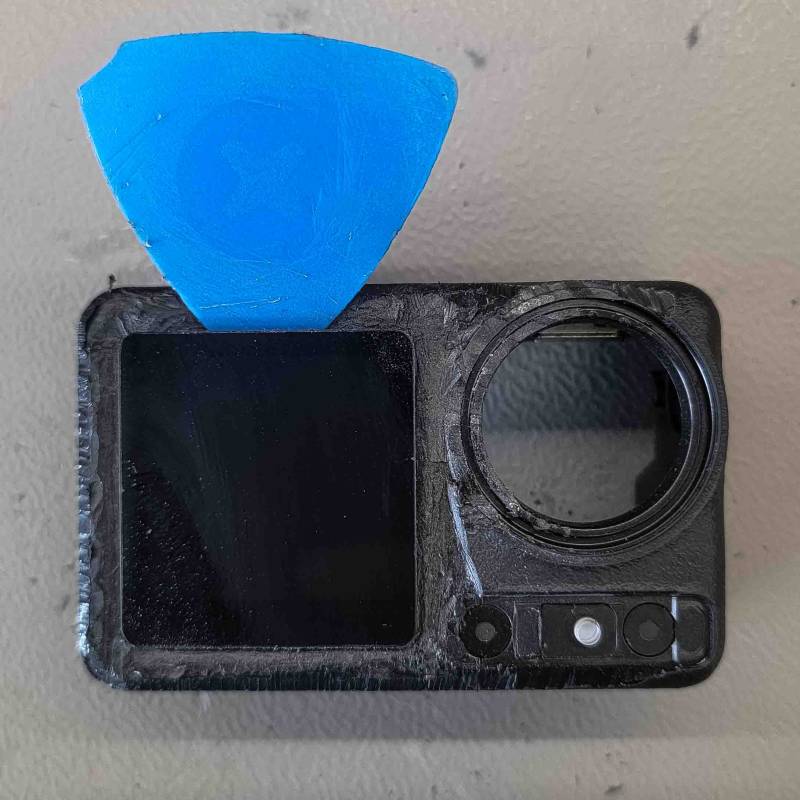
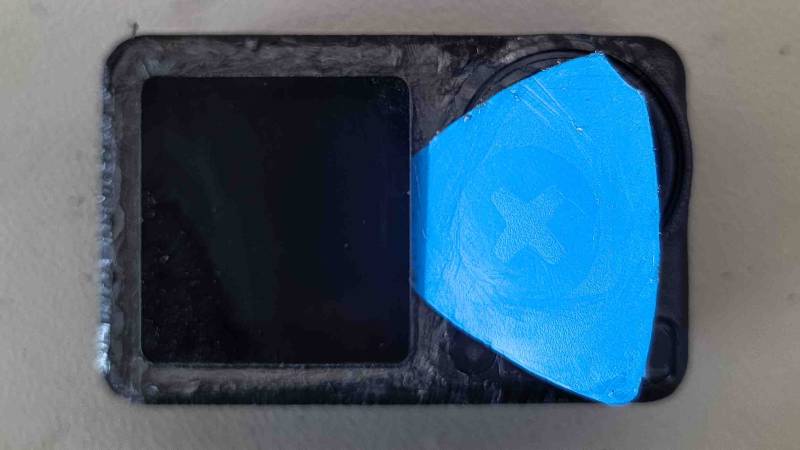
- Remove material until you can go from the left over the top to the right side with the plastic tool.
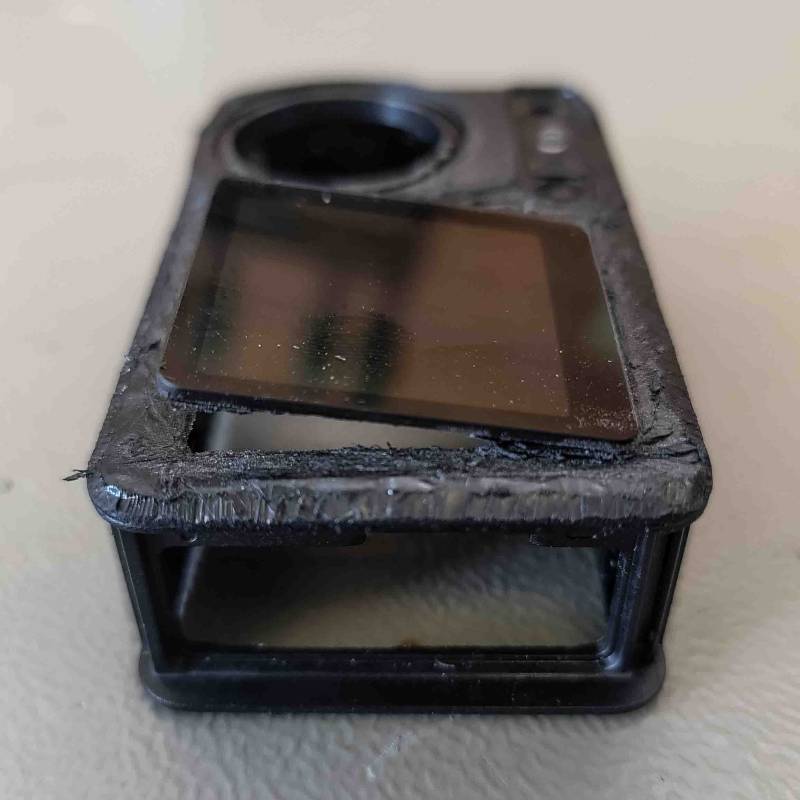
- Once the three sides are completely free use a little bit of heat on the bottom side of the display.
- Now very carefully pry out the display on its bottom edge.
- Make sure to not break the display during this process. If you feel to much force, carve out more at the bottom edge and or use a bit more heat.
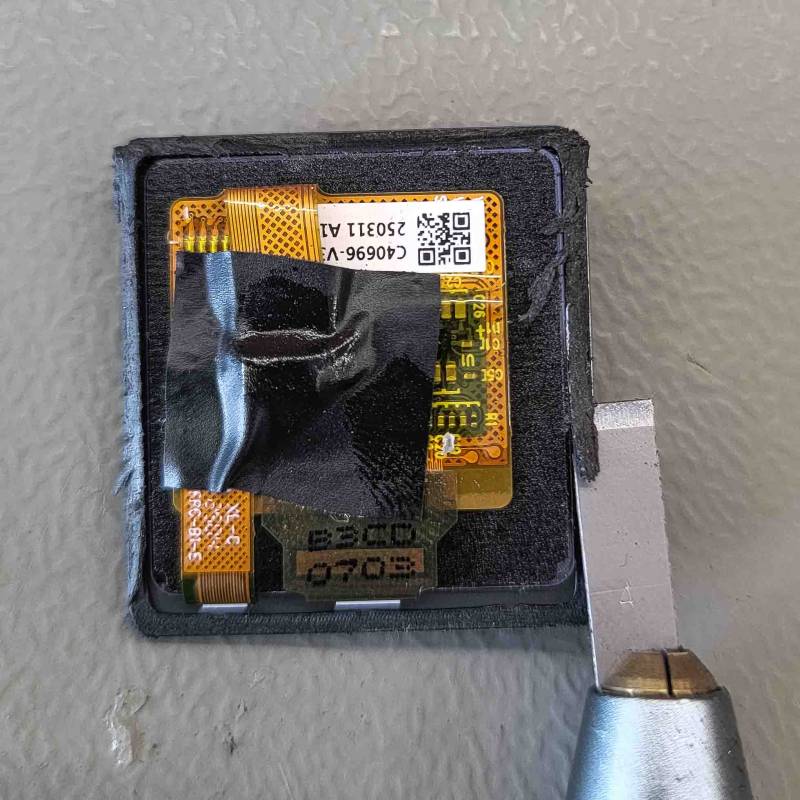
- Once you sucessfully removed the front display, clean up the front display edges from any plastic and silicone residue.
- Make sure to not break the display during this process.
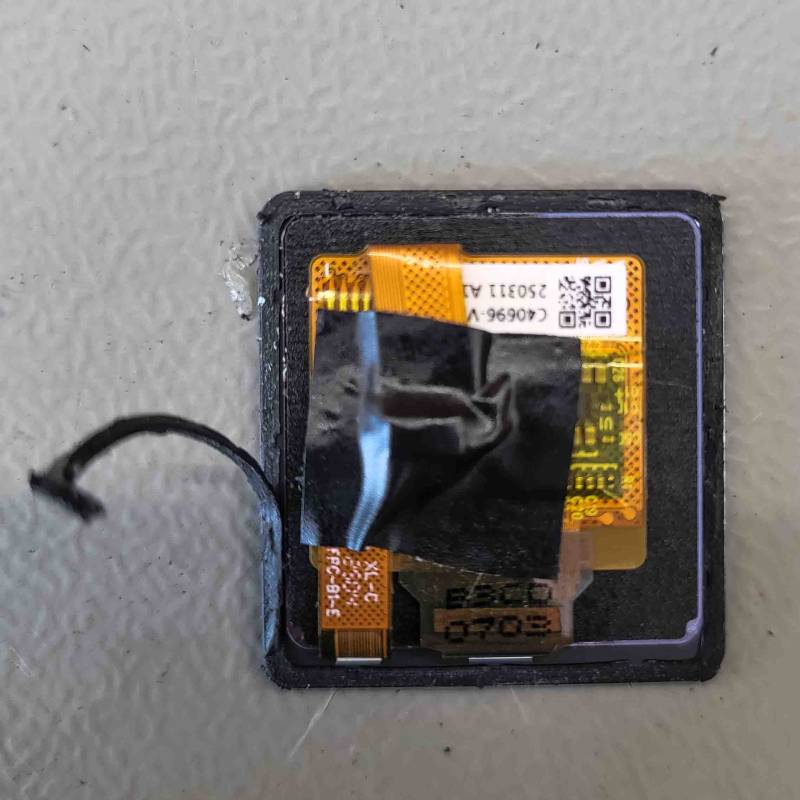
- Work your way around the whole bezel of the display.
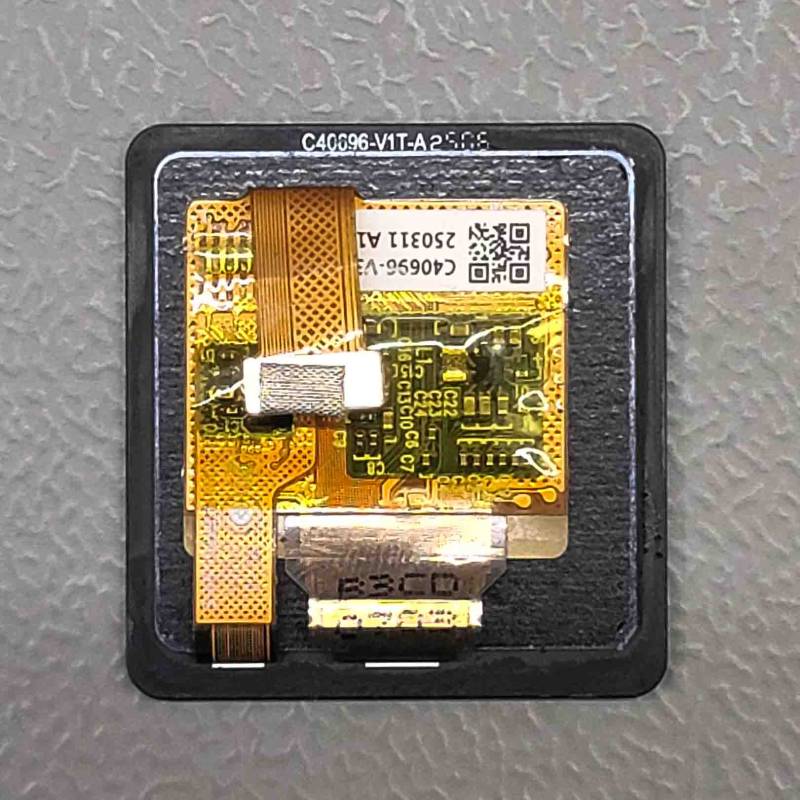
- The cleaned up display should look like this.
Step - Mainboard Preparation
There are some very small components next to where you will need to solder. Be careful to not damage or desolder any of the mainboard components during the following steps. If you are not comfortable doing this you can skip to the next step and do the alternative version
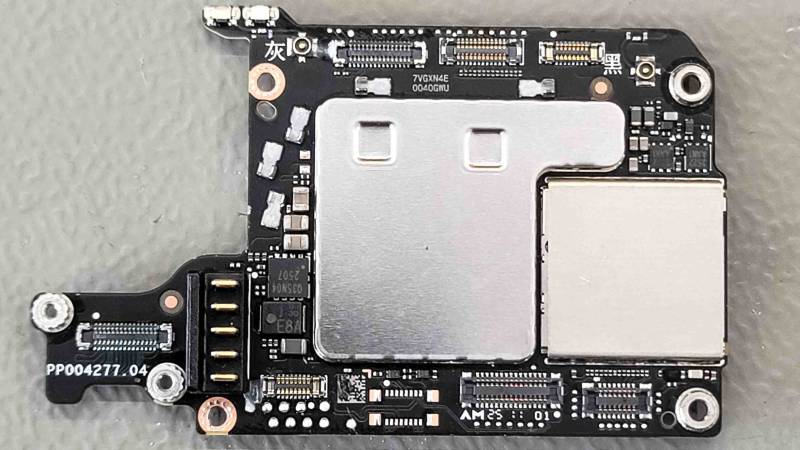
- Clean up all leftover glue next to the ribbon connectors, use heat and some plastic tweezers for this making sure to not damage any components on the mainboard.
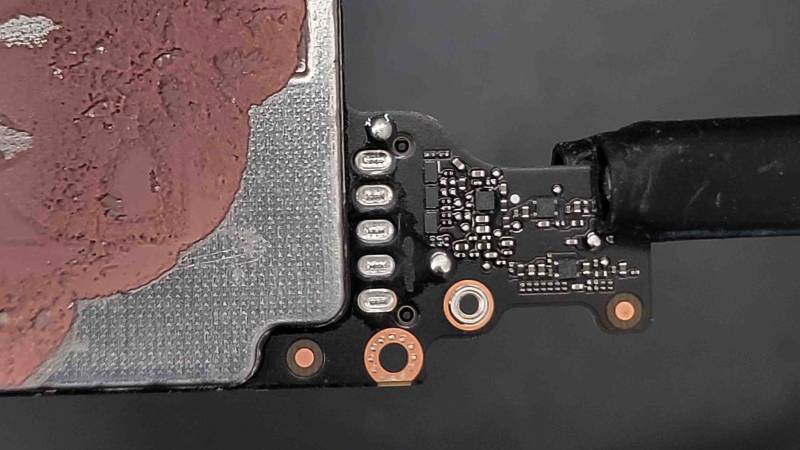
- Carefully clamp the mainboard onto a holder.
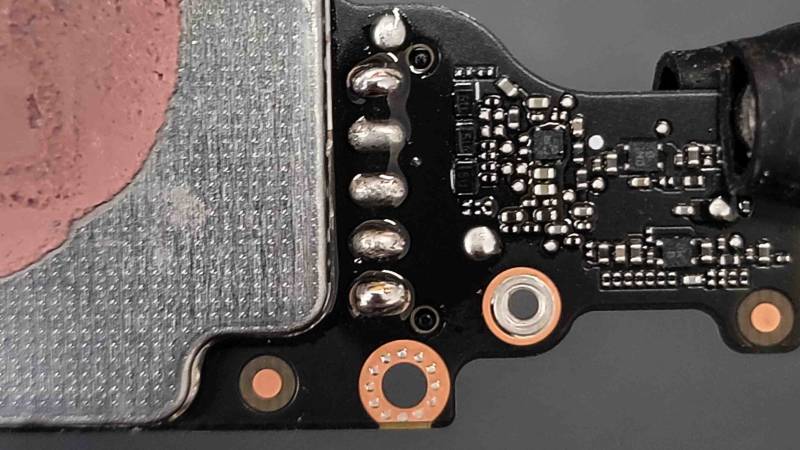
- Add solder to the battery connector pads.
- Heat up the pads and remove the connector.
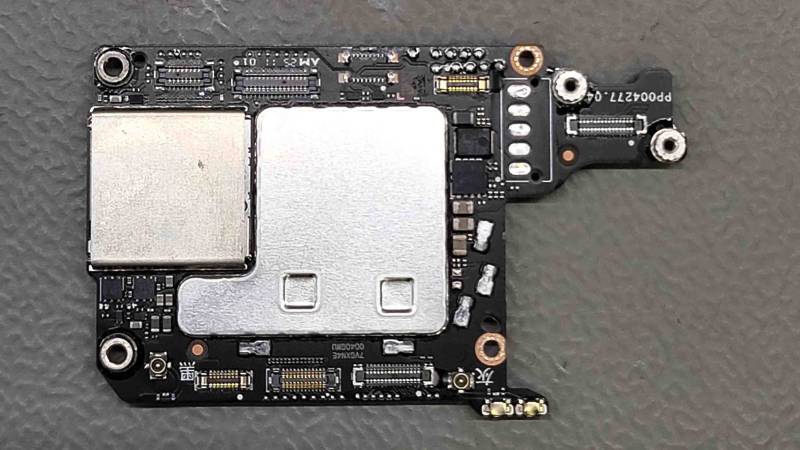
- Clean up the pads.
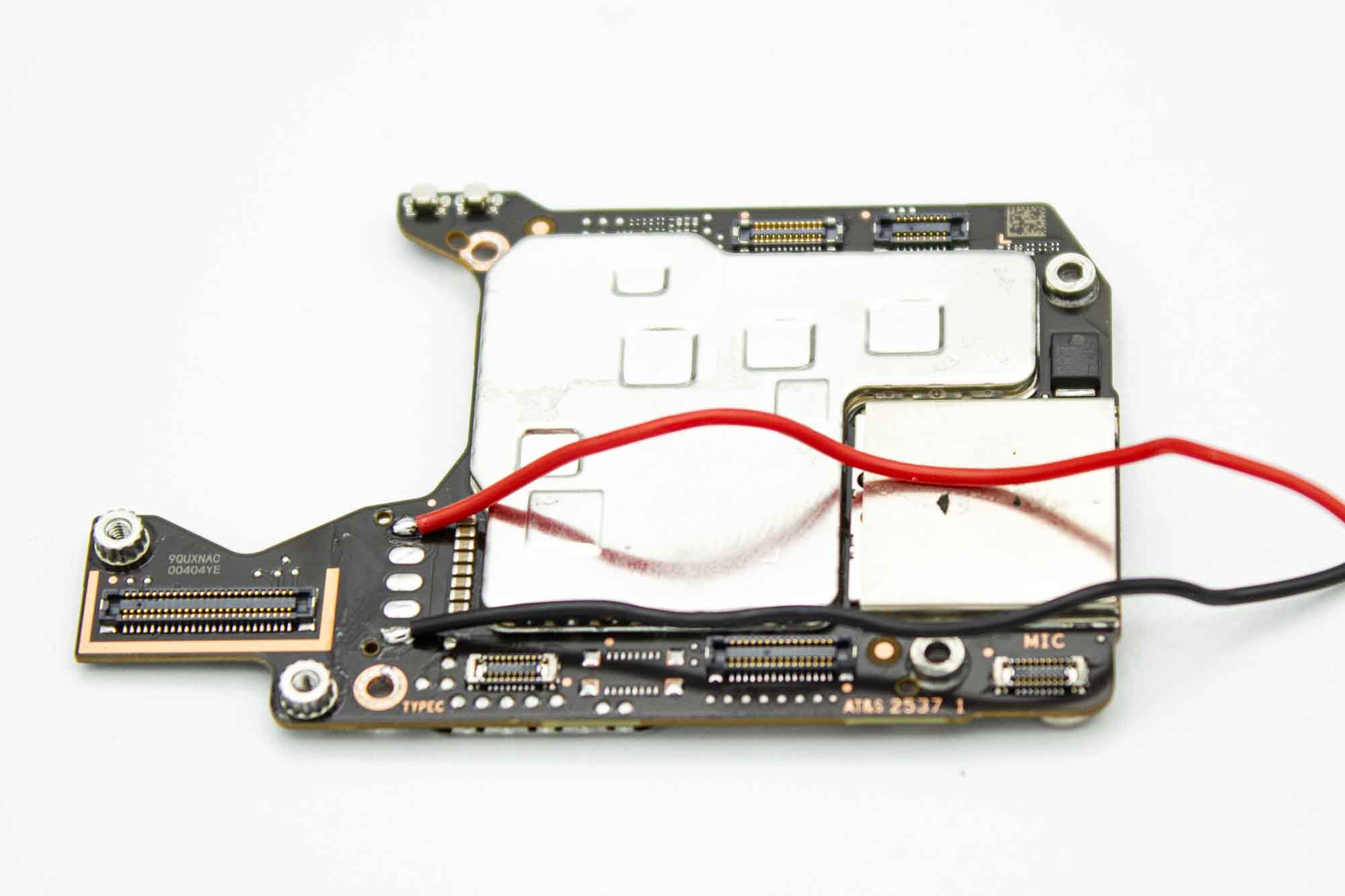
- Solder a black wire to the - solder pad of the mainboard and a red wire to the + solder pad of the mainboard.
Step - Mainboard Preparation Alternative Version
If you did the step above skip this. If you are not comfortable doing the step above you can do the preparation like shown below. It will add a bit of weight to the build.
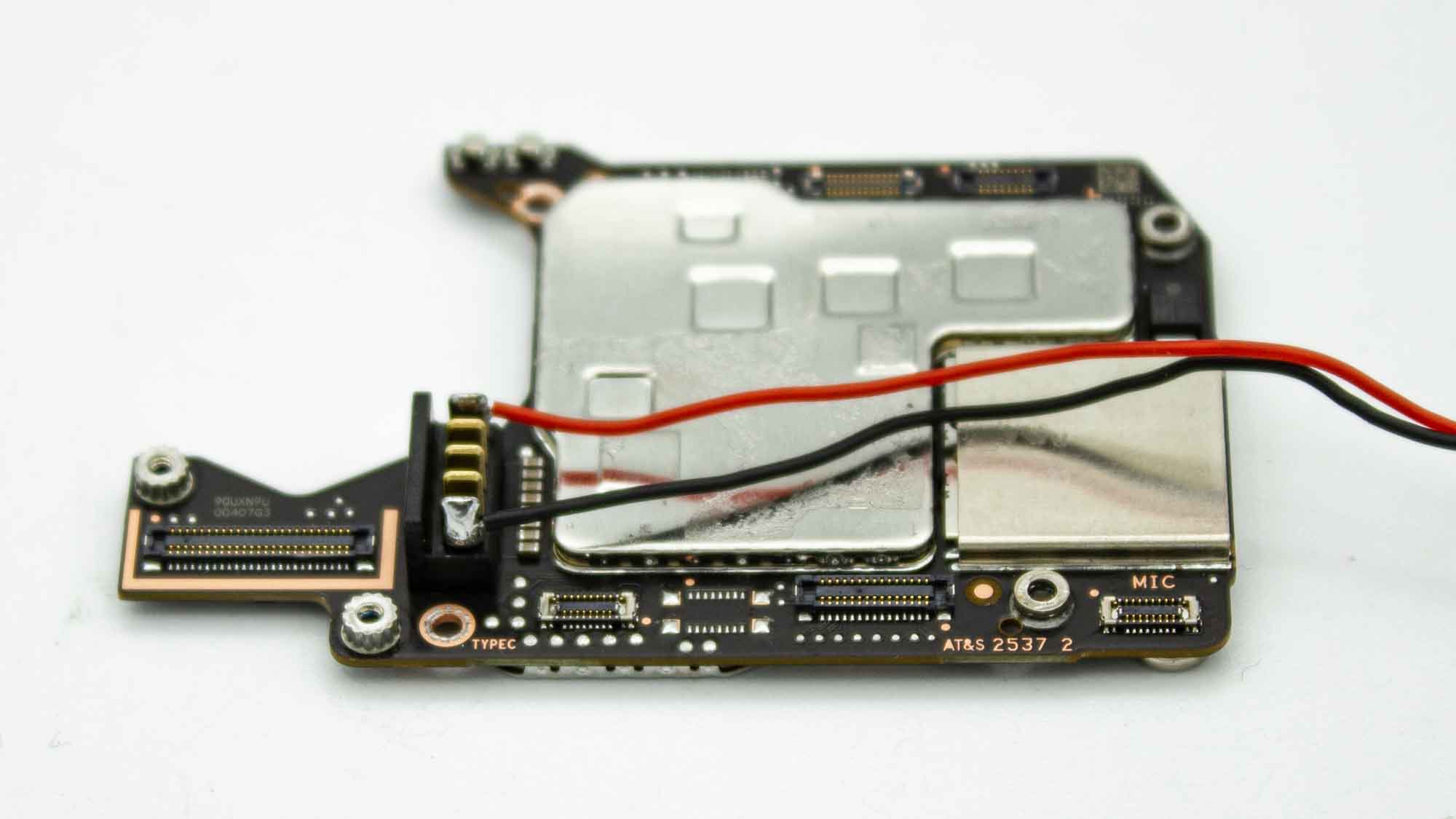
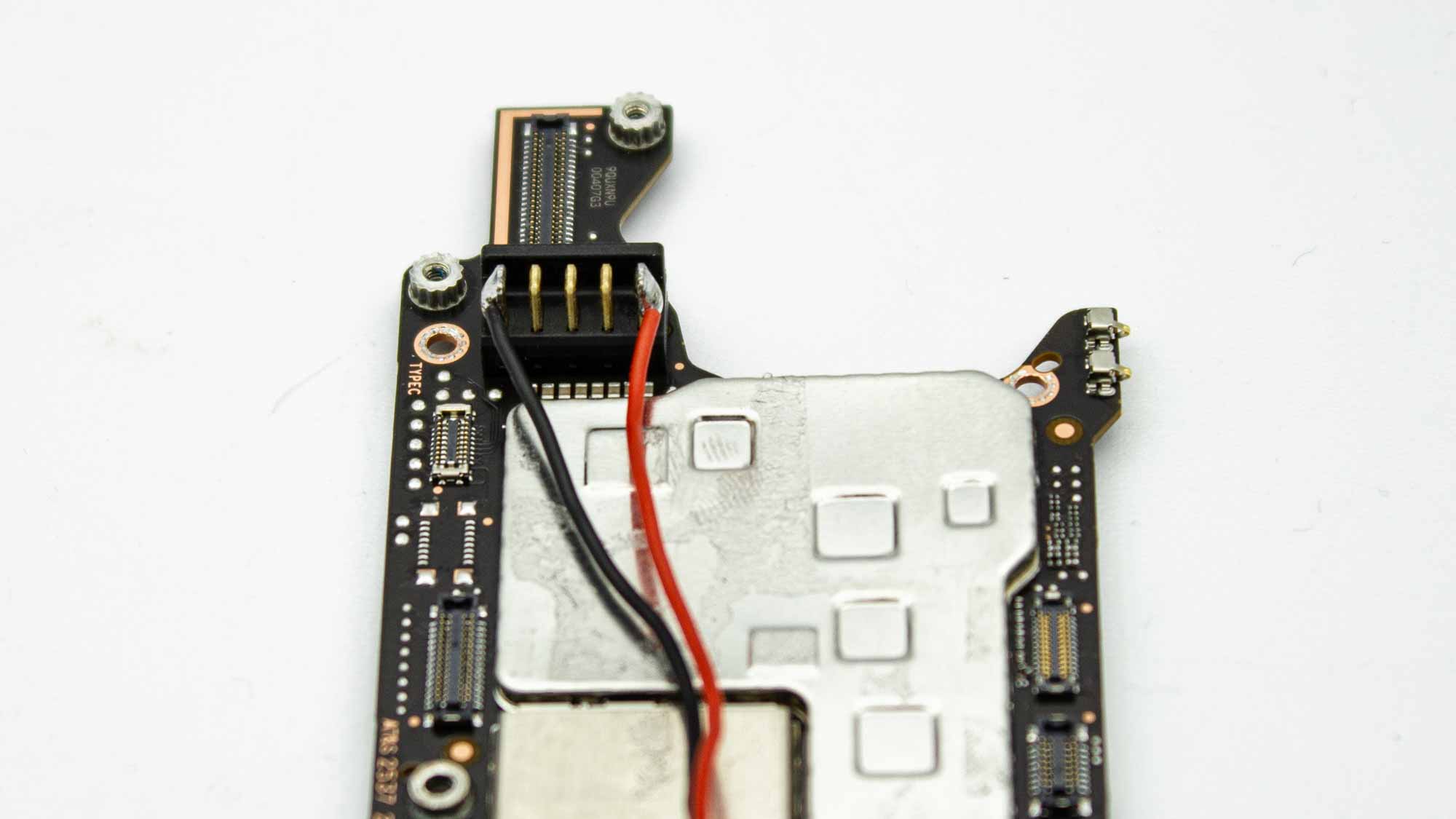
Solder the powercables directly to the battery connector of the mainboard.
Step - Back Display Preperation
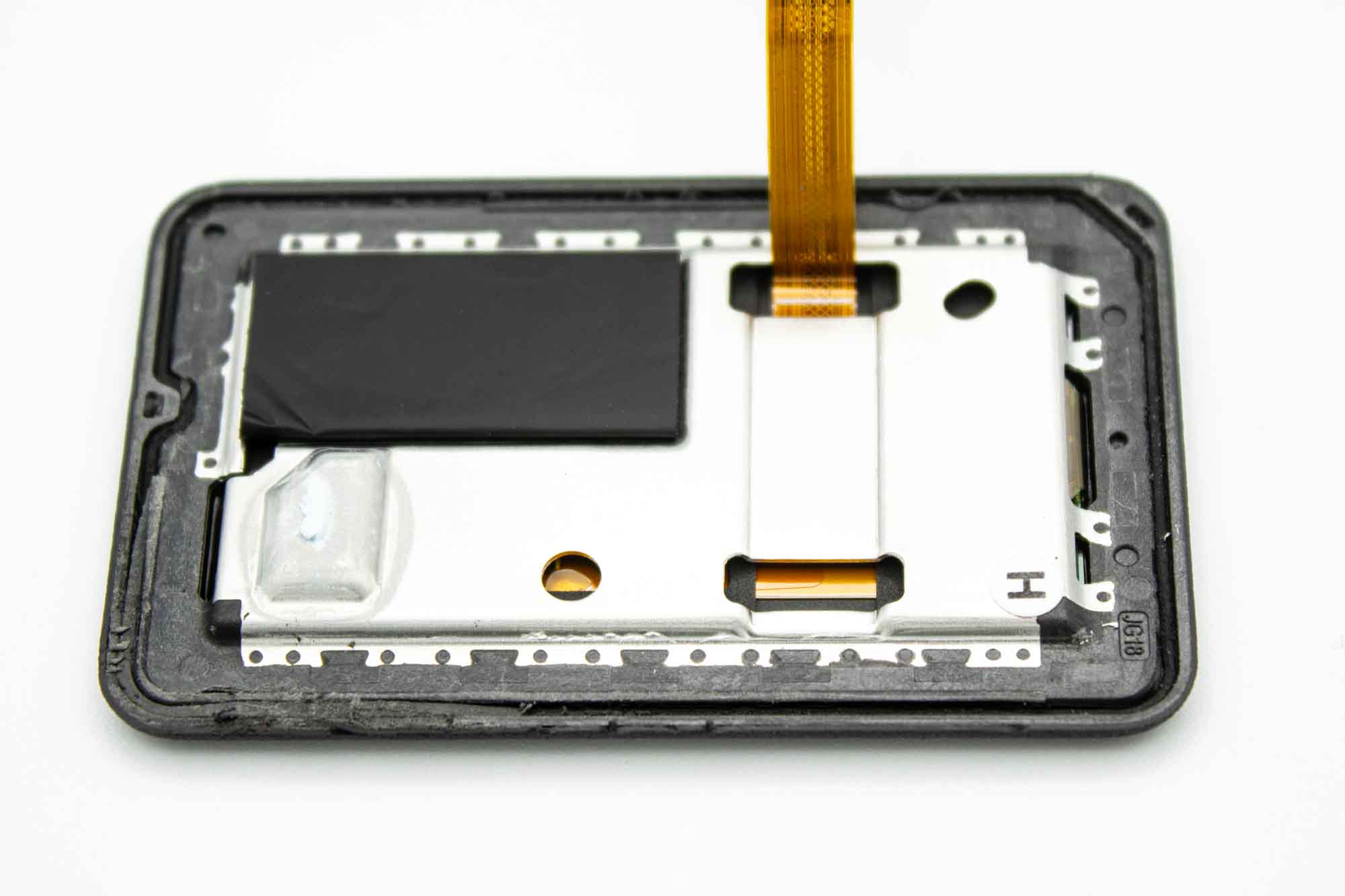
- Now we remove the needed parts from the back display.
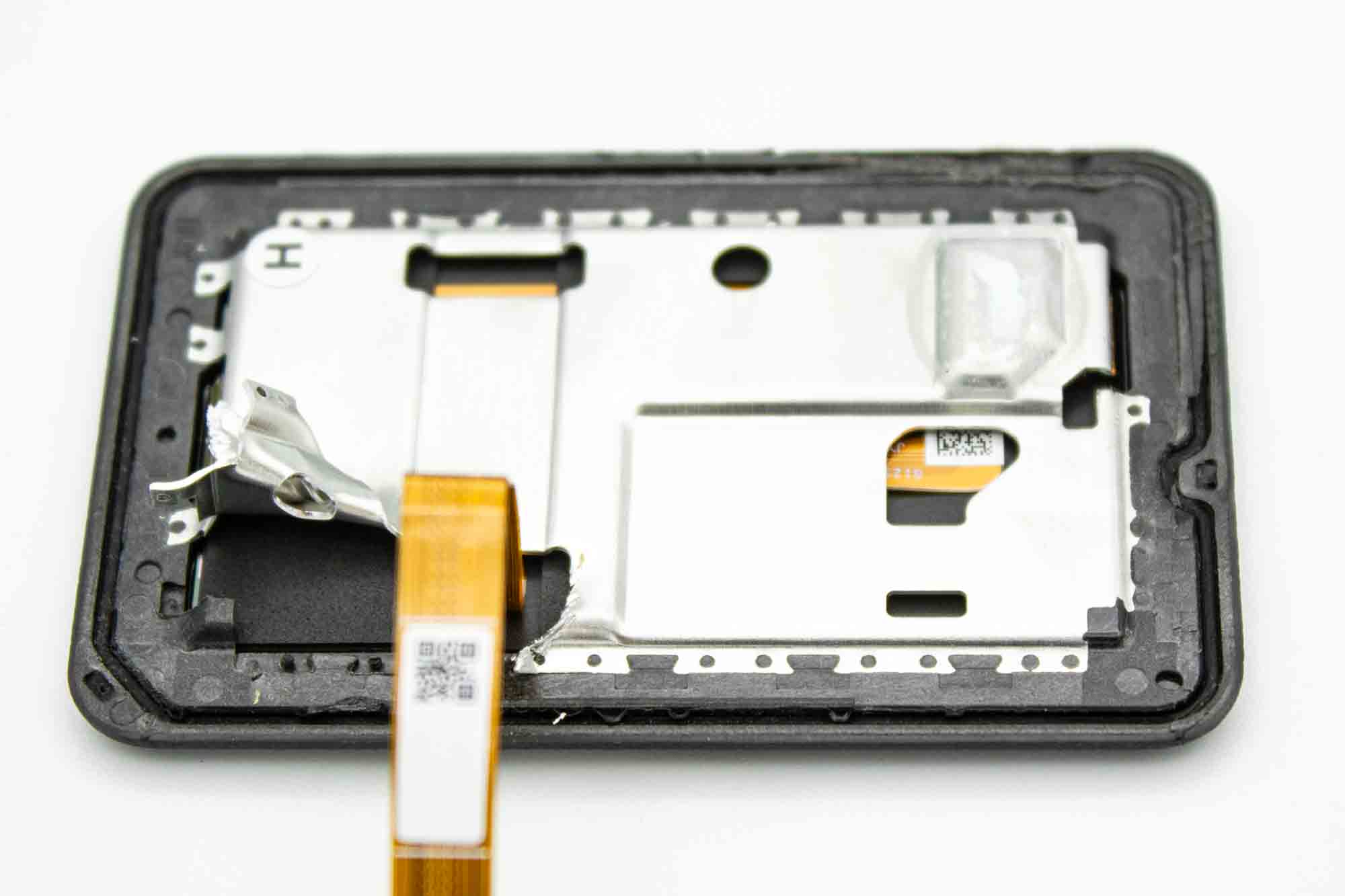
- Start by cutting a groove at the bottom left corner next to the ribbon cable.
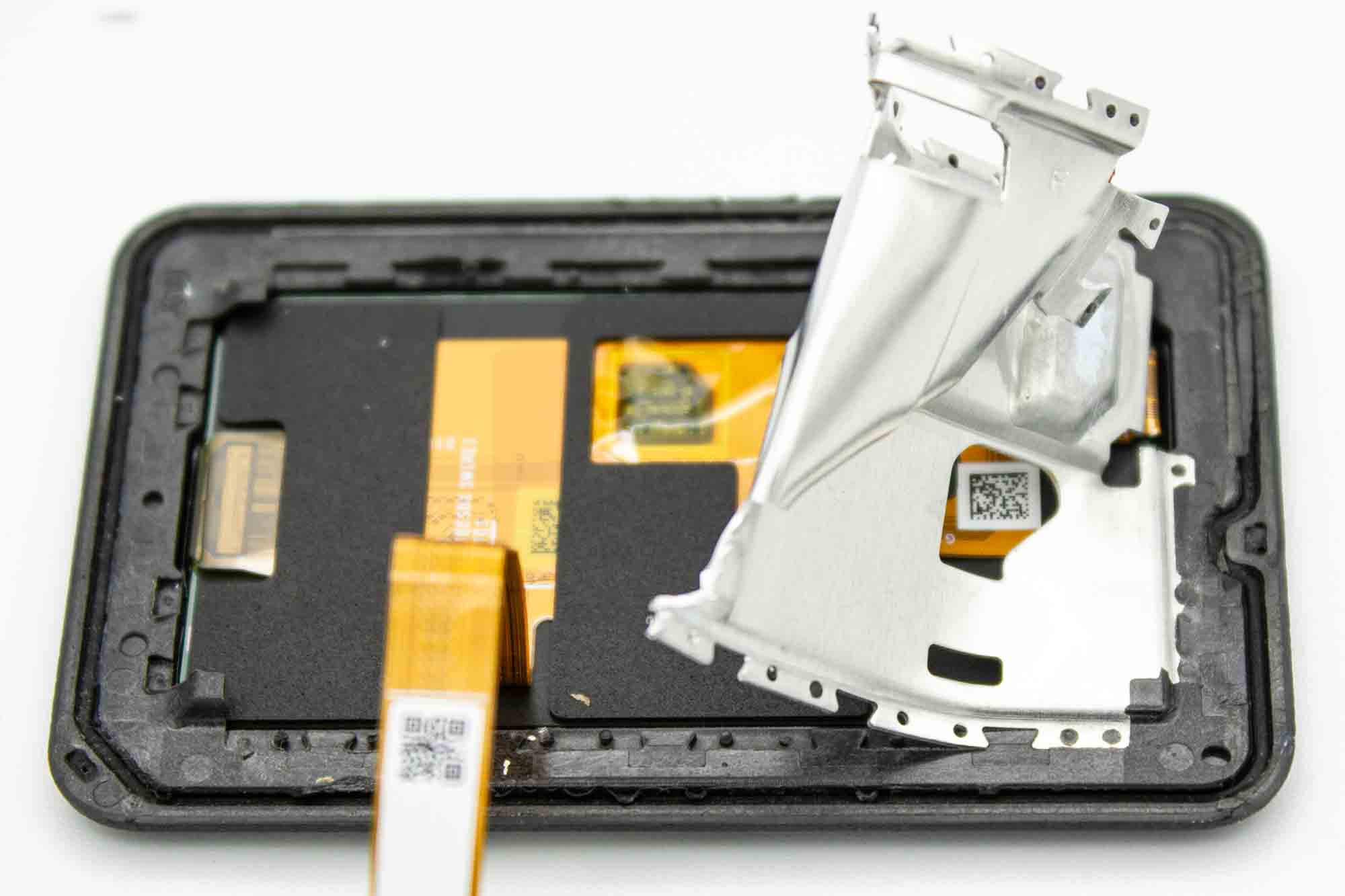
- Pry open the shielding from the display and remove it with some pliers.
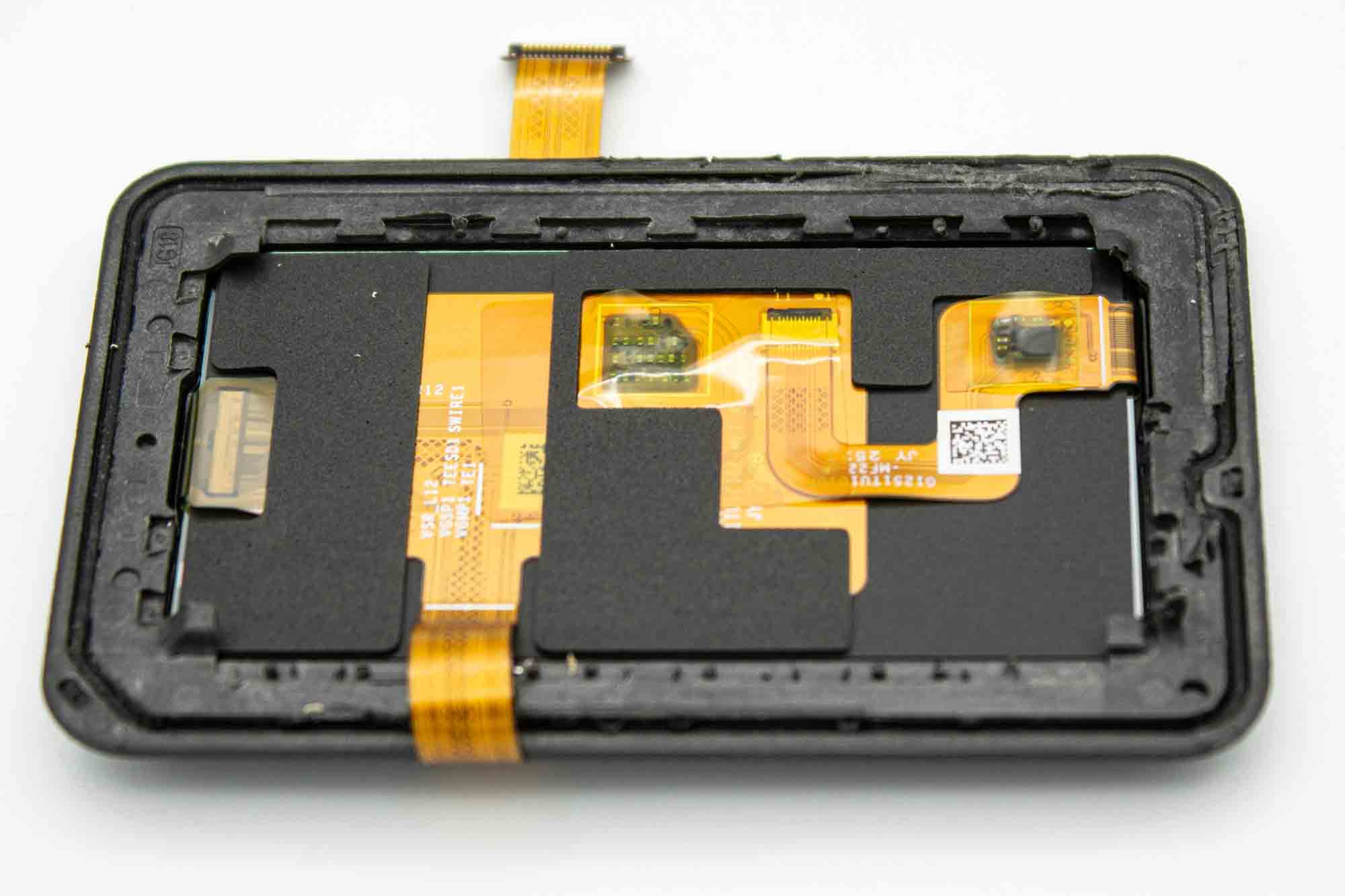
- The backdisplay should now look like this.
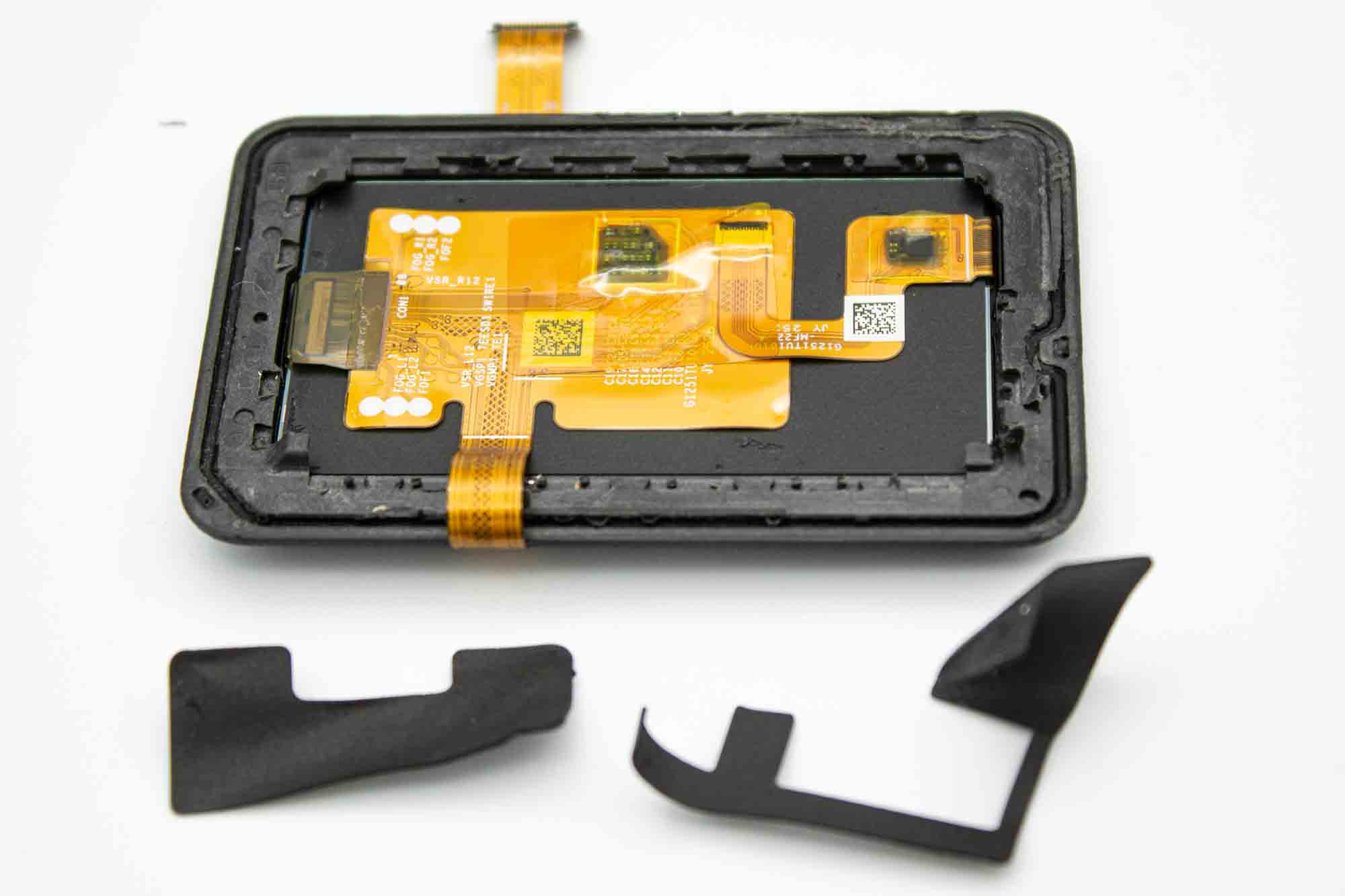
- Remove the stickers ontop of the pcb. Adding some heat will help. Make sure to not damage the pcb.
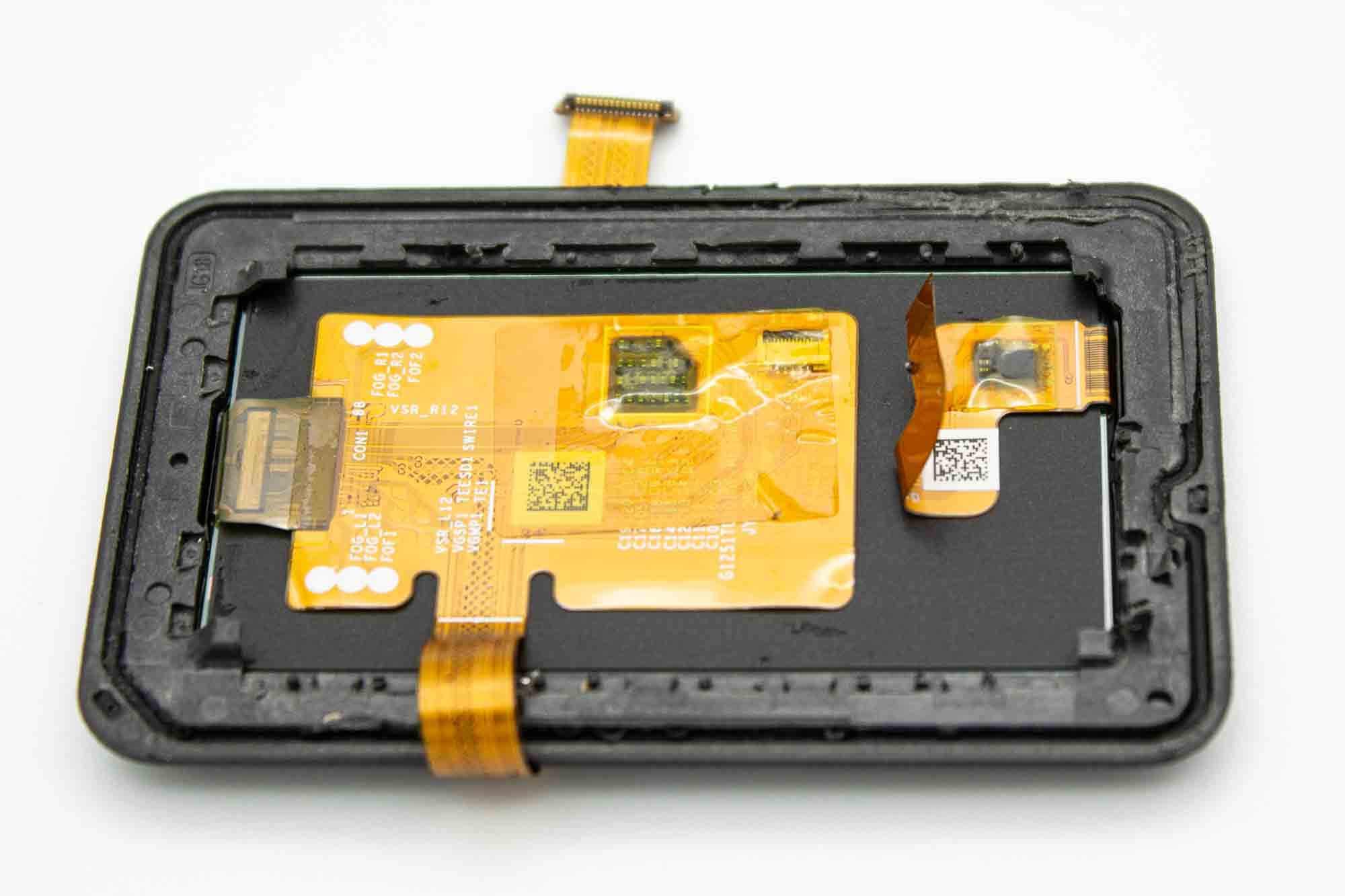
- Temporary remove the tape above the ribbon plug on the ribbon pcb.
- Disconnect the ribbon cable by opening the lash on the ribbon connector and pulling back on the ribbon cable.
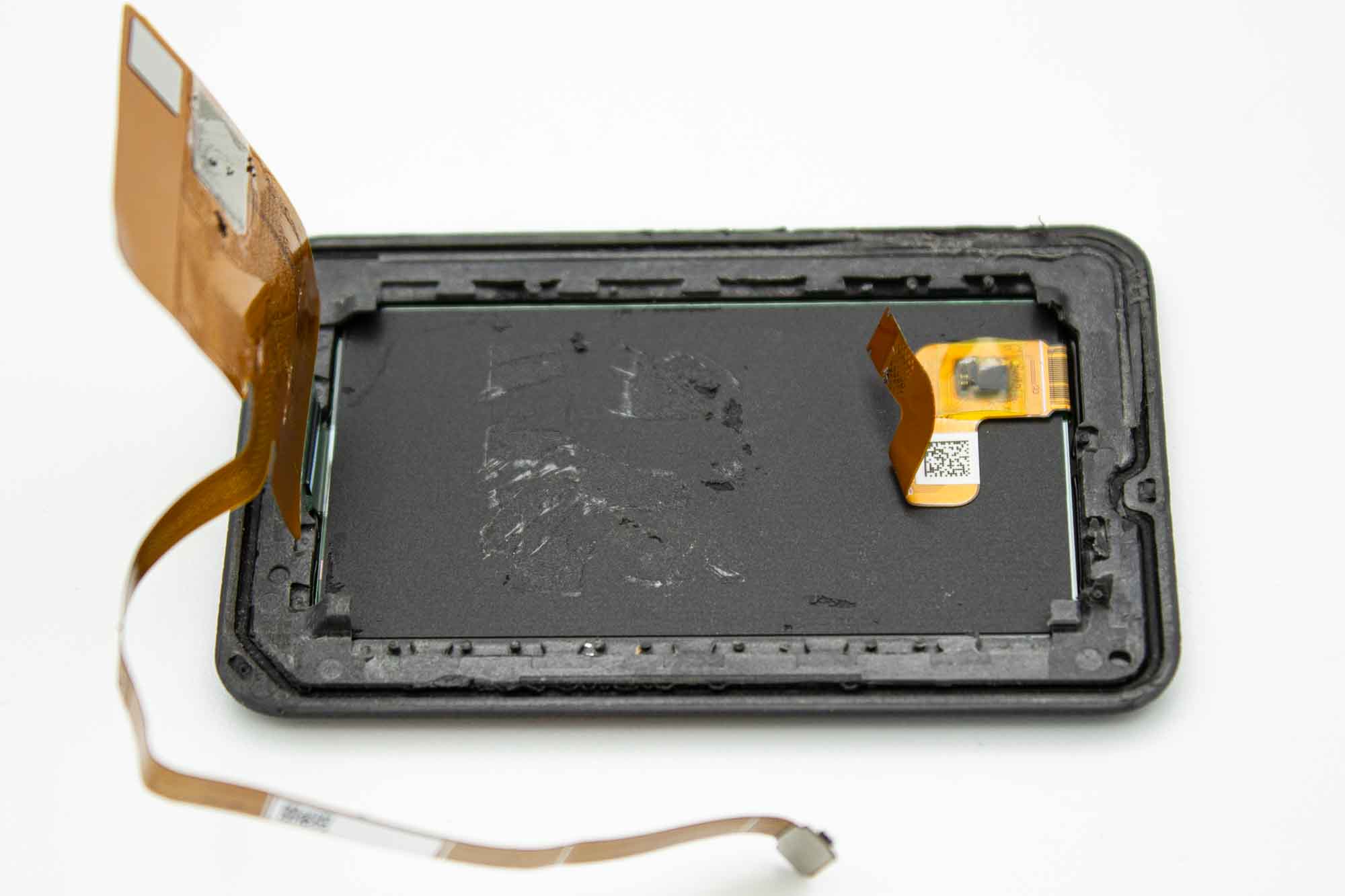
- Heat up the ribbon PCB and remove it from the display using some plastic tools.
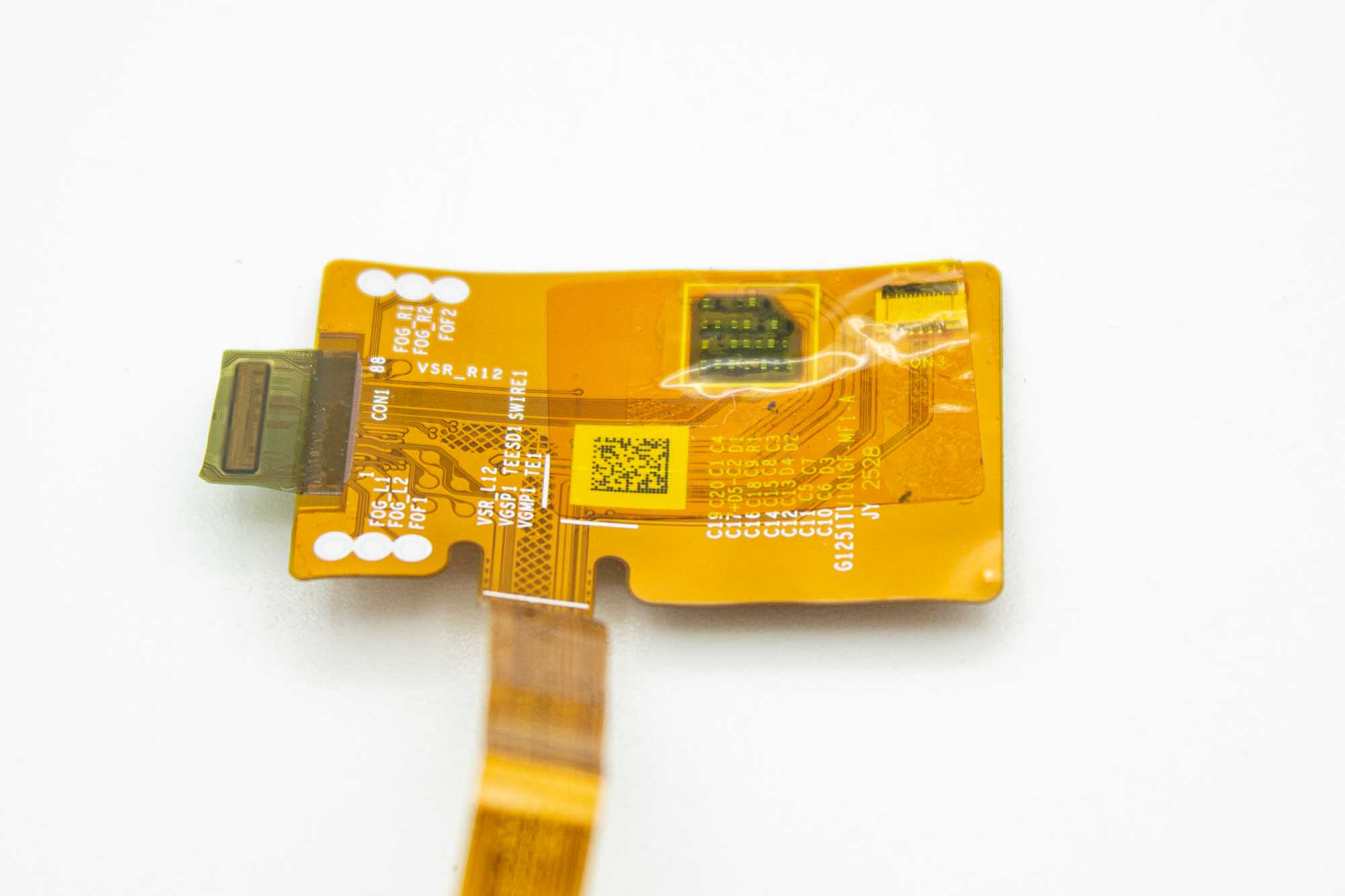
- Cut off the display flush at the very left side. Making sure to leave on the black chip on the ribbon PCB side.
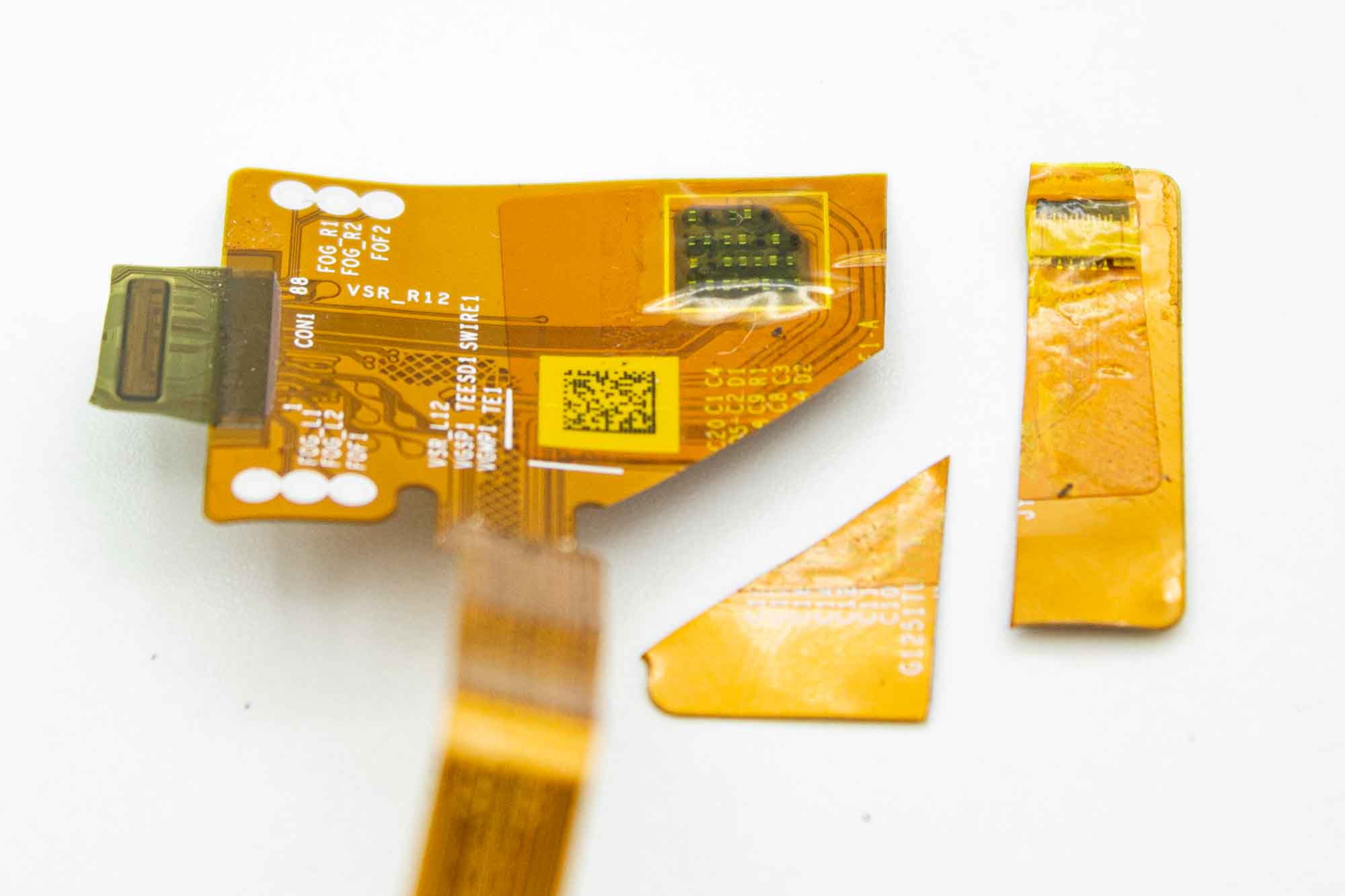
- Cut the ribbon PCB like shown in the picture.
Step - Front Case Preparation
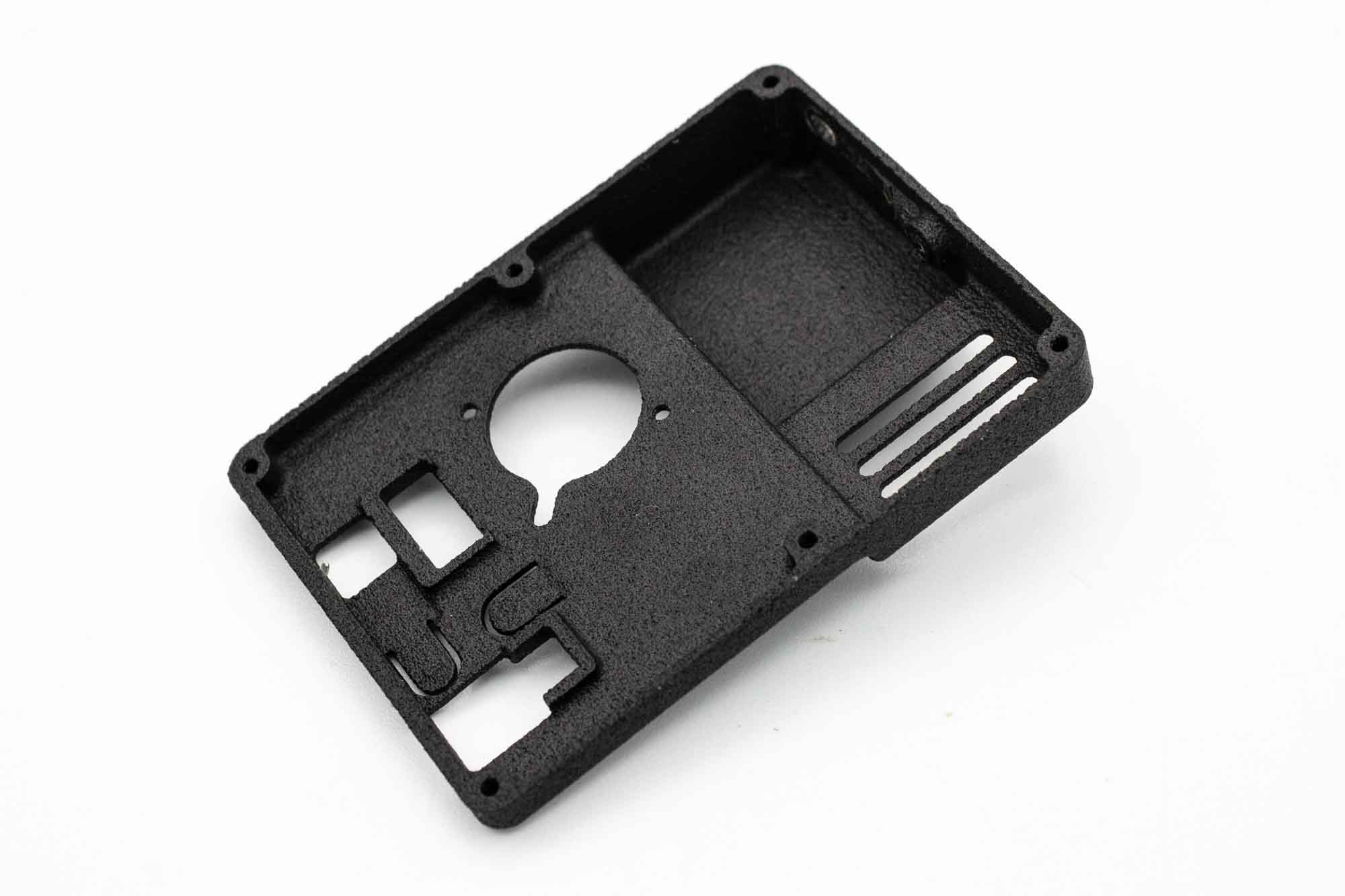
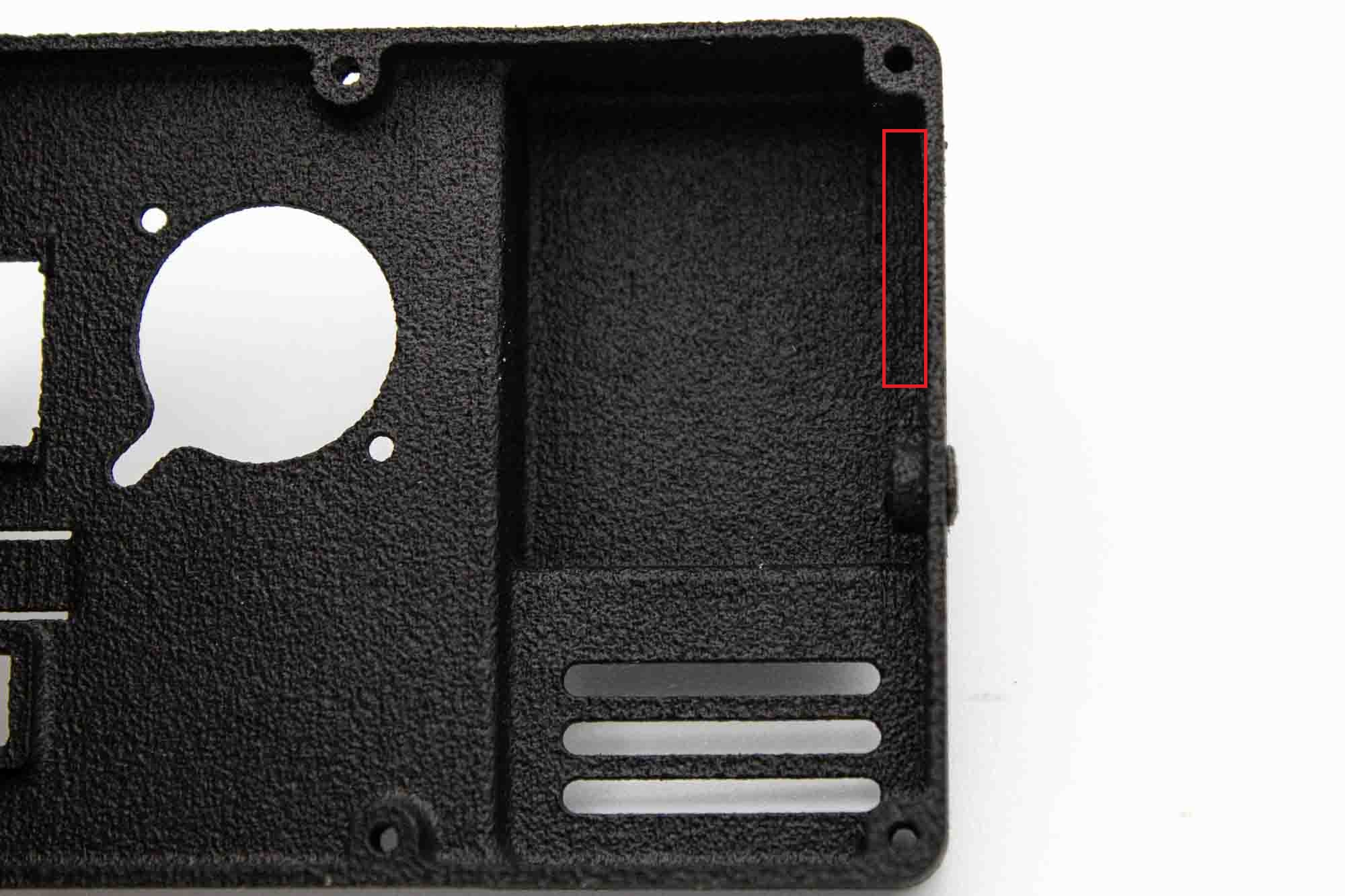
- Use a cutter knife to remove some of the material that was used in the V1 version to make space for the lens bracket.
Step - Lens Bracket Preparation
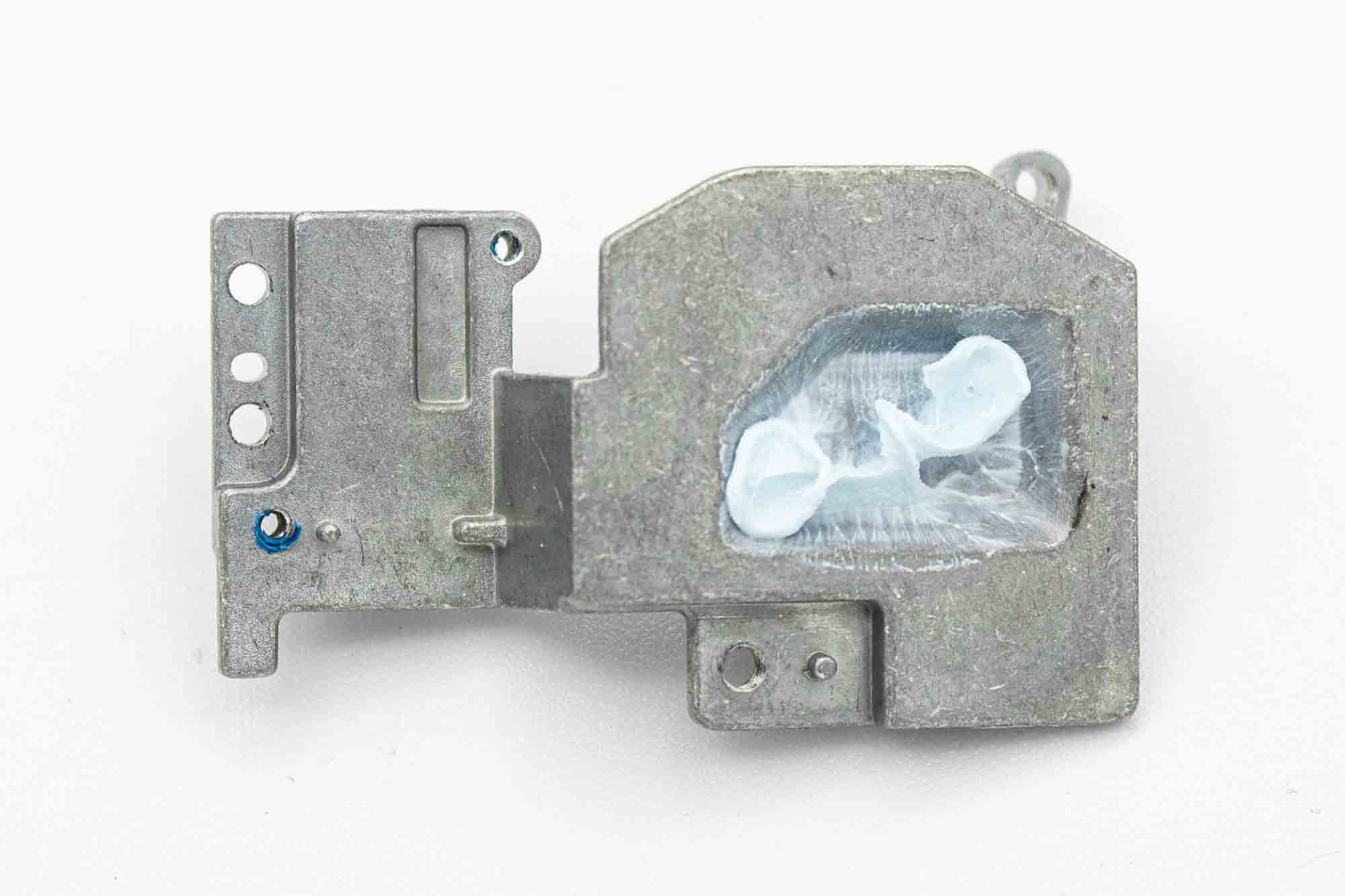
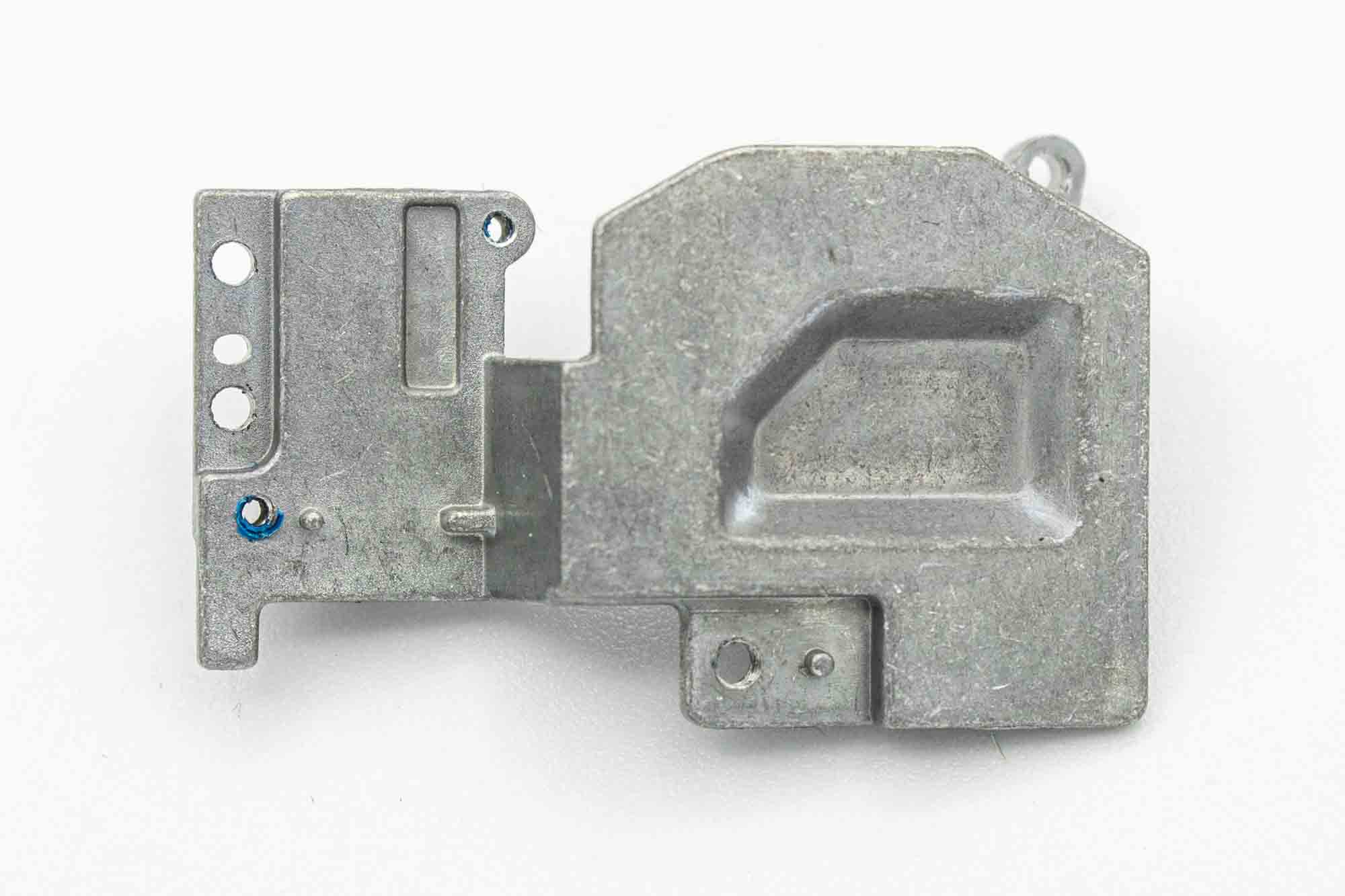
- Clean off all thermal paste from backside of the lens bracket
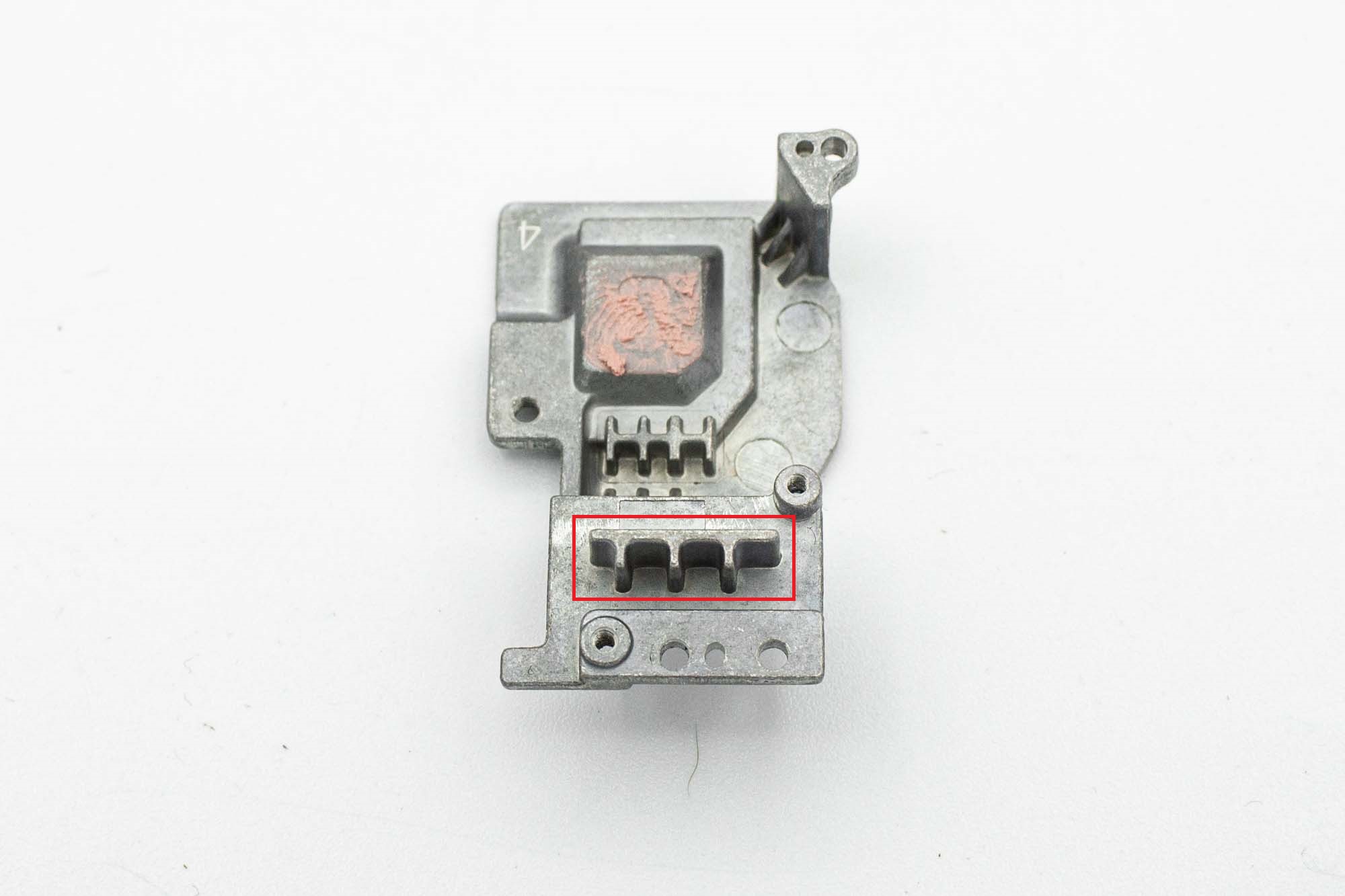
- Remove this part from the bracket. You can use some side cutters to start and then use a file to file it down flush.
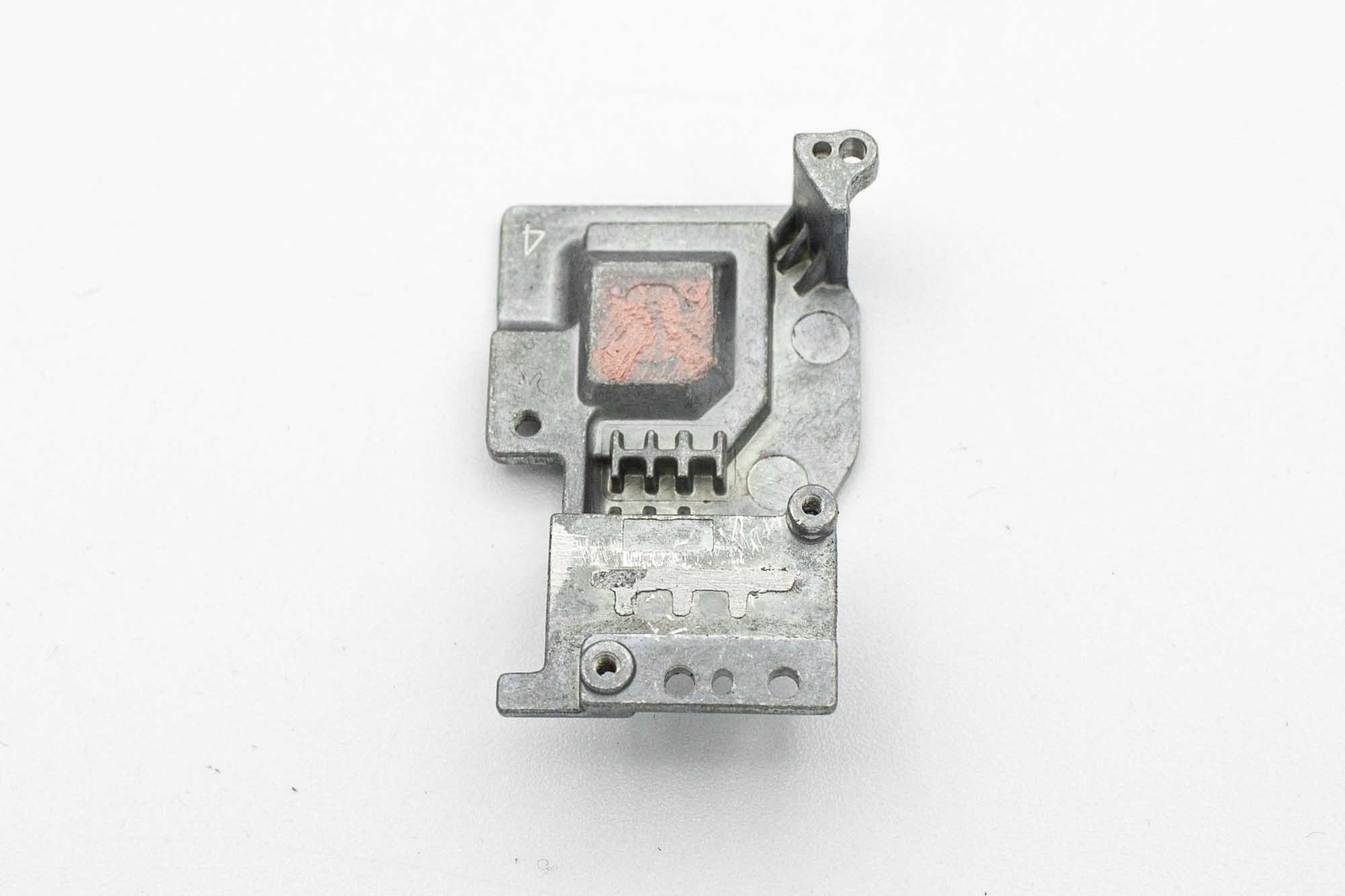
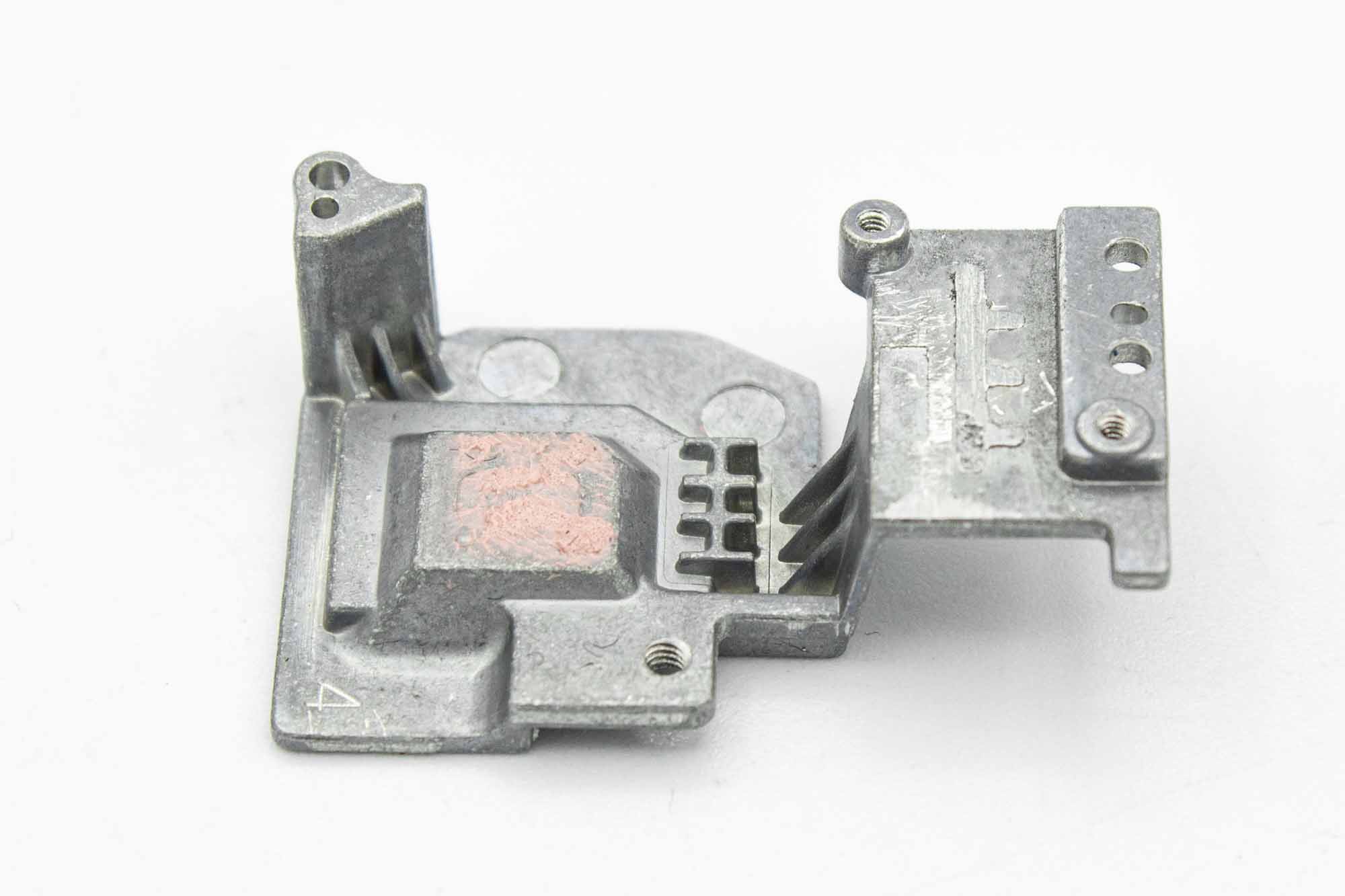
- The bracket should now look like this.
- Make sure to remove any metallic dust from it.
Assembly Steps
Step - Install Nuts
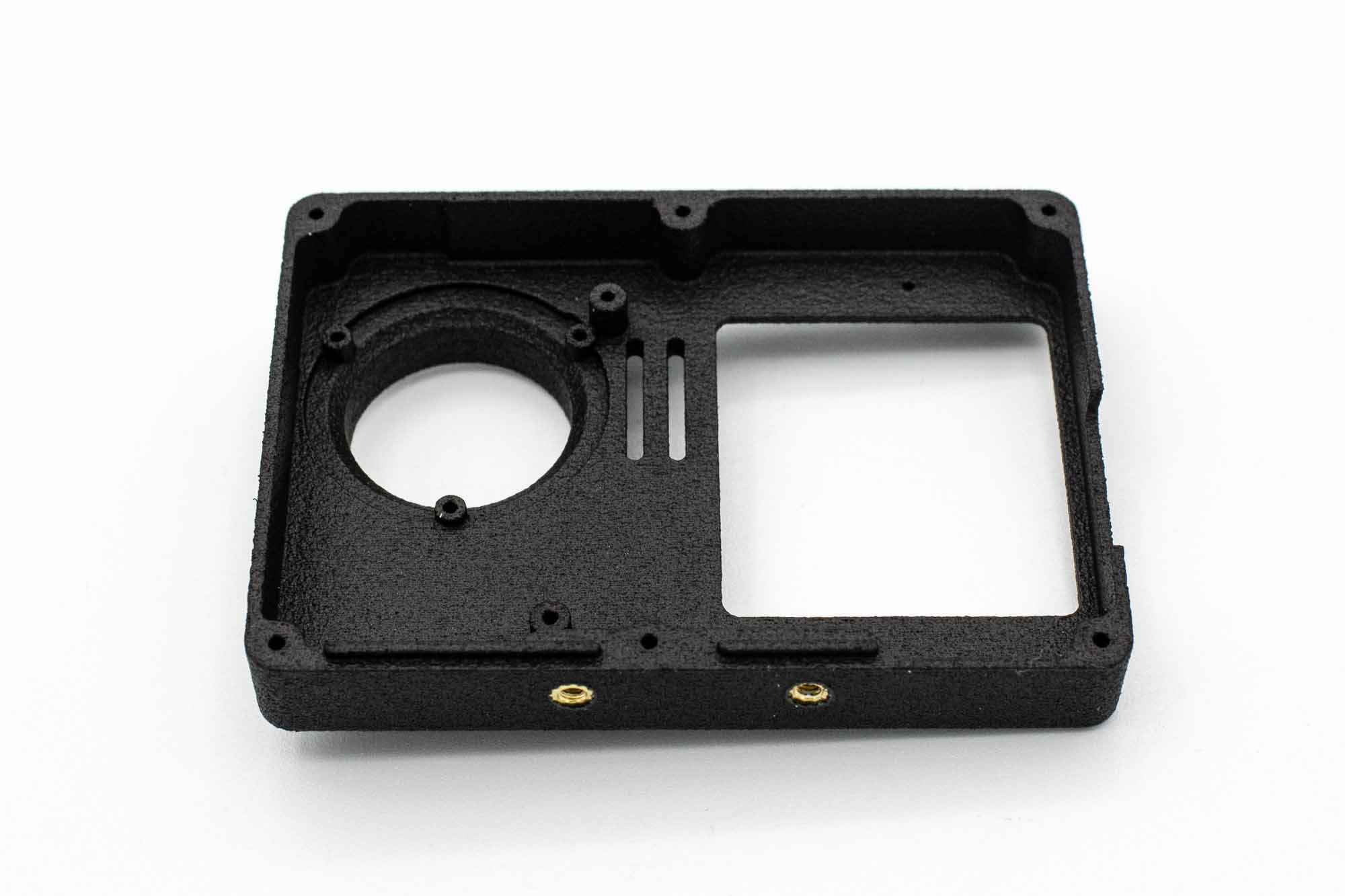
- Use a soldering iron set to 220 degrees to slowly set in the nuts into the frontcover.
- Make sure to set them straight.
- Do not rotate the nuts.
Step - Install Front Display
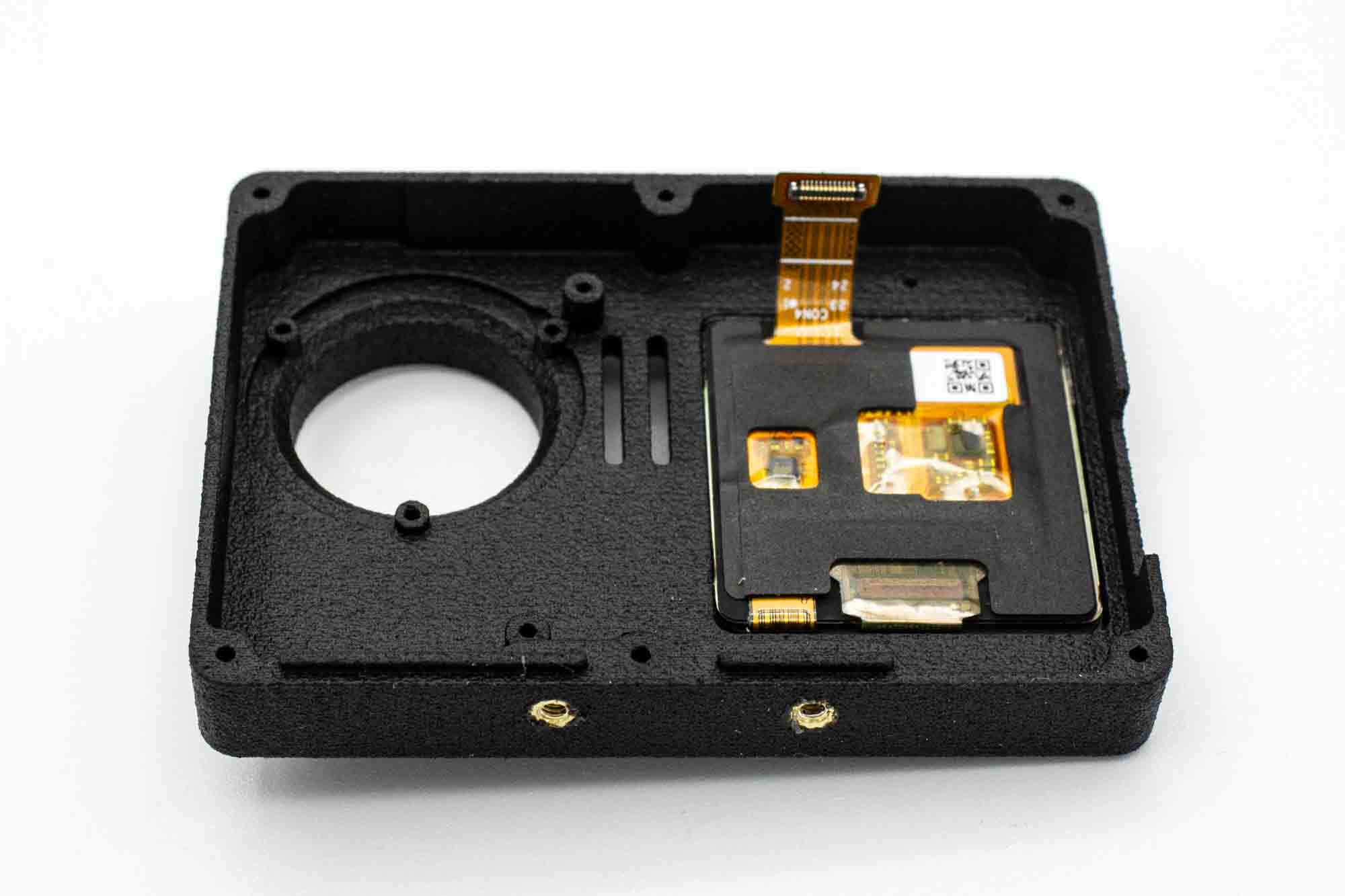
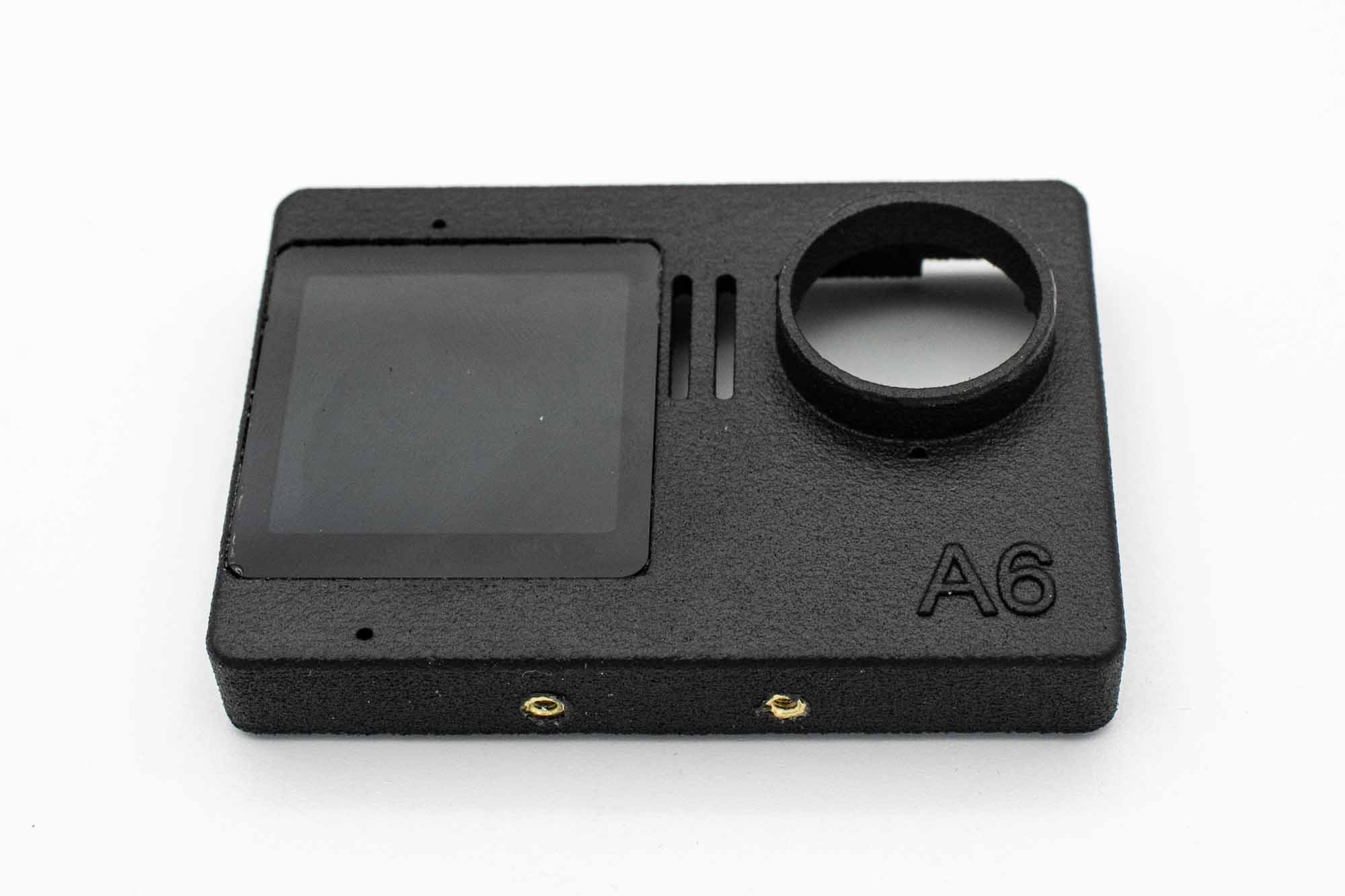
- Scruff up the surface of the Frontcover a little bit for better adhesion.
- Glue the front display in place with 2K epoxy.
- Make sure to get the orientation right.
- Wait for the epoxy to cure.
Step - Attach 3d Printed Bracket
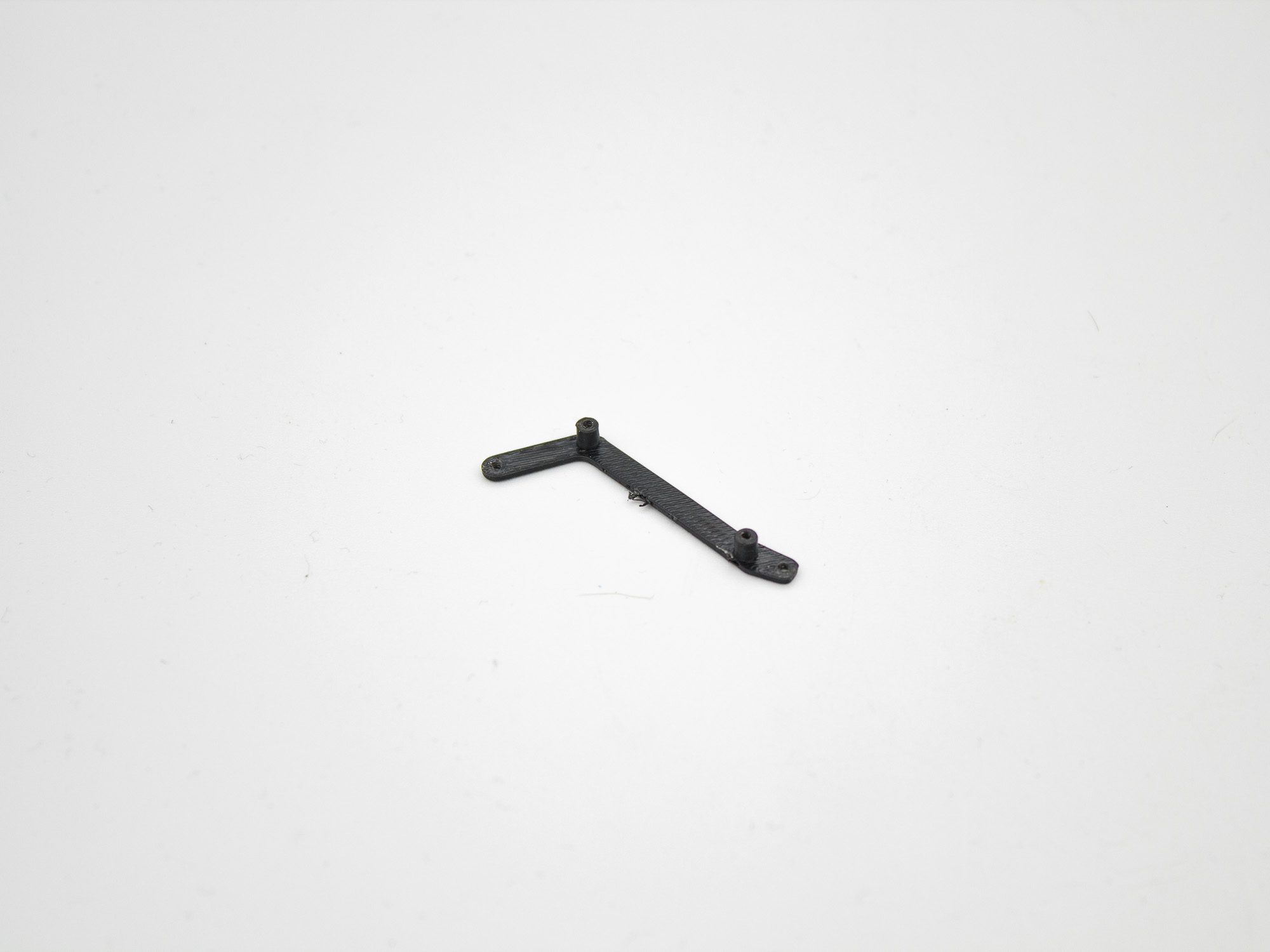
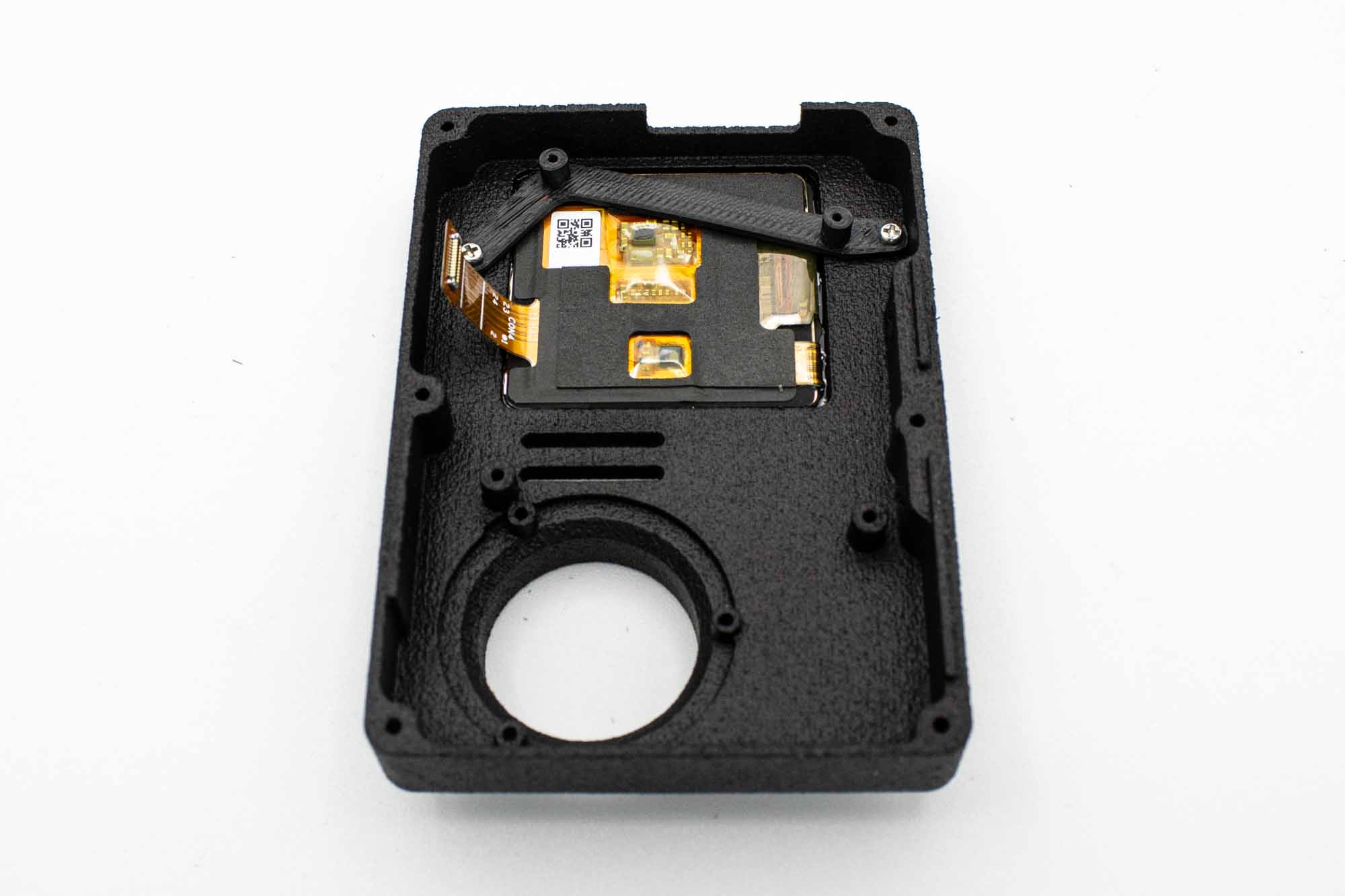
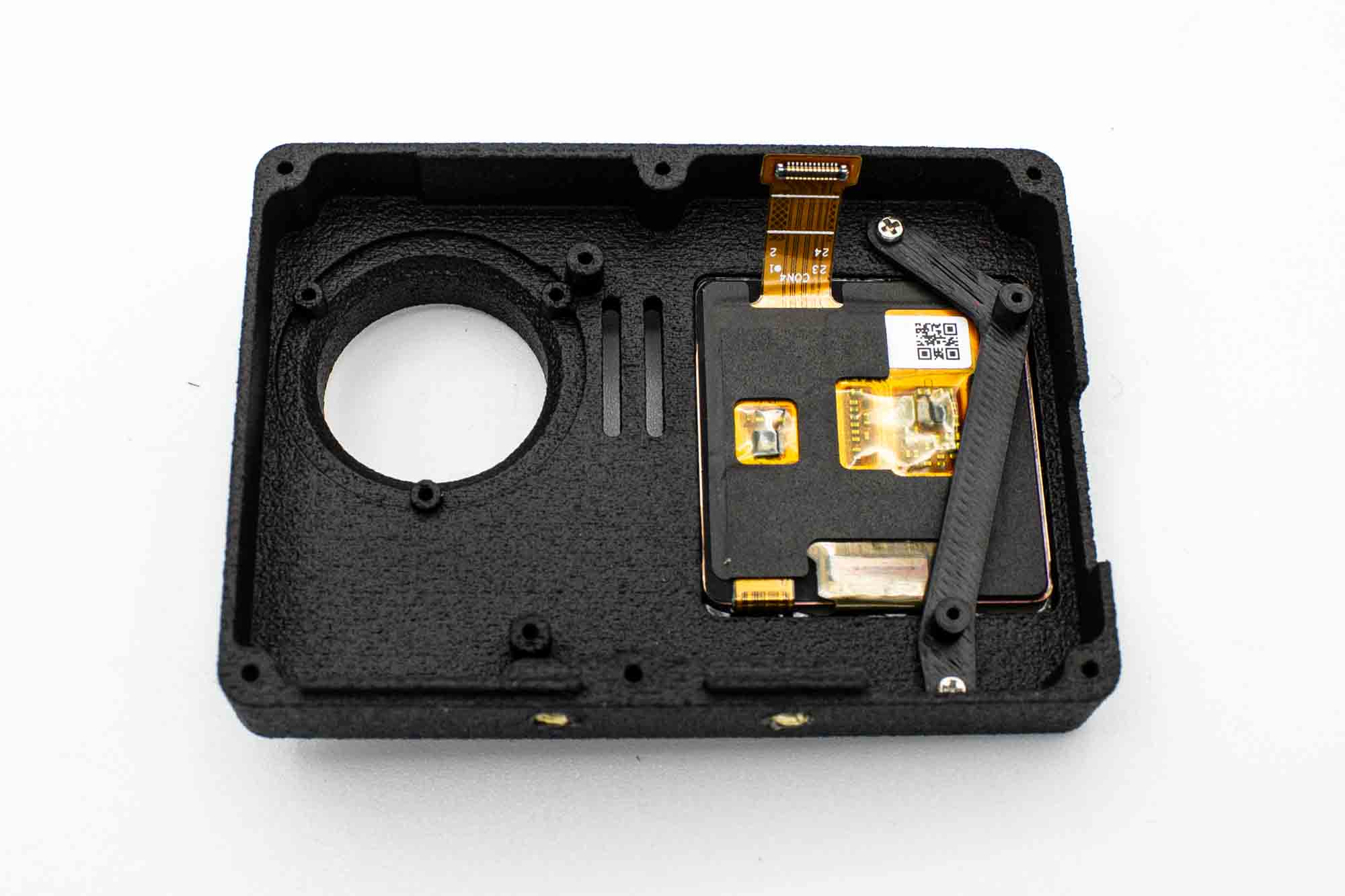
- Add the 3d printed bracket like shown and secure with two M1.4 x 3mm screws
Step - Attach Motherboard
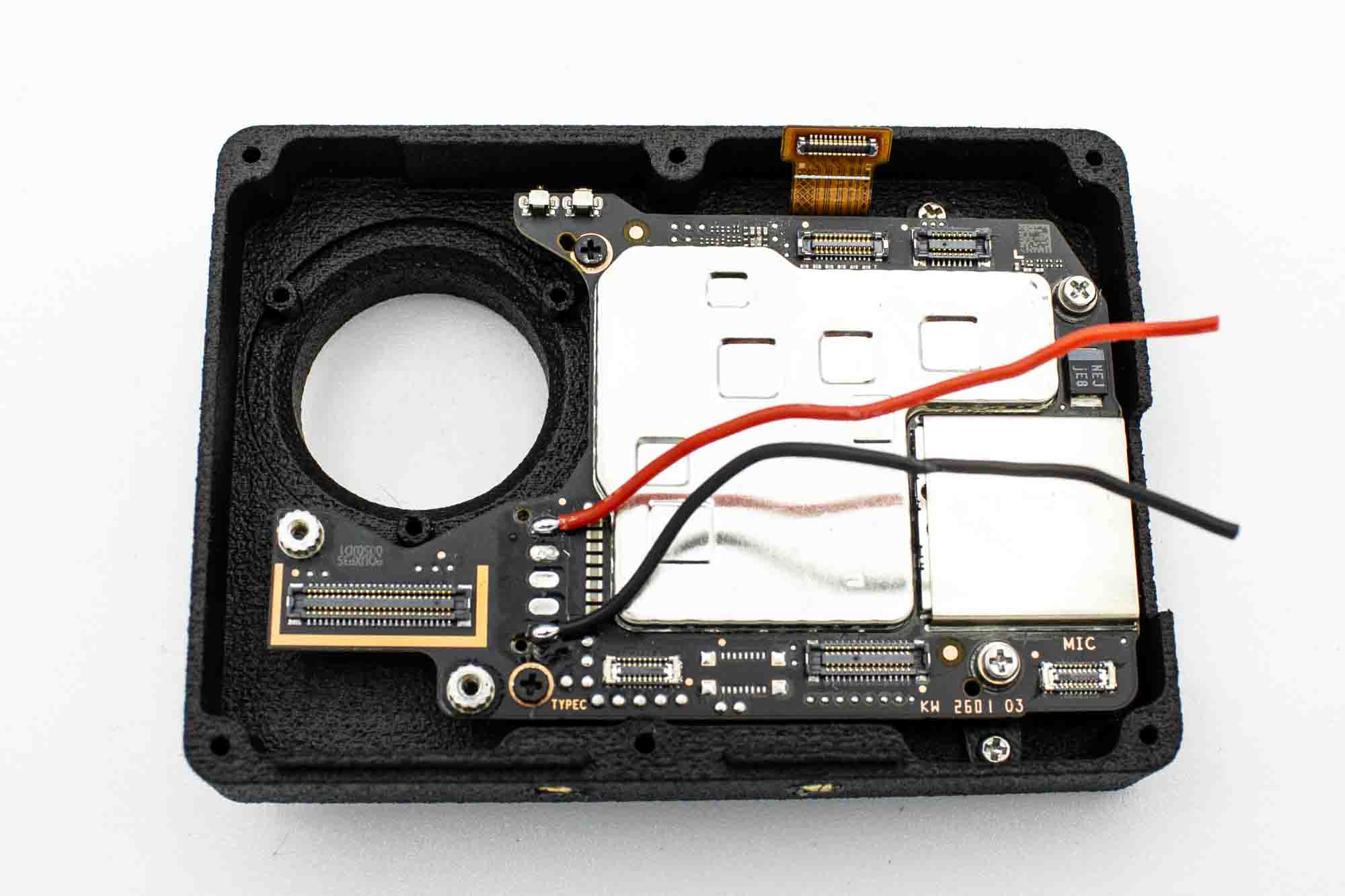
- Place the motherboard ontop of the motherboard holder and secure with four screws.
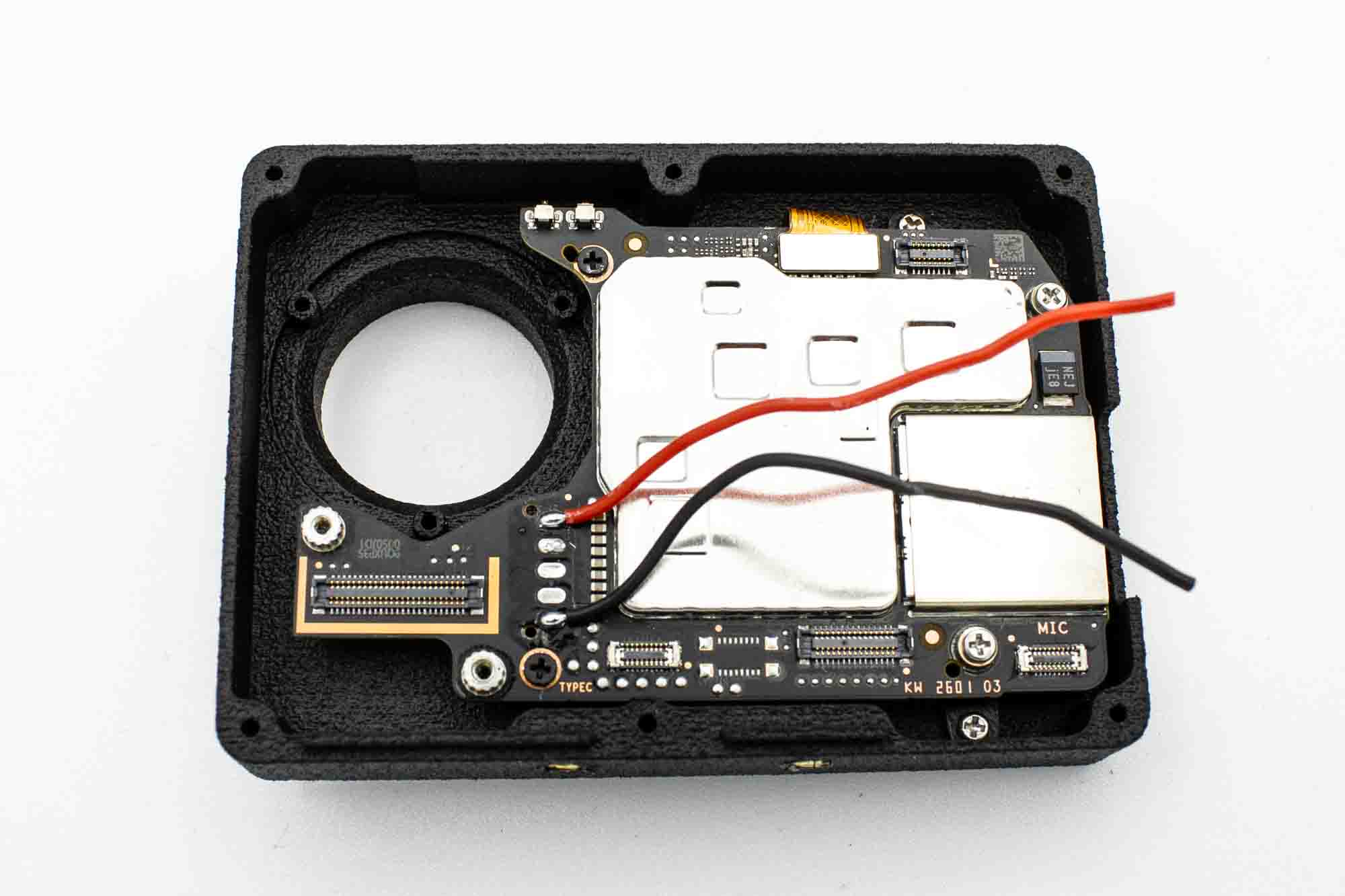
- Plug in the front display ribbon connector
Step - Attach Lens
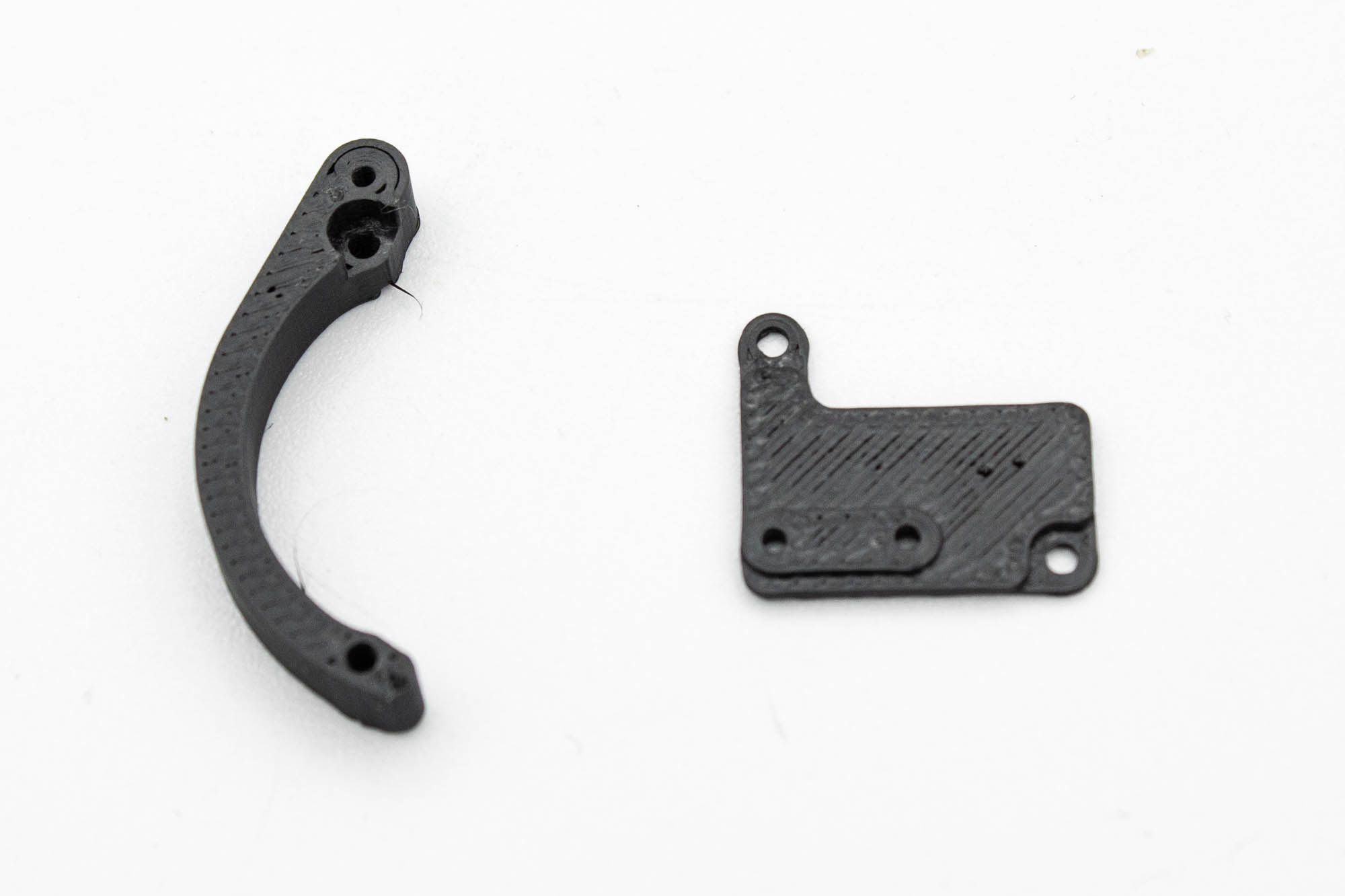
- Grab these two 3d printed parts.
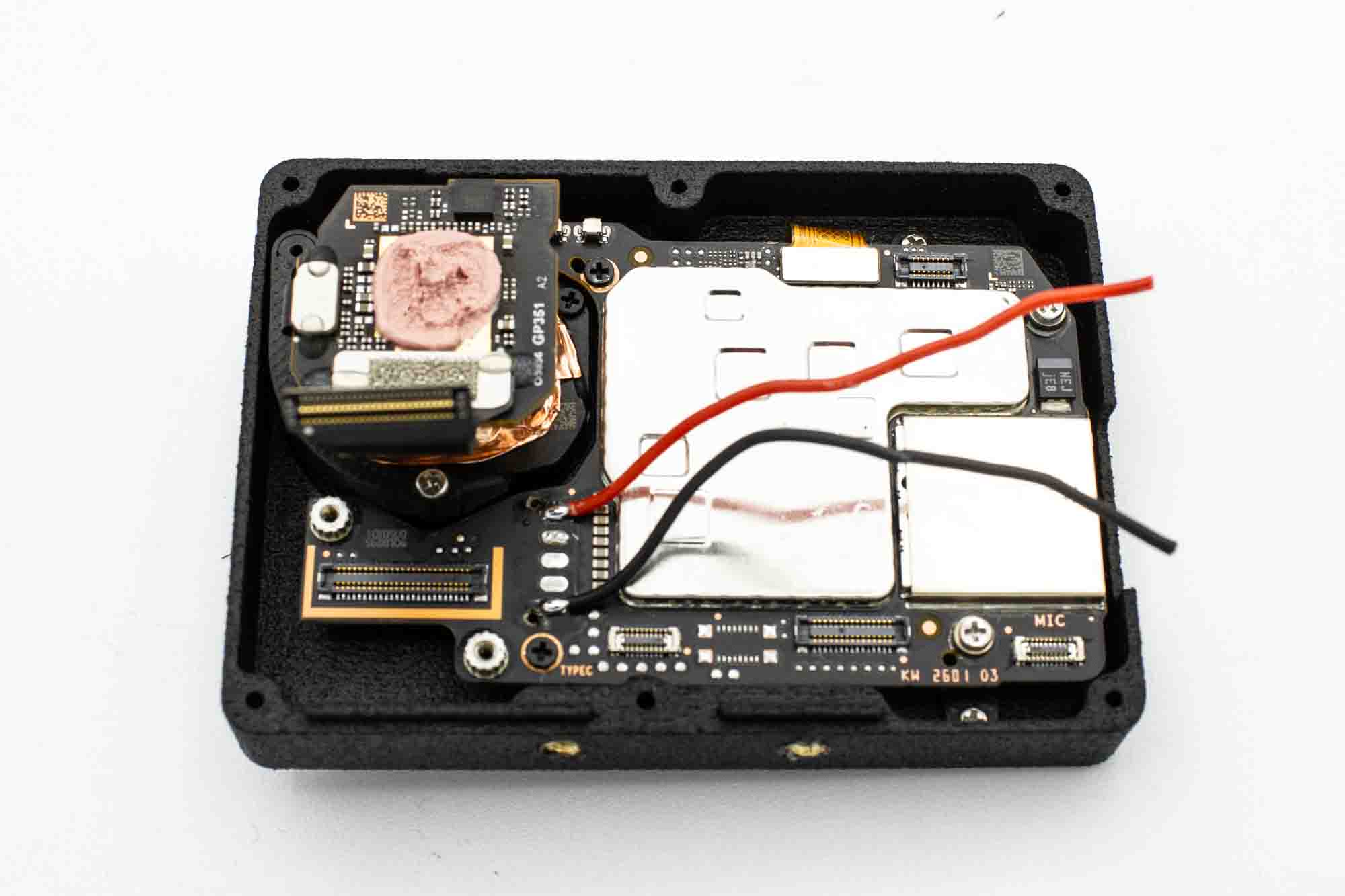
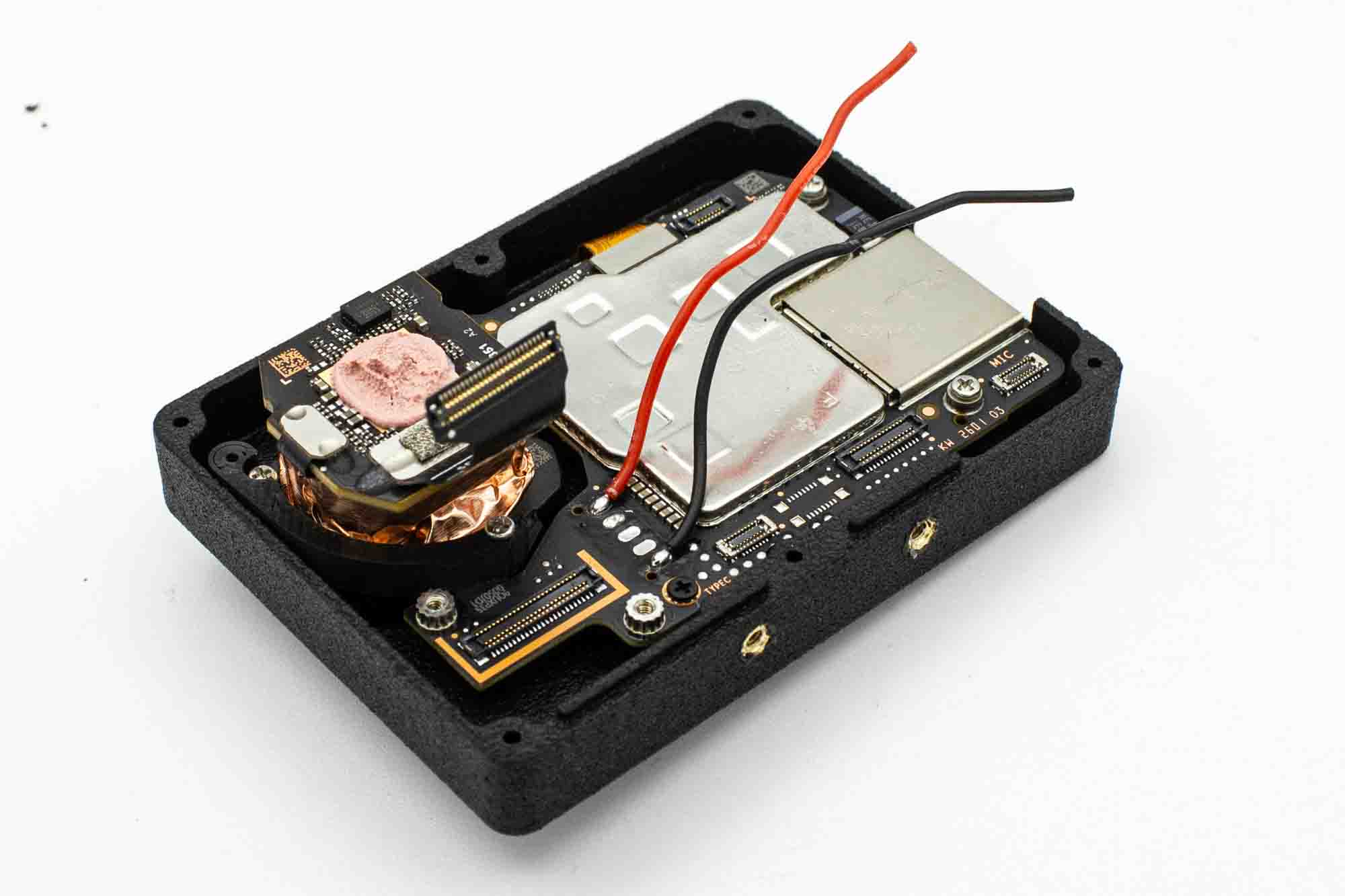
- Place the lens assembly into its place.
- Then place the 3d printed bracket on the left side of the lens mount.
- Secure with the 1x original screws and 2x M1.4x8mm screws.
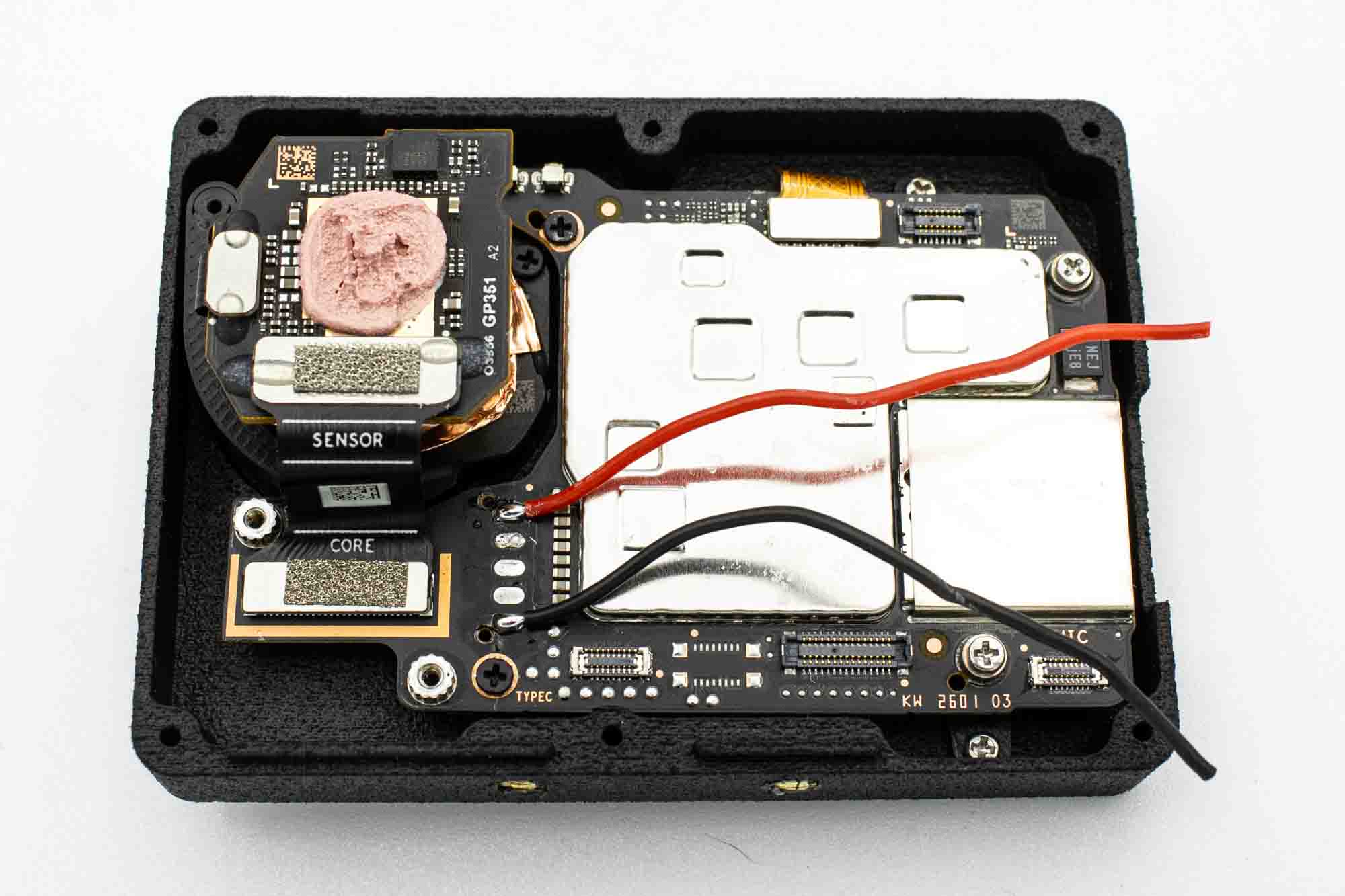
- Connect the lens ribbon connector onto the motherboard.
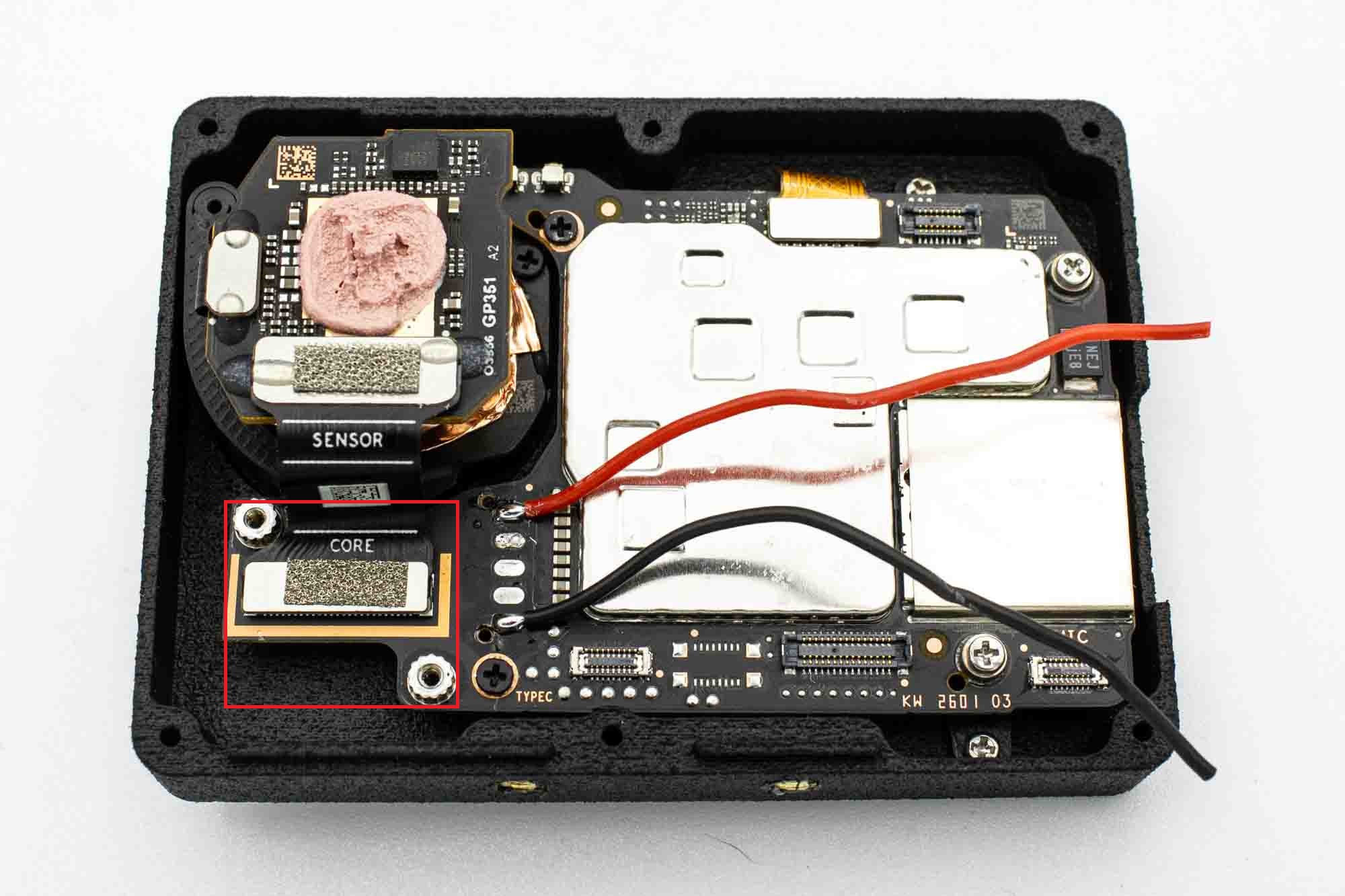
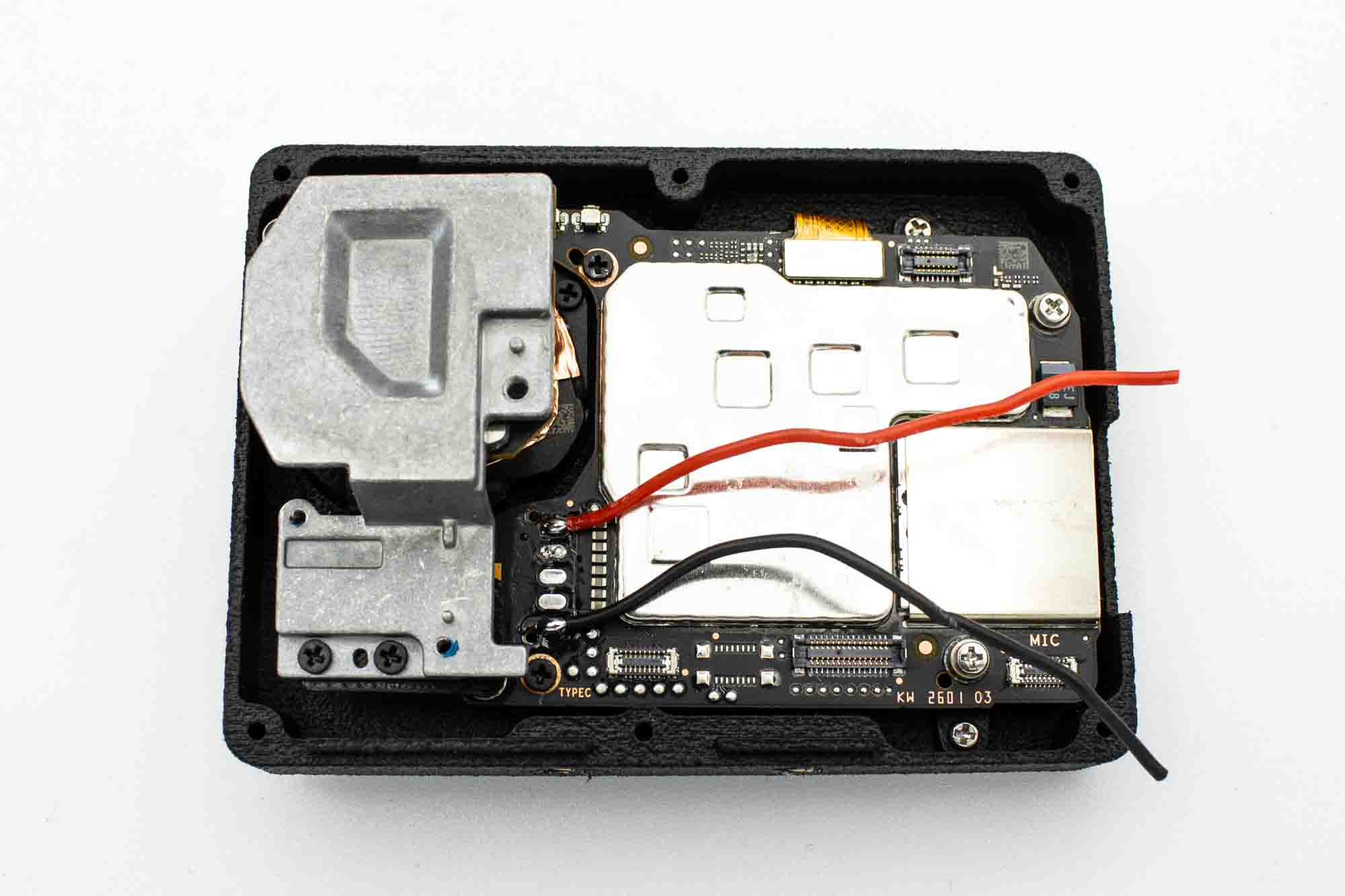
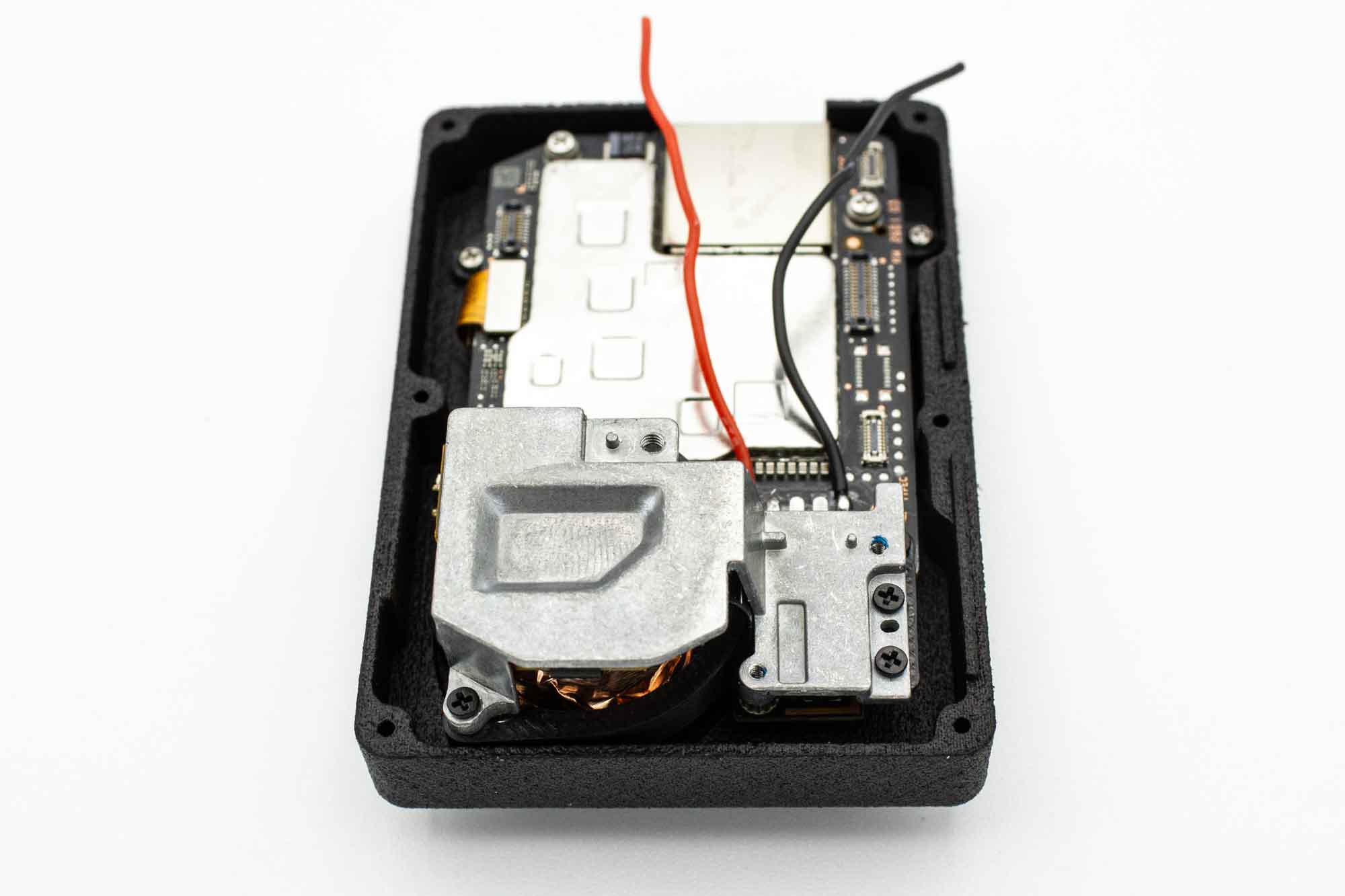
- Add the second 3d printed part where the lens ribbon bracket was sitting and secure it with the original screws.
- Then add the lens bracket to the lens and secure it with the three original screws.
Step - Attach BEC Ribbon Cable
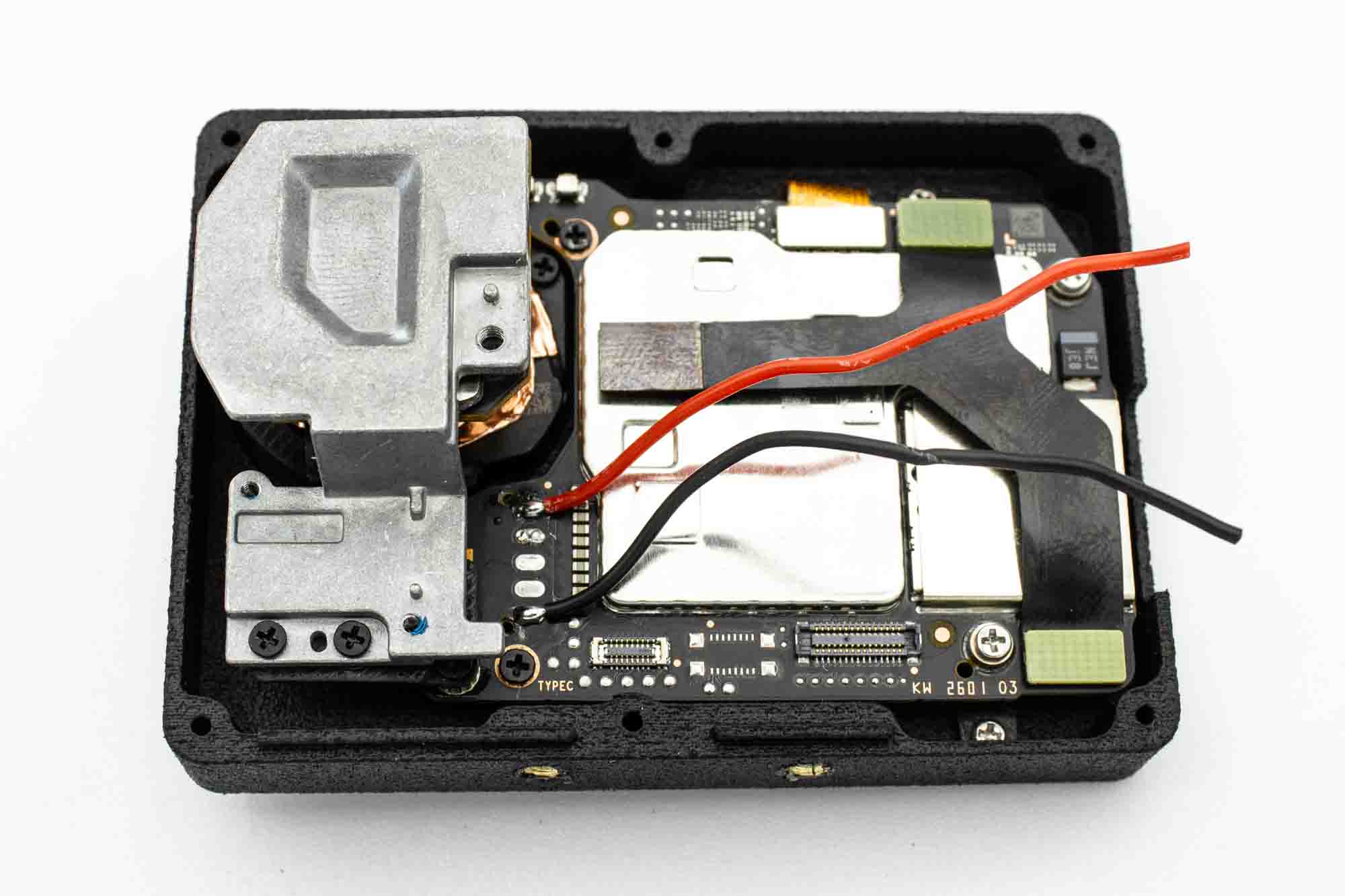
- Attach the BEC ribbon cable like shown.
- Make sure to align the connectors properly before applying pressure as a wrong alignment may damage the connectors.
Step - Attach Back Display Cable
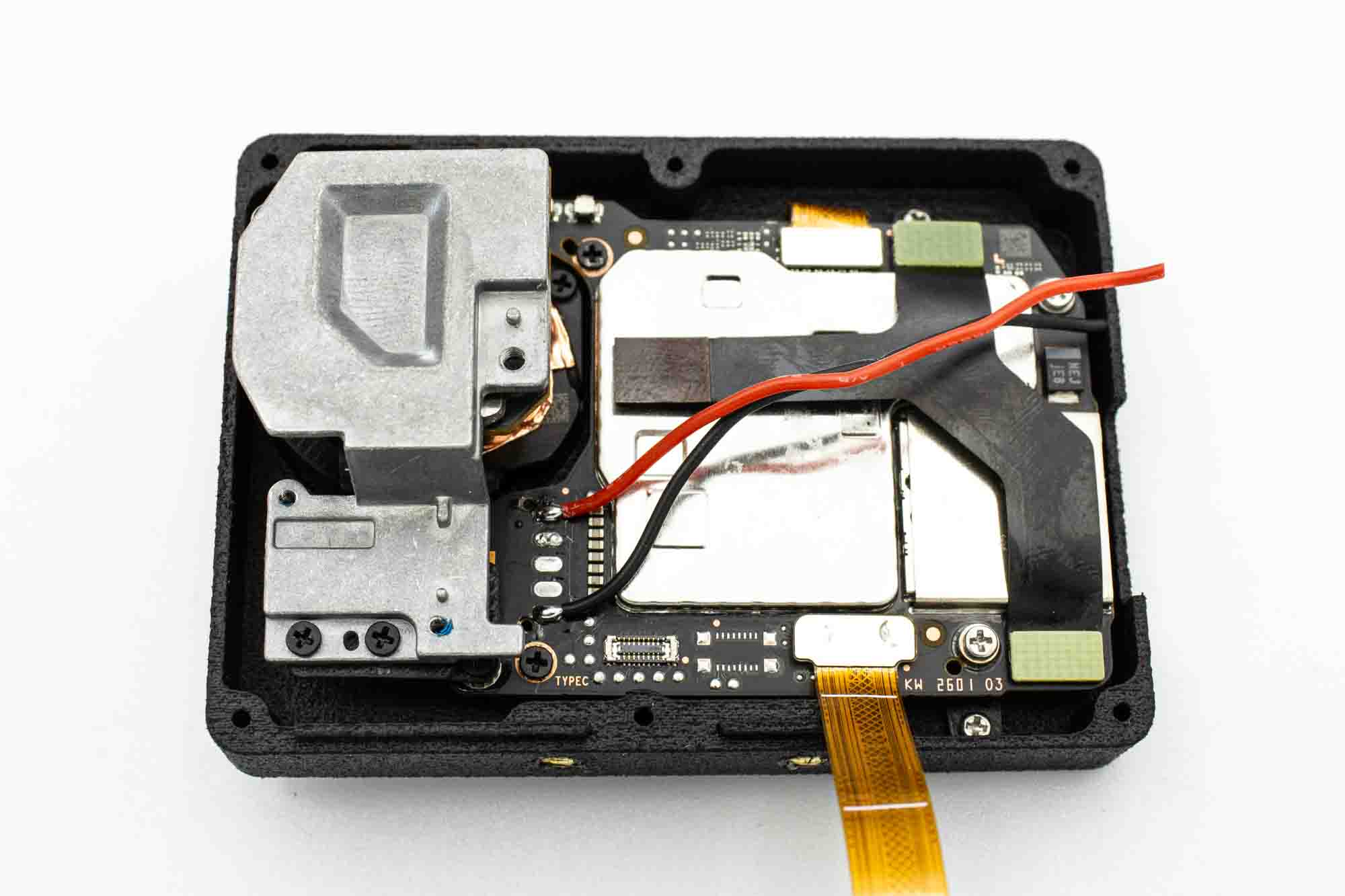
- Attach the back display cable like shown.
- Make sure to align the connector properly before applying pressure as a wrong alignment may damage the connector.
Step - Secure Ribbon Cable Connectors
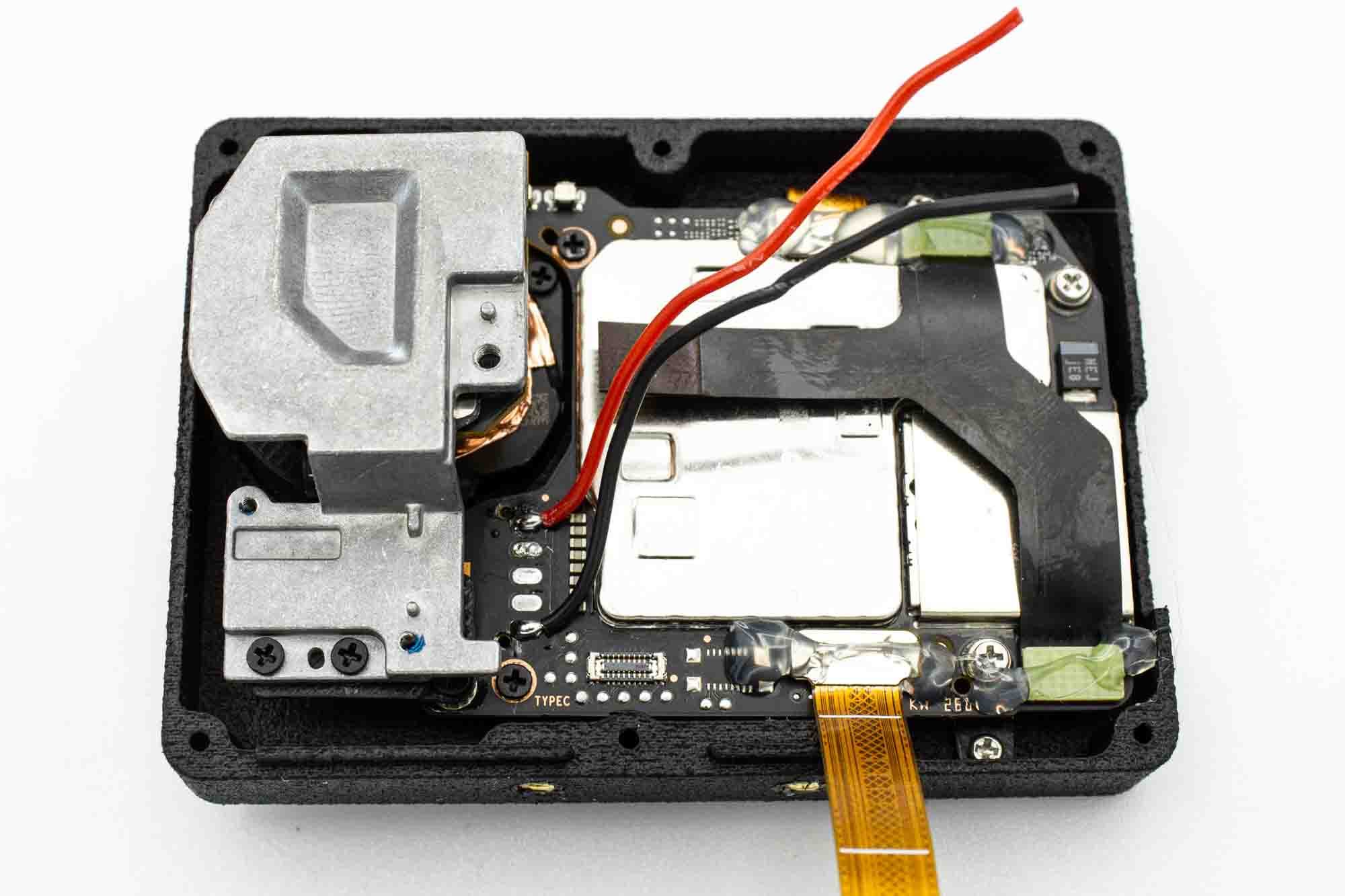
- Use a little dab of hot glue to secure the connectors in place and protect them from popping off.
Step - Fold Back Display Cable
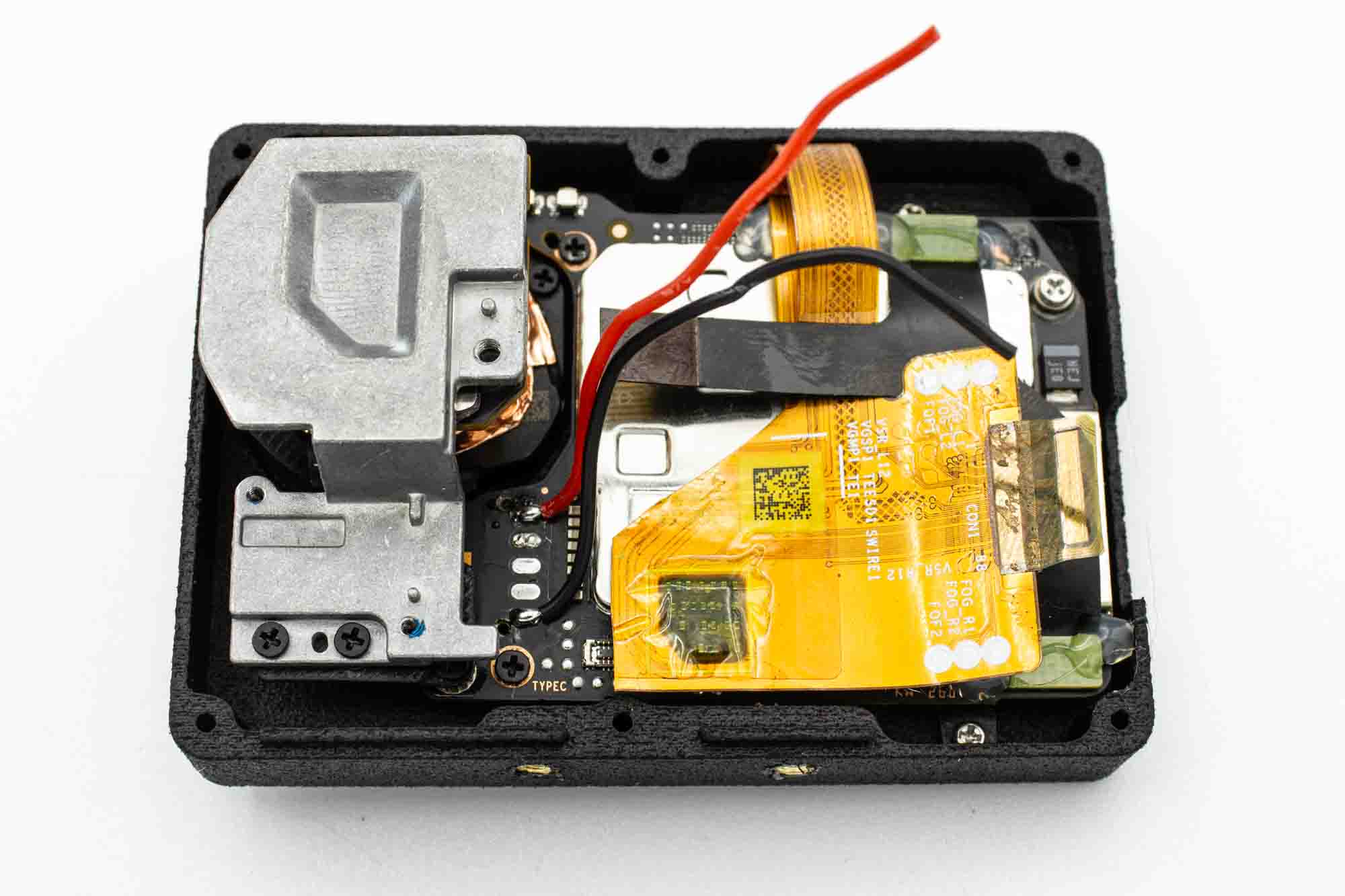
- Fold the back display cable like shown.
Step - Prepare Fan
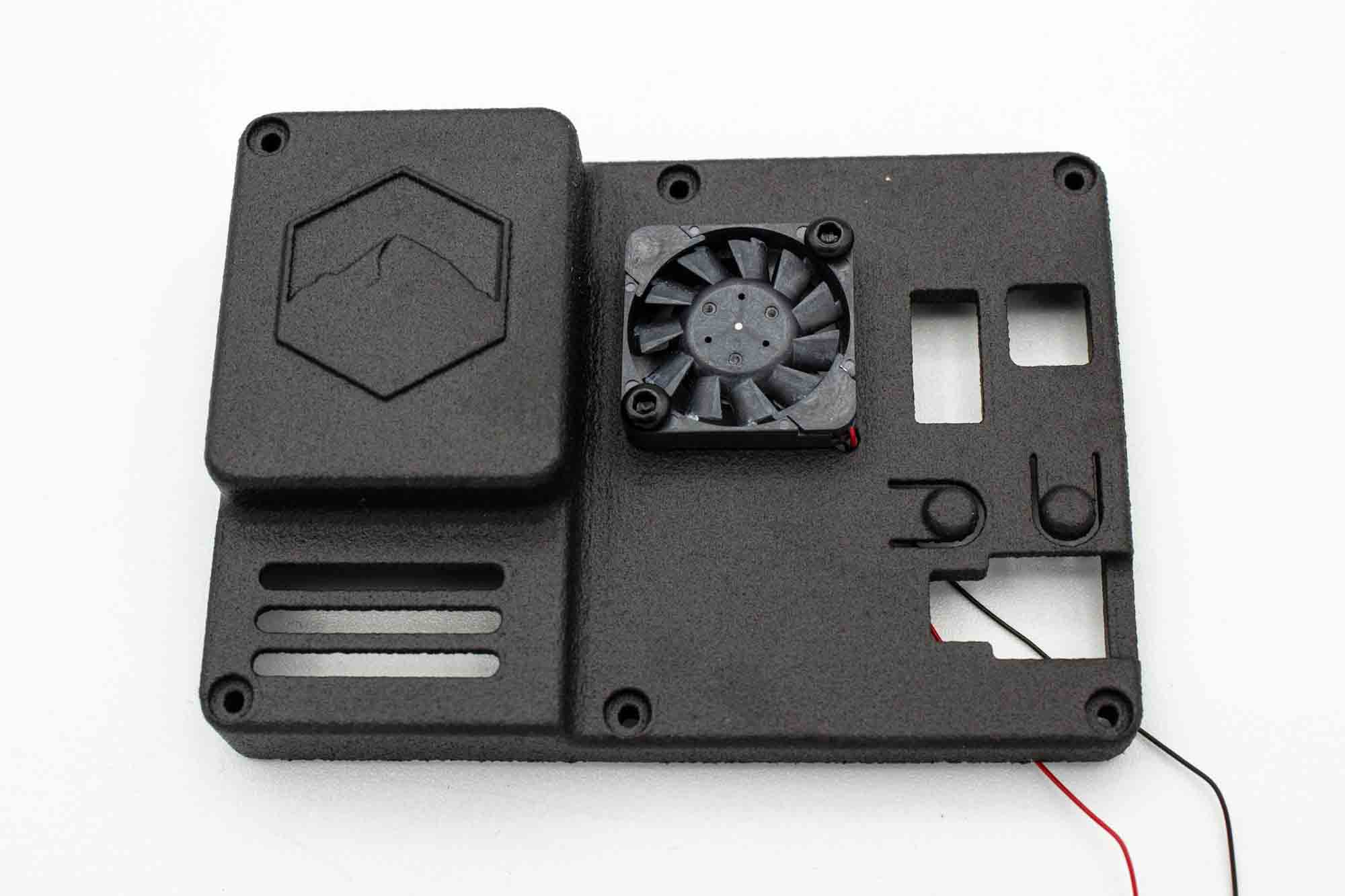
- Grab the back case.
- Feed the fan wires trough the fan opening.
- Secure the fan with 2x M2x5mm screws.
- Make sure to get the fan orientation right.
Step - Prepare BEC
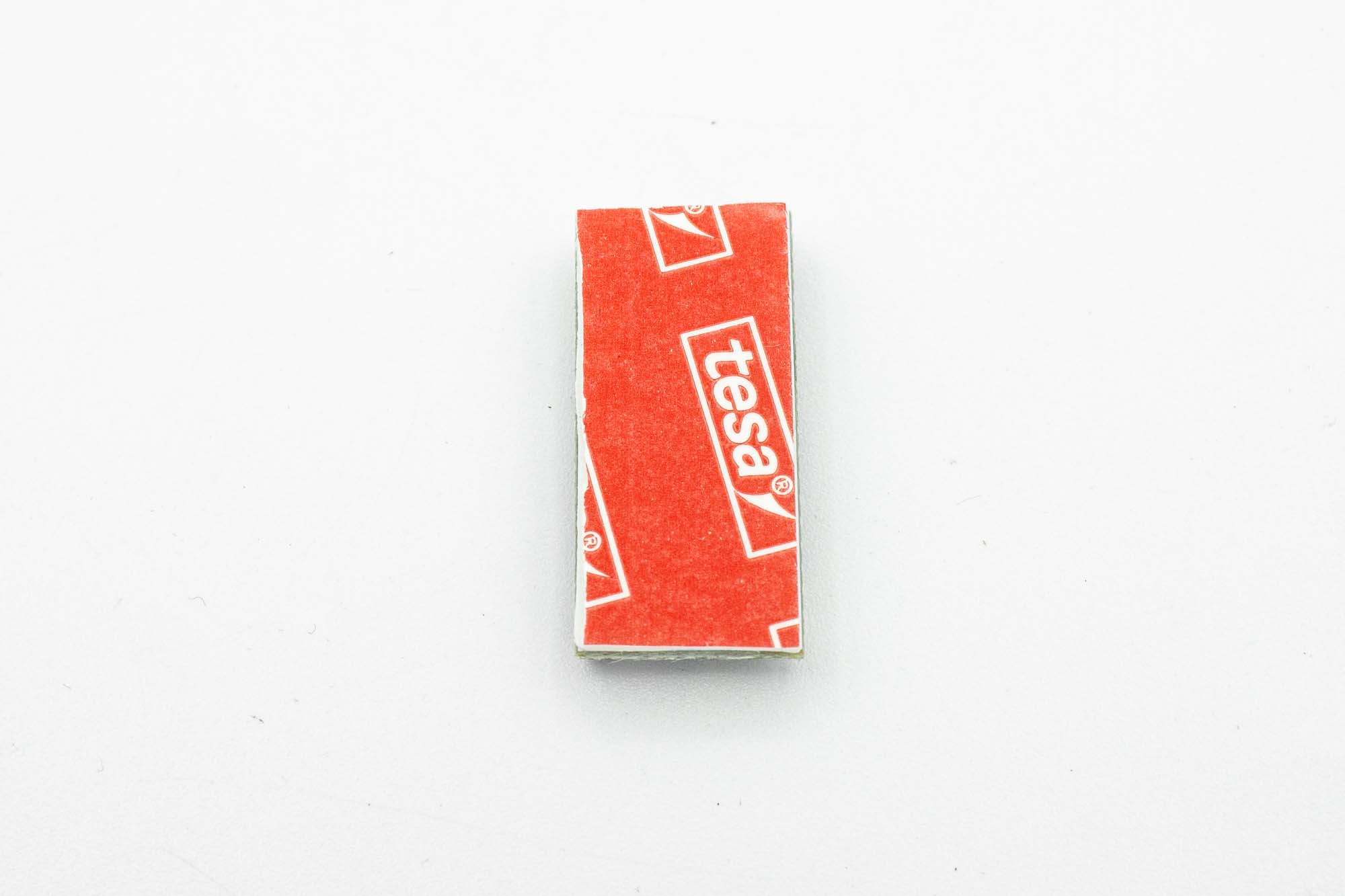
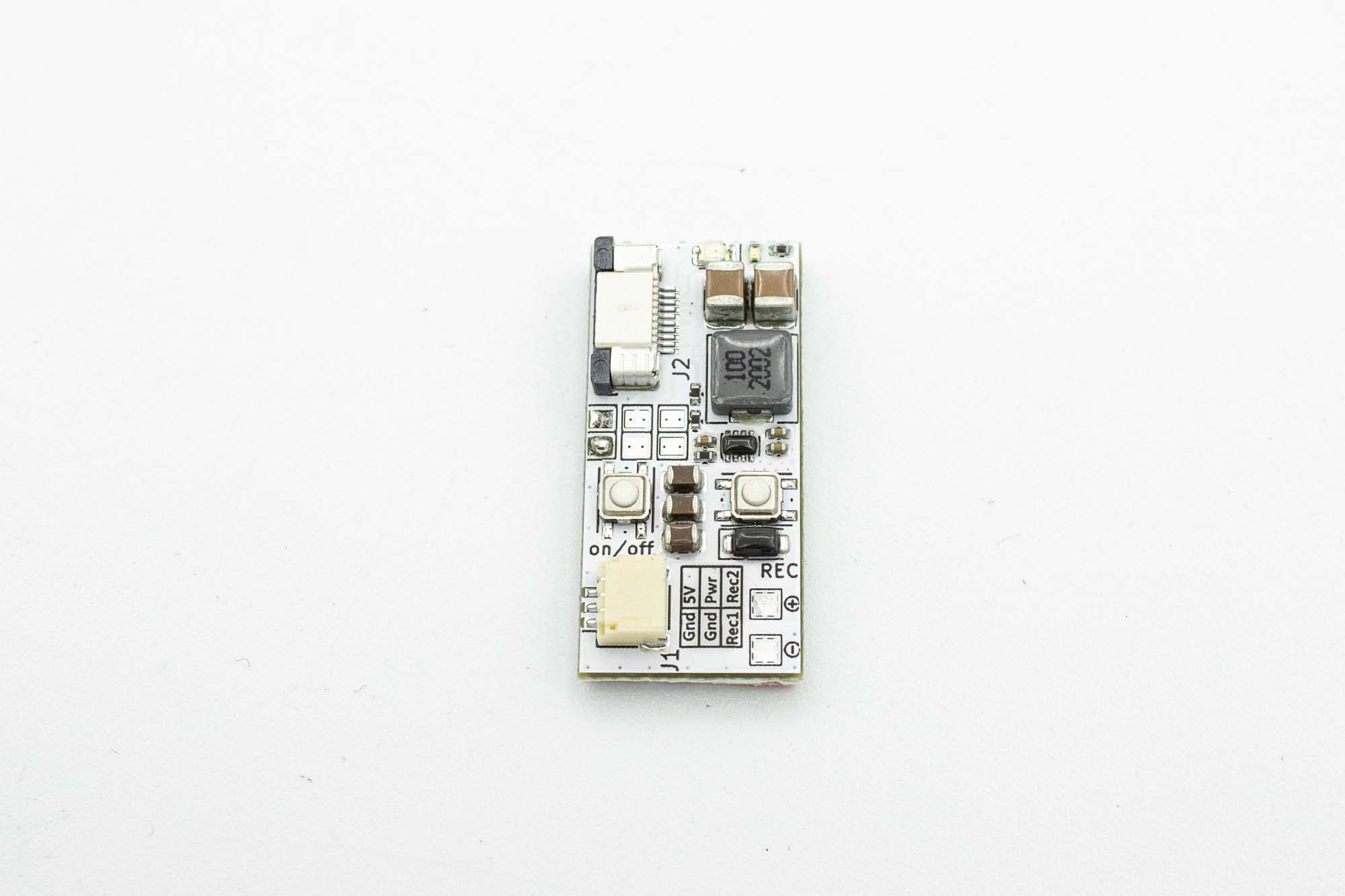
- Add some foam double sided tape to the backside of the BEC
Step - Prepare Cables
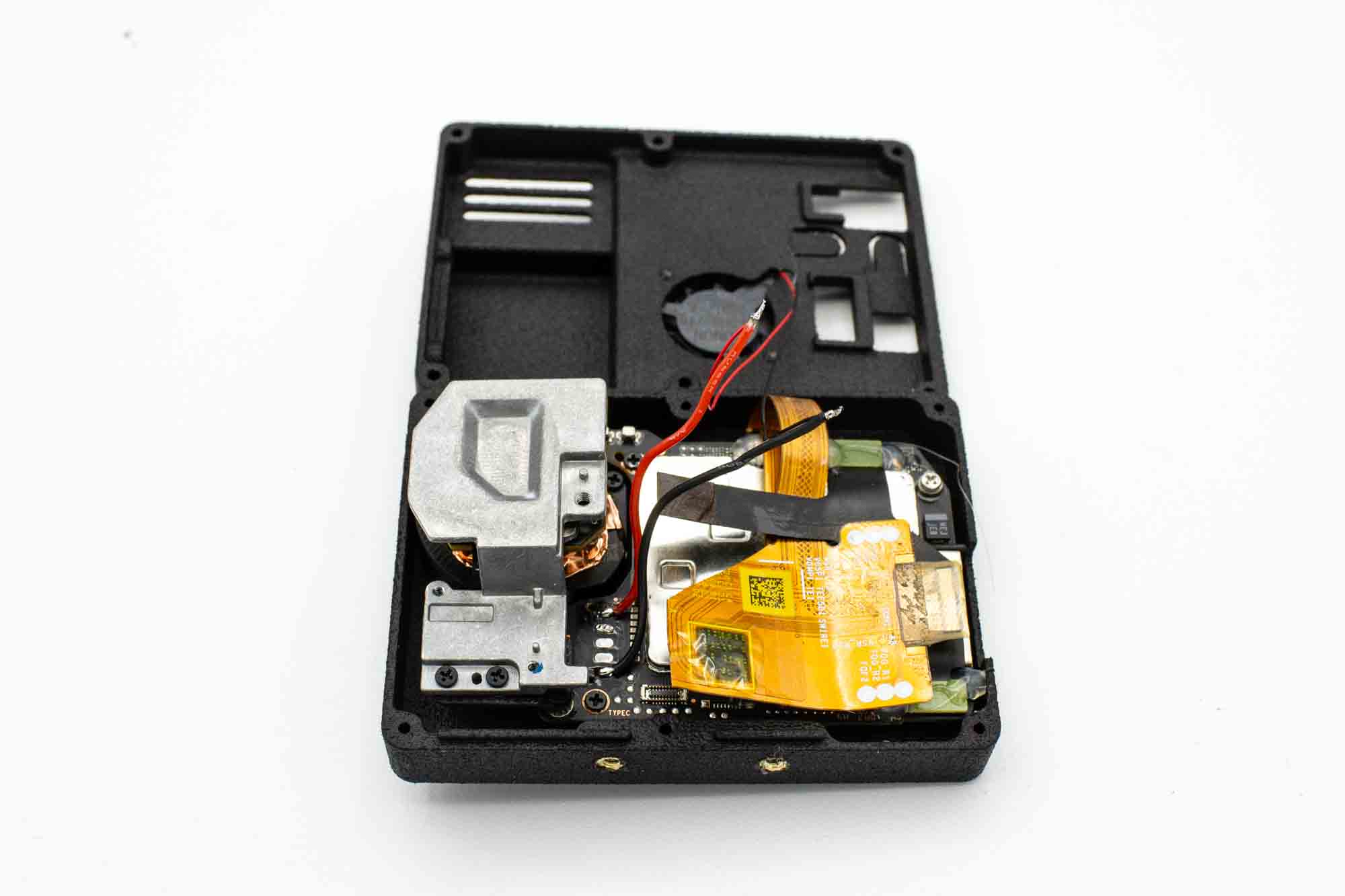
- Solder the fan cables and the mainboard power cables together.
Step - Solder BEC
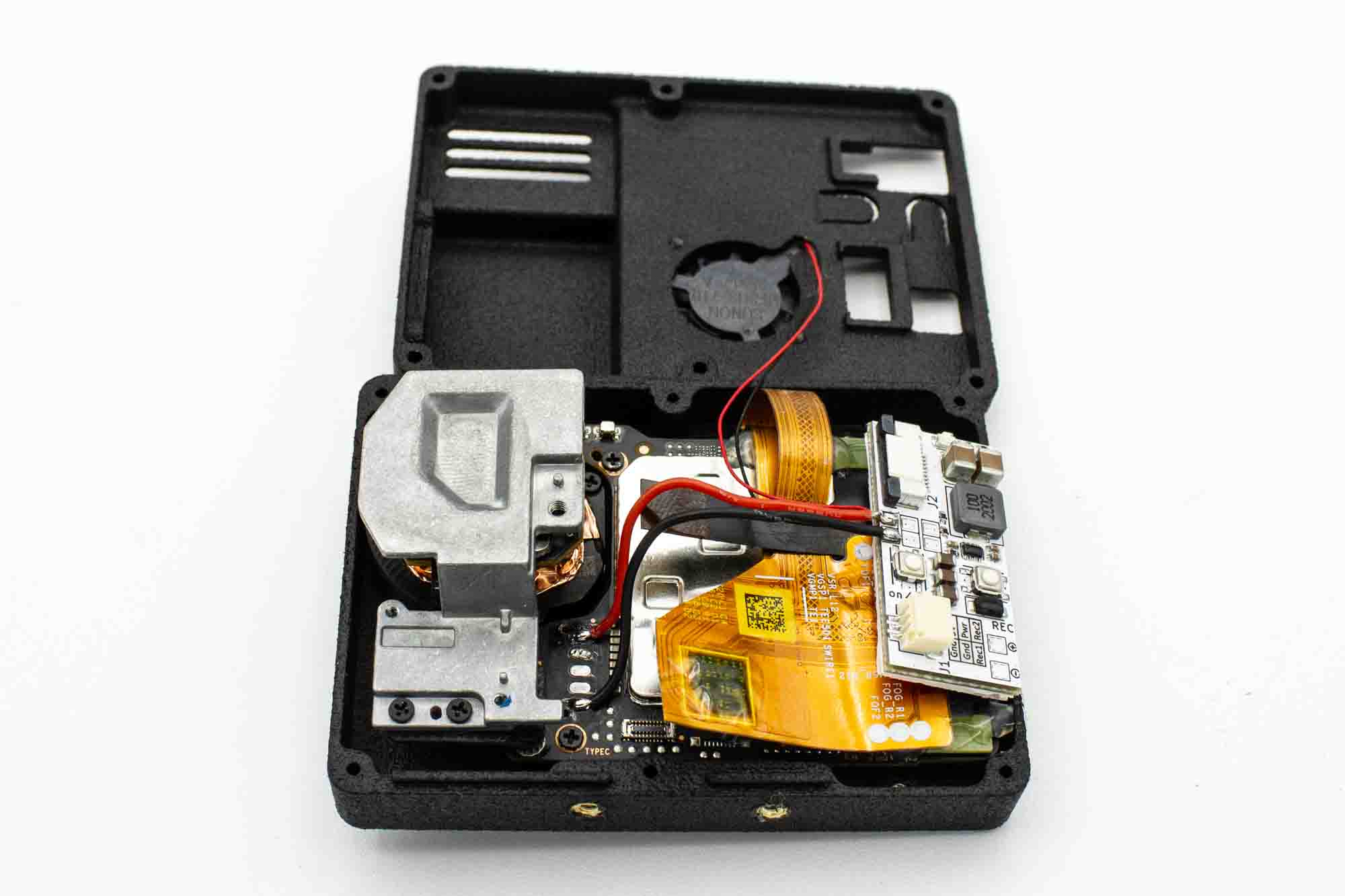
- Solder the two cables to the BEC.
- Make sure to get the polarity right.
Step - Connect Ribbon Cable to BEC
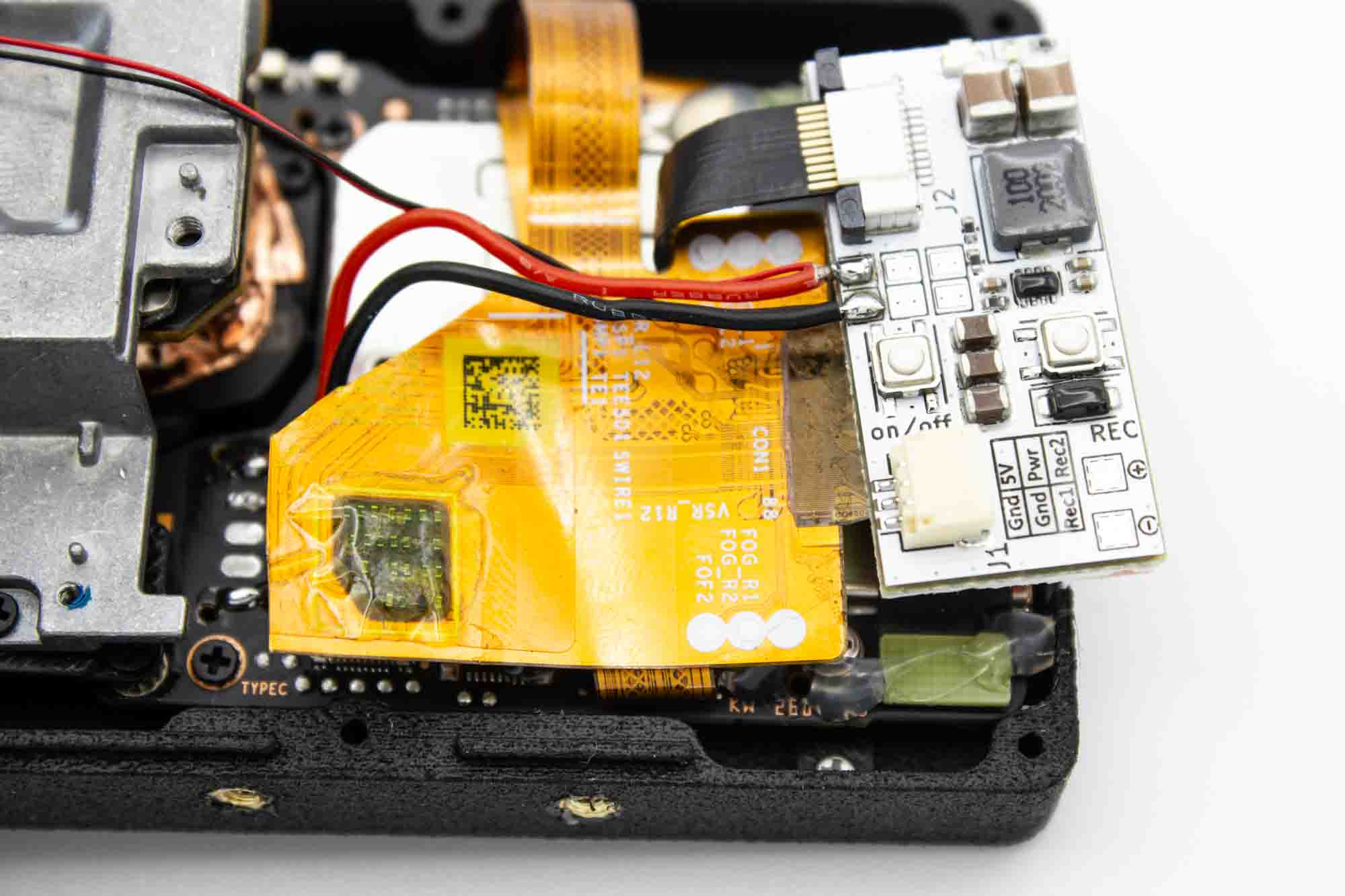
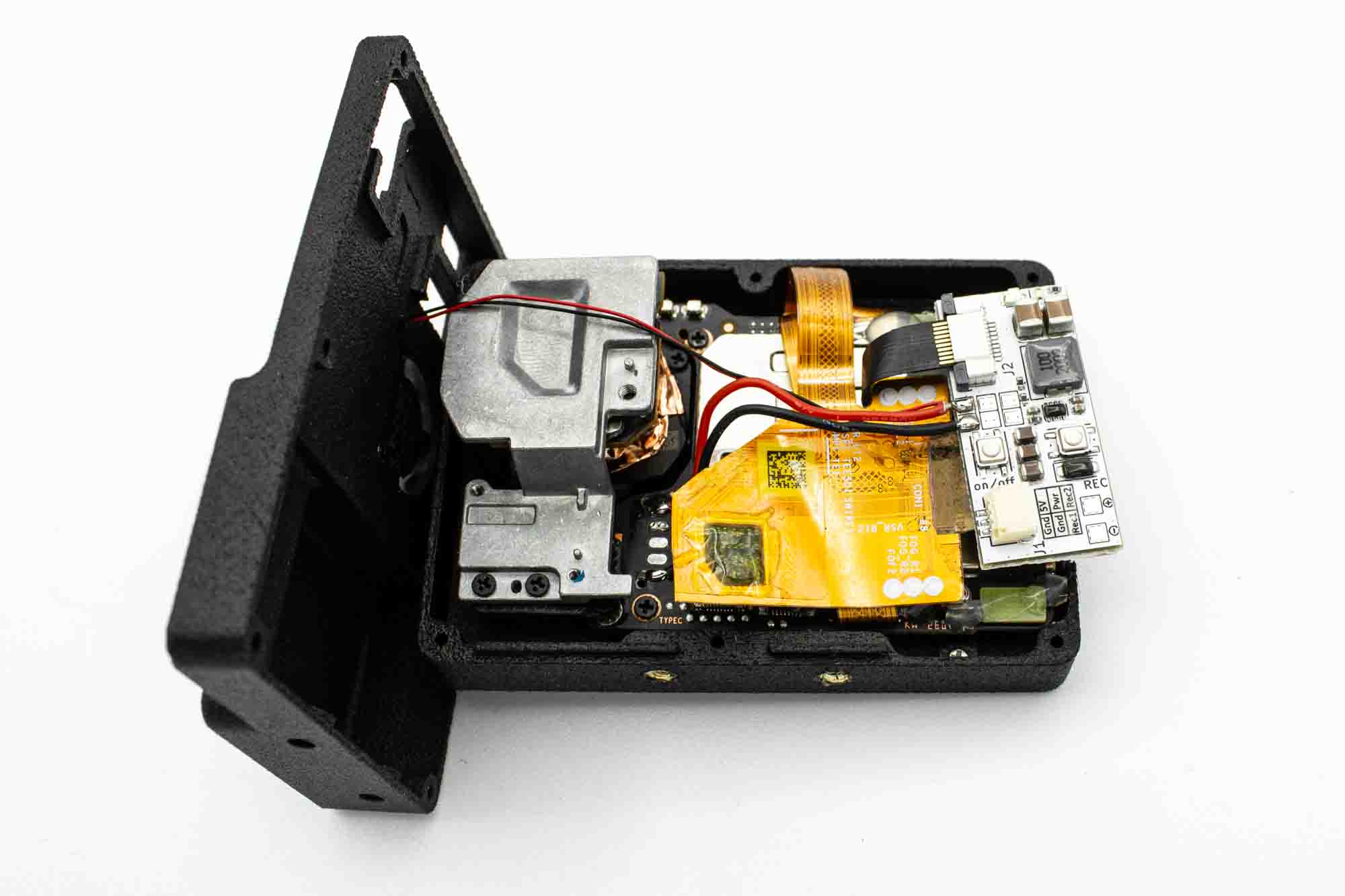
- Plug in the BEC ribbon cable like shown. You need to open the connector first by pulling softly on the two plastic locking pins. After you inserted the cable, lock them again by gently pushing them in at the same time. Make sure the cable stays straight.
Step - Close the Case
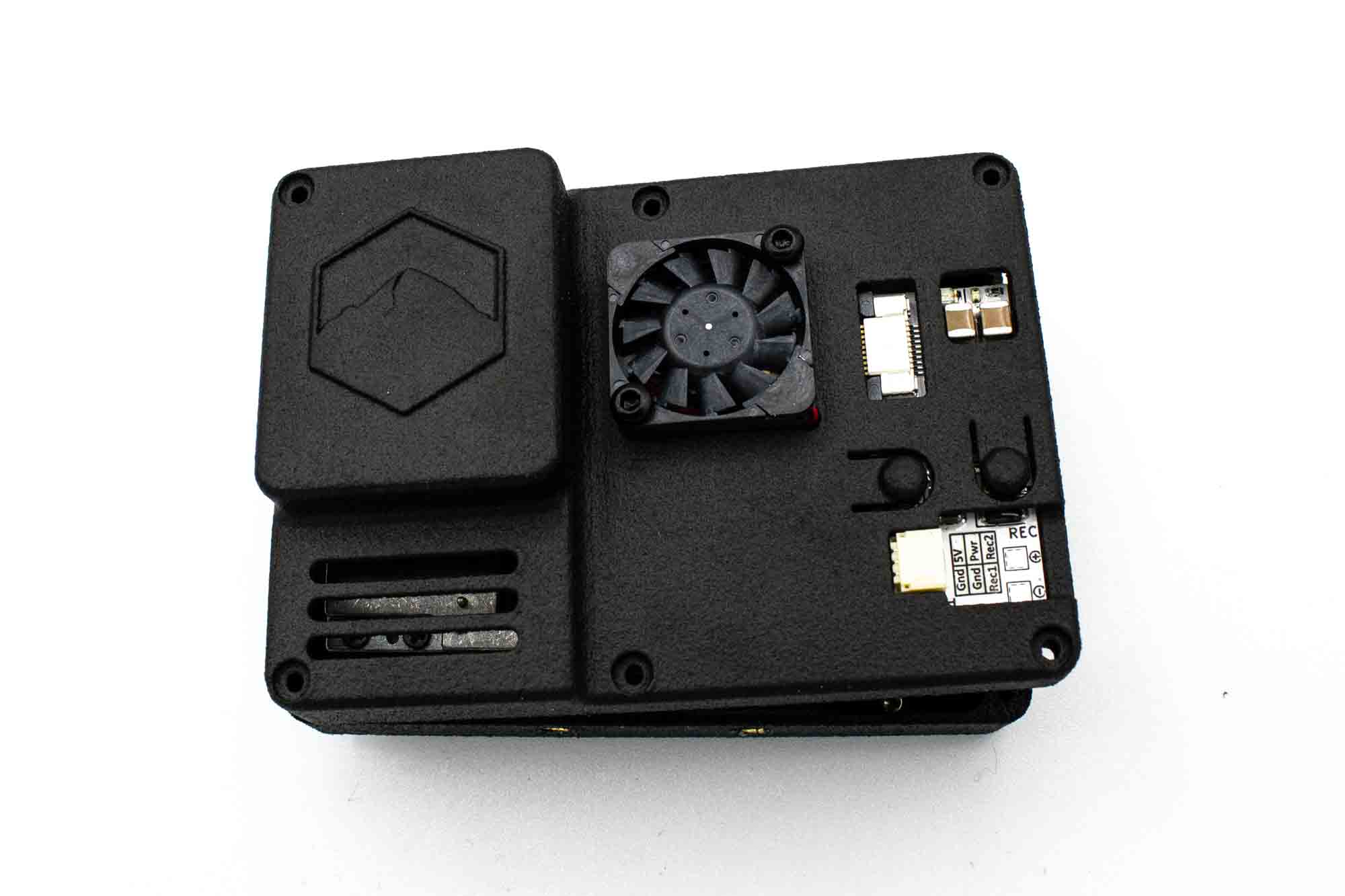
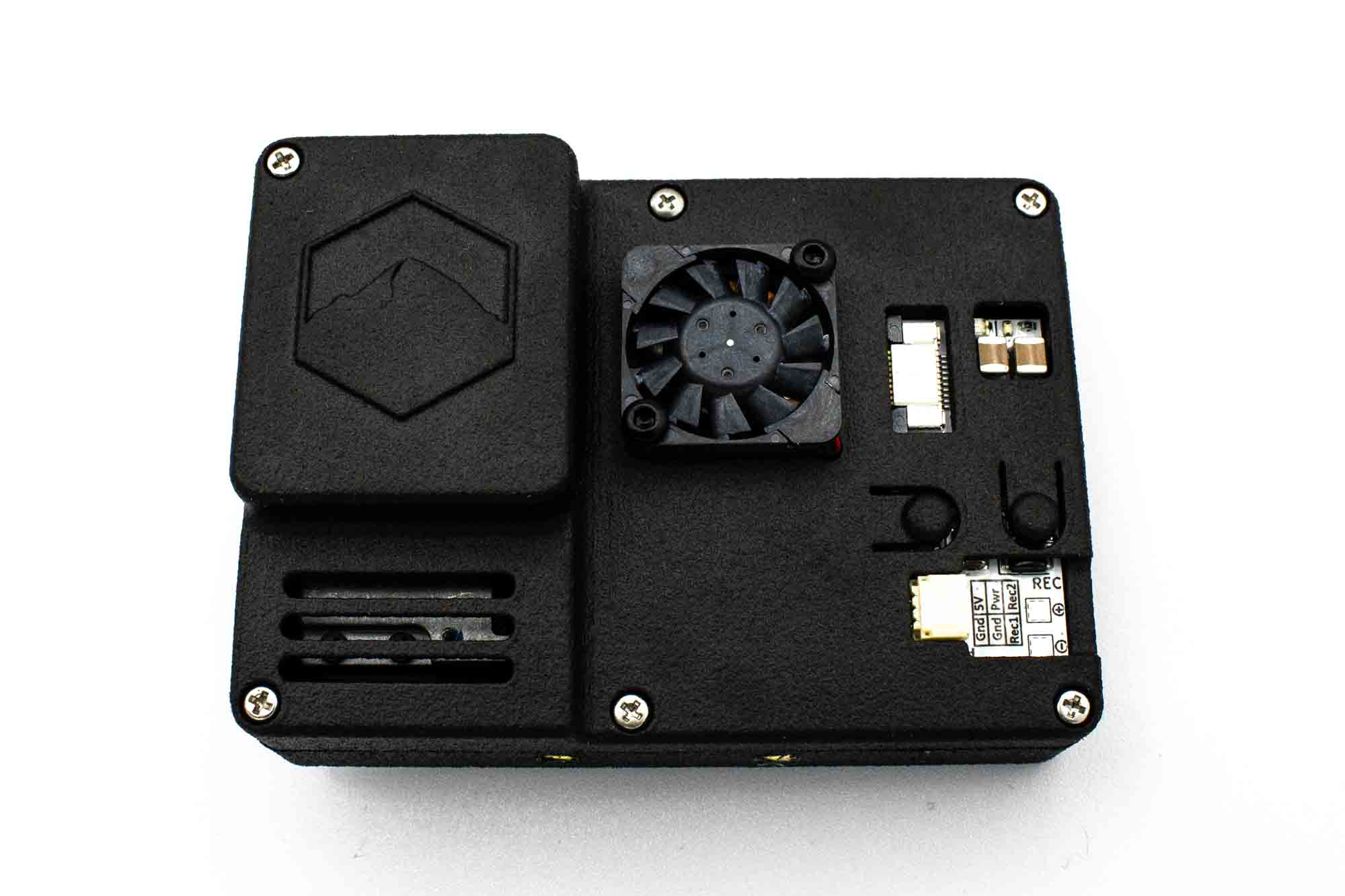
- Place the BEC into the cutout for the BEC on the backcover.
- Add the six screws to the backcover. M1.6x8mm for the middle and right, M1.6x12mm for bottom left and M1.6x16mm for top right corner.
- Screw in the screws to the frontcover, make sure not to overtighten them.
Step - Final Camera
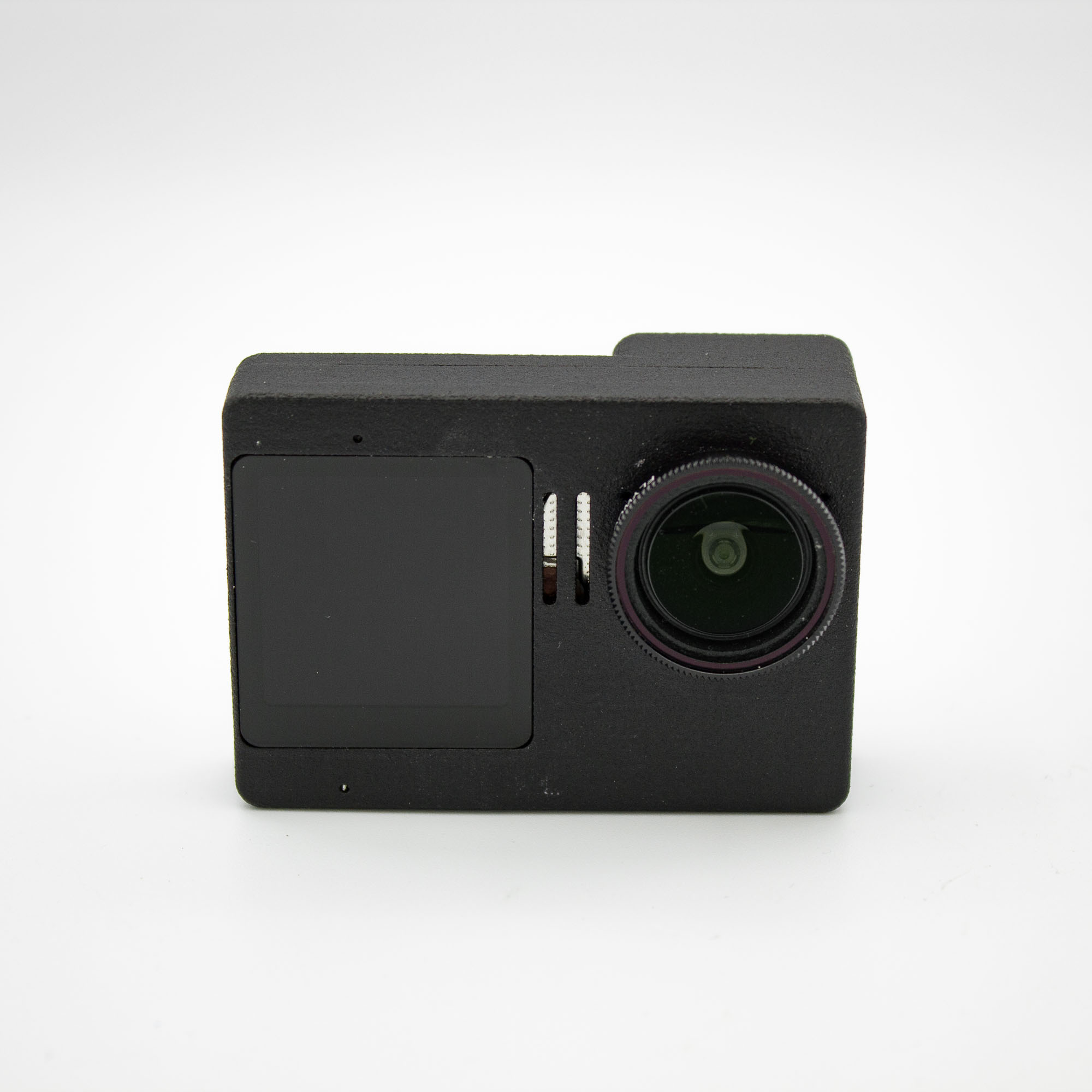
- Add a ND Filter to protect the camera lens
Gyroflow Fix
With the V2 version that uses the original lens bracket this foam hack is not needed anymore
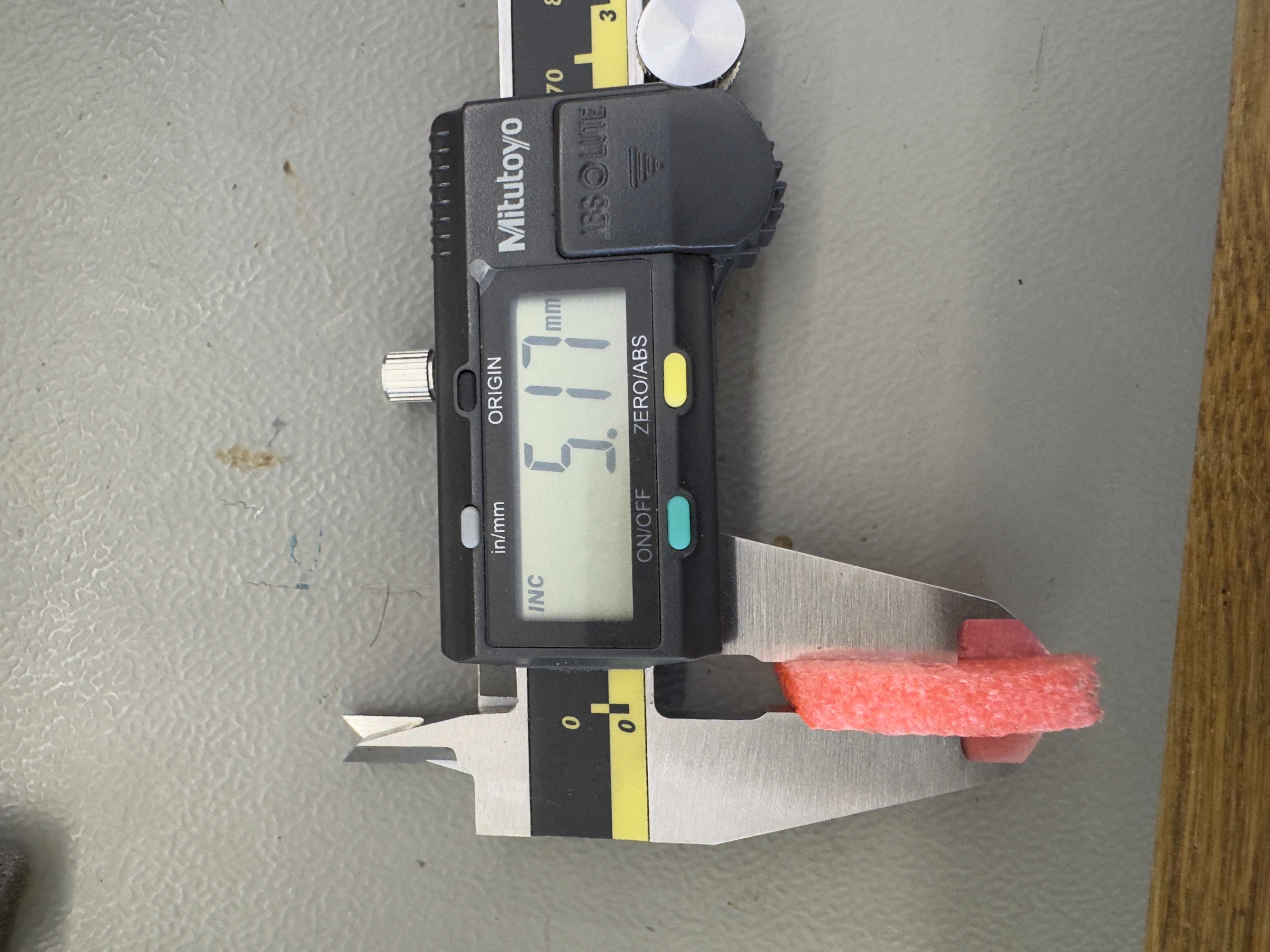
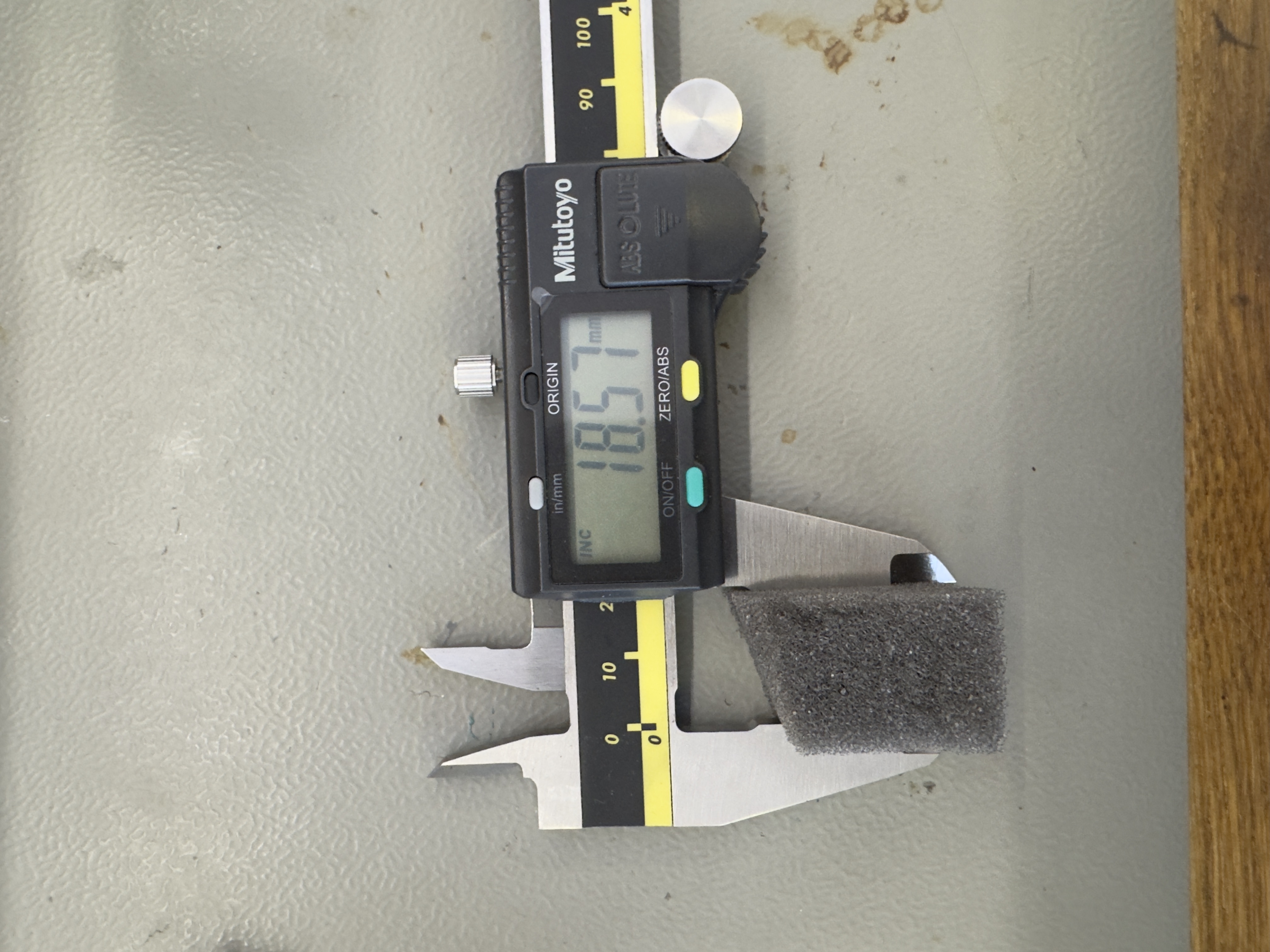
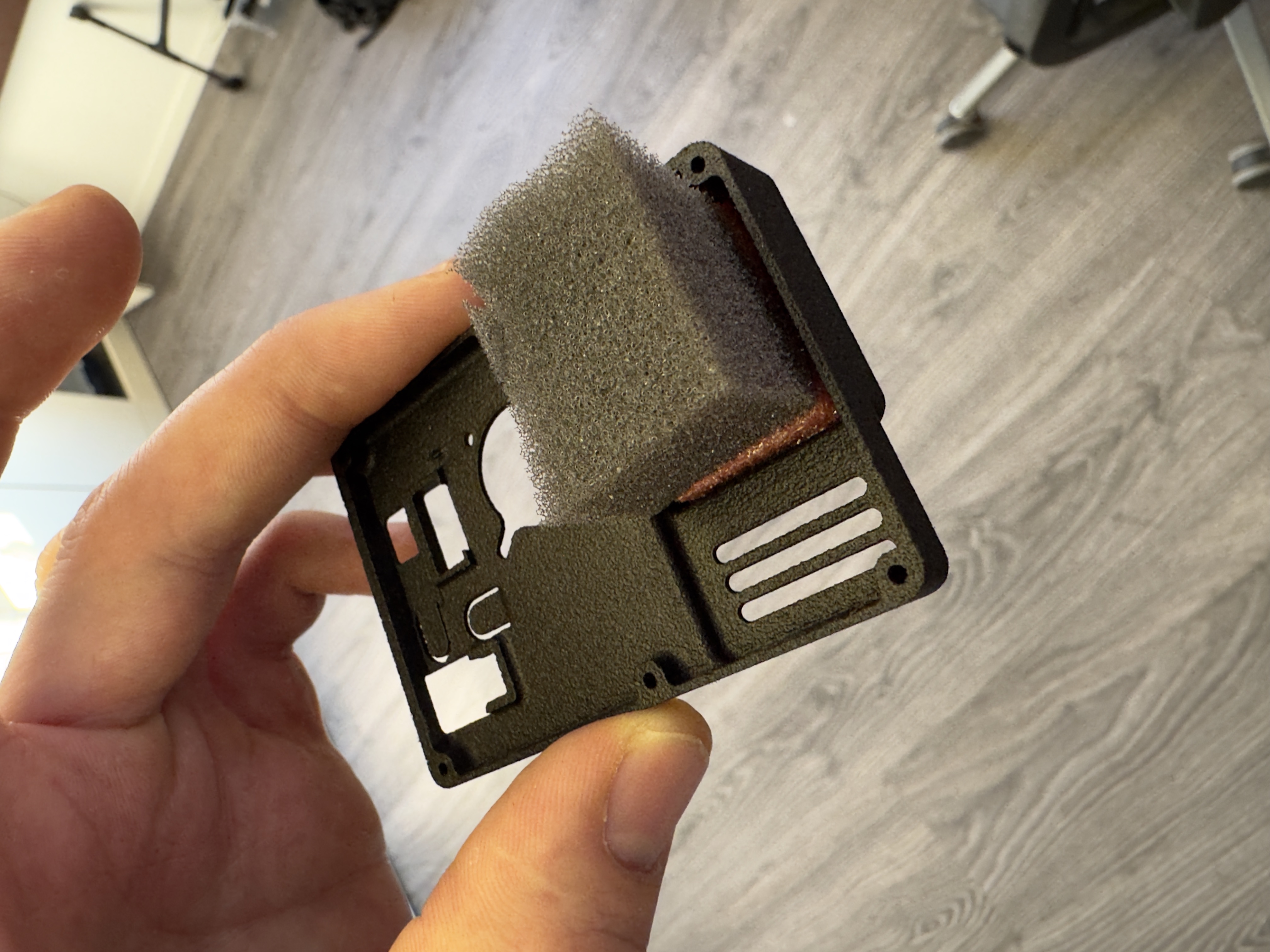
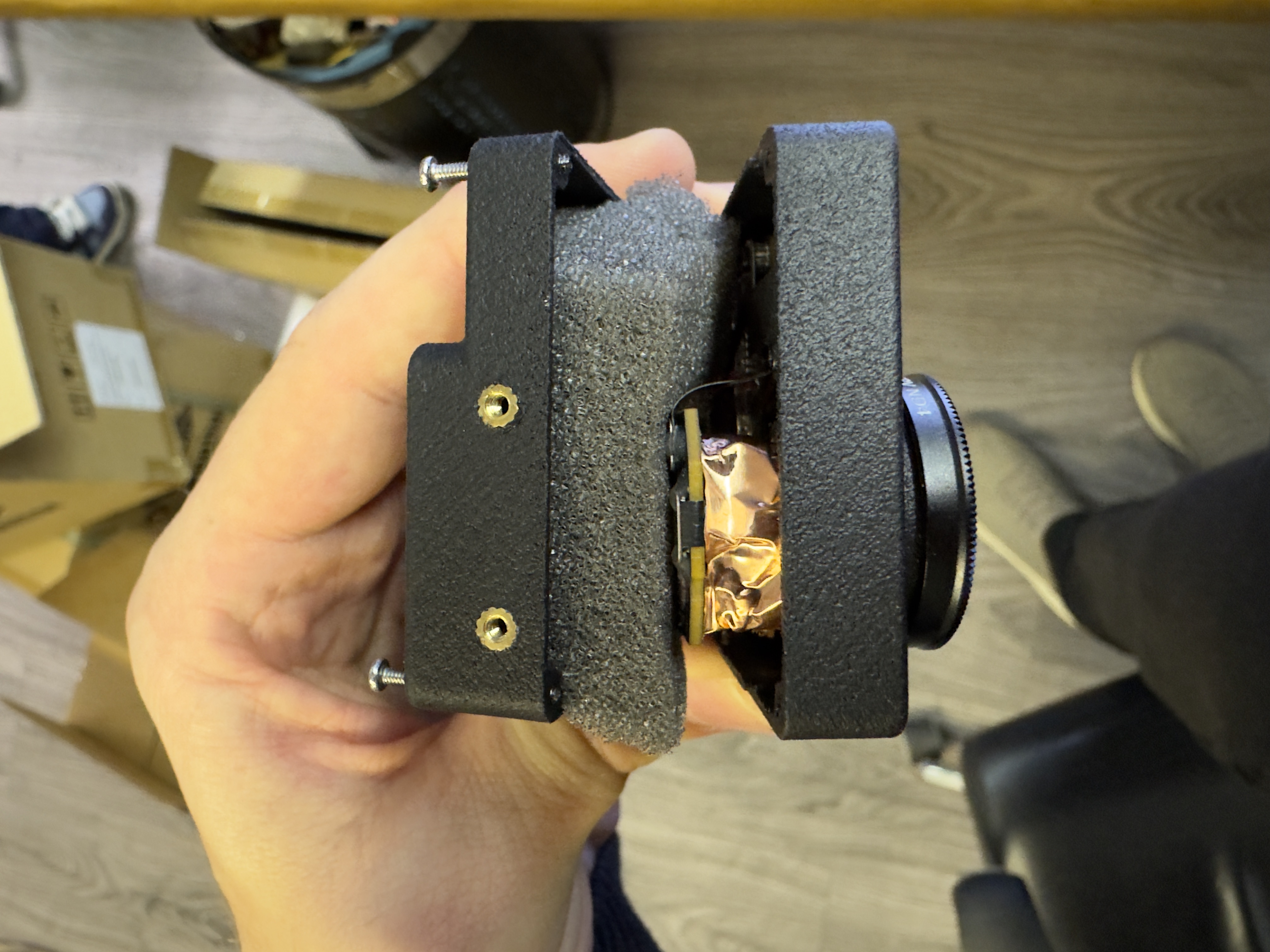
In its naked configuration, the DJI Action 6 camera may exhibit stabilization artifacts after processing footage with Gyroflow. These issues are caused by slight movement of the sensor PCB and its onboard gyro. To resolve this, place a piece of foam between the rear cover and the sensor PCB. The foam must apply firm pressure to securely fix the sensor assembly. Correct pressure is achieved when the rear cover needs to be pressed onto the camera by hand before inserting the screws.
When installed correctly, this fix prevents micro-movement of the sensor and results in smooth, reliable video output, significantly improving stabilization performance when using Gyroflow or RockSteady.
Our recommendation for Gyroflow settings are:
- Low pass filter: 50hz
- Disable rolling shutter correction

BEC Power Pinout


Change settings on back screen
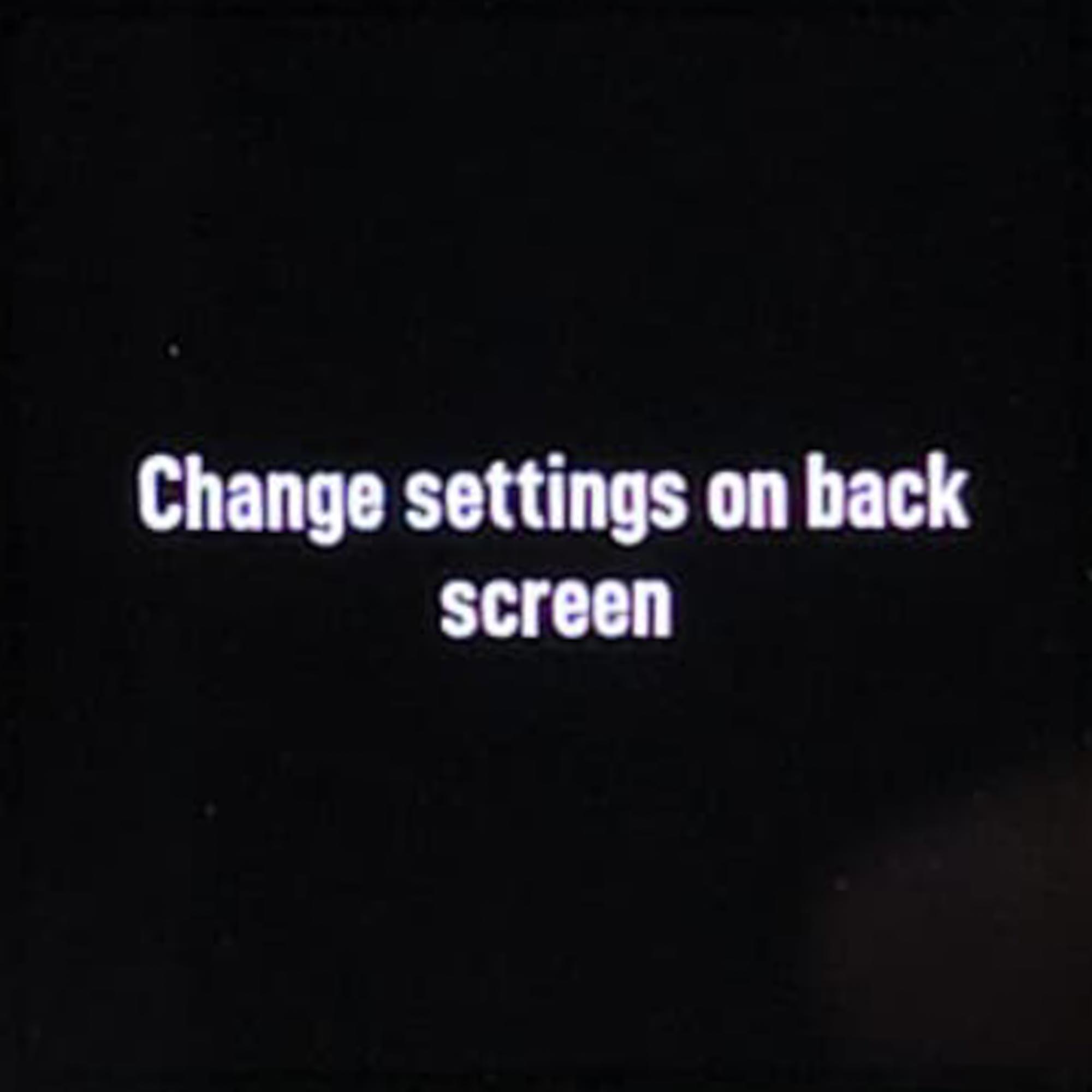
If you see this message you can either press the REC button once or connect your camera to the DJI Mimo App to get rid of this message.